> ## Documentation Index
> Fetch the complete documentation index at: https://help.memoryplugin.com/llms.txt
> Use this file to discover all available pages before exploring further.

# Ask

> Query your chat history, memories, and files from one interface

export const ArticleInfo = ({author, lastUpdated}) => {
  const authorAvatar = author === 'Alara' ? '/images/author-alara.jpg' : author === 'asad' ? '/images/author-alara.jpg' : null;
  const formatDate = dateInput => {
    if (!dateInput) return '';
    if (typeof dateInput === 'string' && !dateInput.match(/^\d{4}-\d{2}-\d{2}/)) {
      return dateInput;
    }
    try {
      const date = new Date(dateInput);
      const now = new Date();
      const diffTime = Math.abs(now - date);
      const diffDays = Math.floor(diffTime / (1000 * 60 * 60 * 24));
      if (diffDays === 0) return 'today';
      if (diffDays === 1) return '1 day ago';
      if (diffDays < 7) return `${diffDays} days ago`;
      if (diffDays < 30) return `${Math.ceil(diffDays / 7)} week${Math.ceil(diffDays / 7) > 1 ? 's' : ''} ago`;
      if (diffDays < 365) return `${Math.ceil(diffDays / 30)} month${Math.ceil(diffDays / 30) > 1 ? 's' : ''} ago`;
      return `${Math.ceil(diffDays / 365)} year${Math.ceil(diffDays / 365) > 1 ? 's' : ''} ago`;
    } catch {
      return dateInput;
    }
  };
  return <div style={{
    display: "flex",
    alignItems: "center",
    gap: "8px",
    marginBottom: "16px",
    padding: "8px 12px",
    backgroundColor: "var(--ifm-color-emphasis-100)",
    borderRadius: "6px",
    fontSize: "14px",
    color: "var(--ifm-color-content-secondary)",
    border: "1px solid var(--ifm-color-emphasis-200)",
    opacity: "0.8"
  }}>
      <div style={{
    width: "40px",
    height: "40px",
    borderRadius: "50%",
    background: authorAvatar || "linear-gradient(45deg, #4F46E5, #7C3AED)",
    display: "flex",
    alignItems: "center",
    justifyContent: "center",
    color: "white",
    fontWeight: "bold",
    fontSize: "18px"
  }}>
        {authorAvatar ? <img src={authorAvatar} alt={author} style={{
    width: "100%",
    height: "100%",
    borderRadius: "50%"
  }} /> : author?.[0]?.toUpperCase()}
      </div>
      <div>
        <div style={{
    fontWeight: "400",
    fontSize: "14px"
  }}>Written by <span style={{
    fontWeight: "600"
  }}>{author}</span></div>
        <div style={{
    fontSize: "14px"
  }}>Last updated <span style={{
    fontWeight: "600"
  }}>{formatDate(lastUpdated)}</span></div>
      </div>
    </div>;
};

<ArticleInfo author="Alara" lastUpdated="2026-07-04" />

You know you worked out the deployment plan with an AI a few weeks back, but which chat was it in? And did that detail end up in a memory or a file? Ask is the one tool in the dashboard that answers natural-language questions about everything you have stored in MemoryPlugin. You type a question, it searches the source you point it at, and it writes back an answer with links to the originals so you can check its work.

<Note>
  Ask is a single interface with three modes. It is not the same as the **Ask** entry inside the Chat History section, which only ever searches your imported chats. This page covers the unified Ask tool, which can switch between chat history, memories, and files in one place. Open it from the sidebar or press **⇧⌘O / Shift+Ctrl+O**.
</Note>

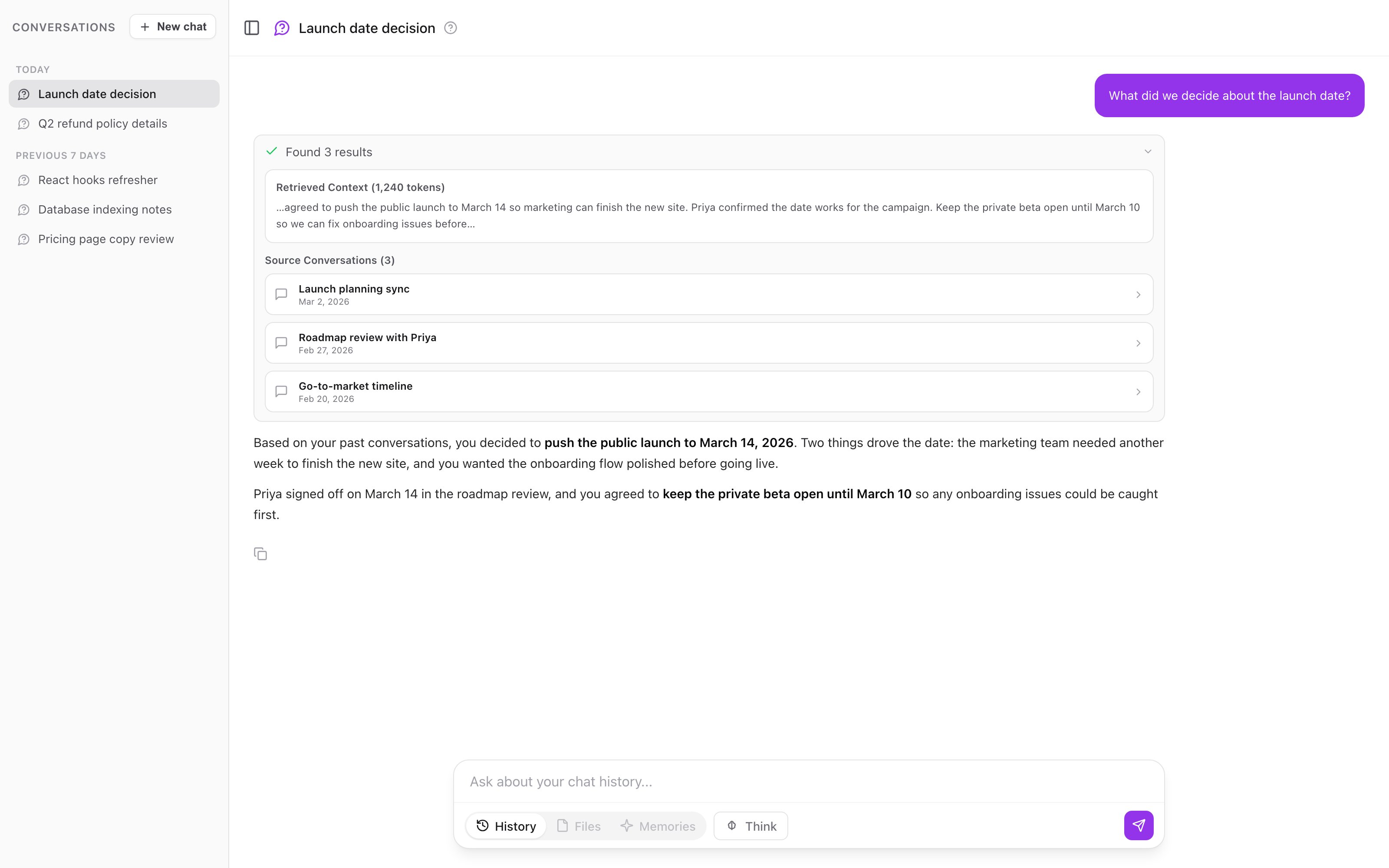
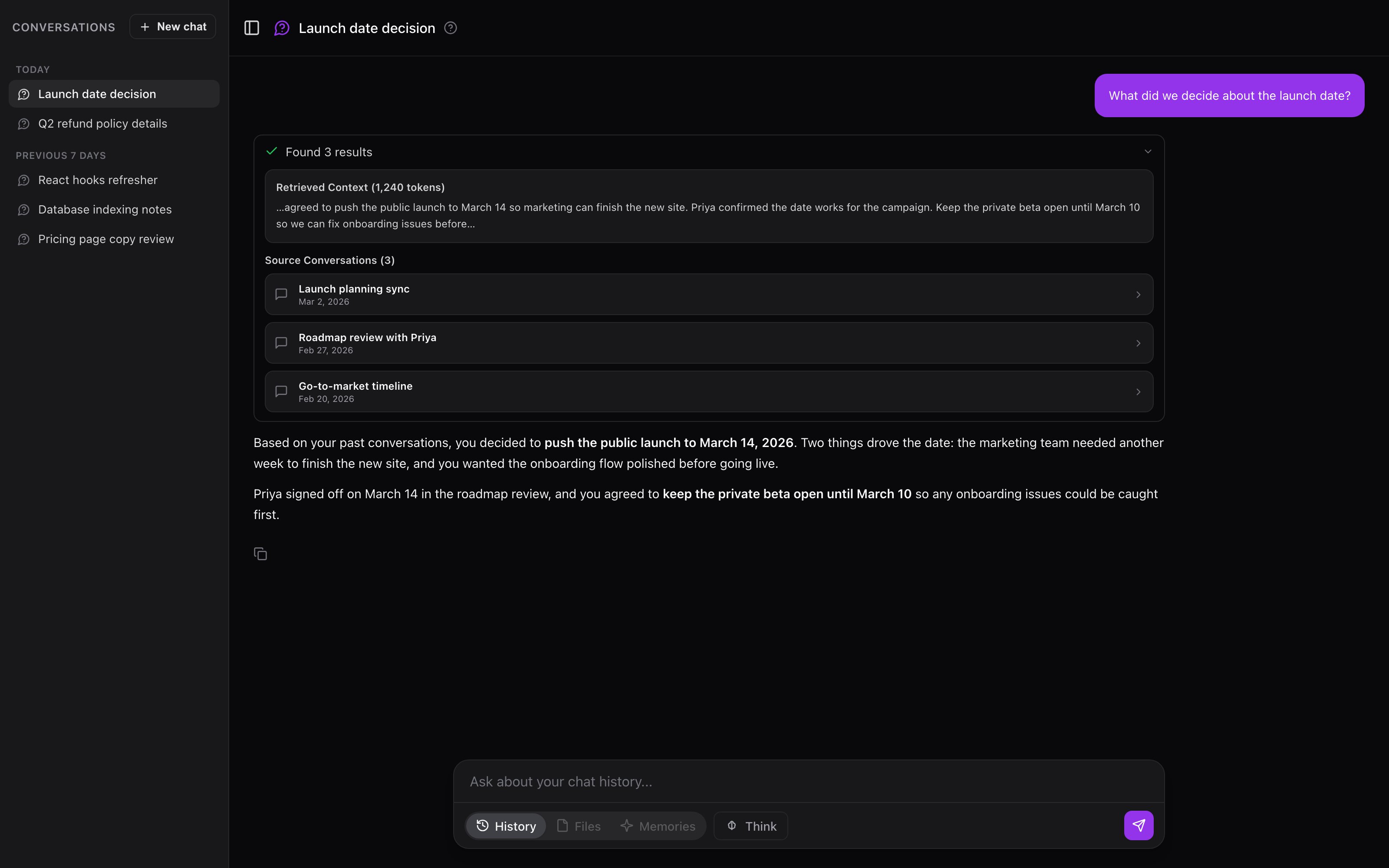
<Frame caption="Ask in history mode: a question answered from your past conversations, with clickable source chips.">
  <img className="block dark:hidden" src="https://mintcdn.com/memoryplugin/9o9T_0PzzkacB3w3/images/screenshots/tools/ask-interface.png?fit=max&auto=format&n=9o9T_0PzzkacB3w3&q=85&s=66bad21b99715f5c43f26a9db893134f" alt="The Ask interface with History, Files, and Memories mode pills, a question about the launch date, and a streamed answer citing three source conversations" width="3200" height="2000" data-path="images/screenshots/tools/ask-interface.png" />

  <img className="hidden dark:block" src="https://mintcdn.com/memoryplugin/9o9T_0PzzkacB3w3/images/screenshots/tools/ask-interface-dark.png?fit=max&auto=format&n=9o9T_0PzzkacB3w3&q=85&s=2ff05884ffd26e41434ebd01600eb4d2" alt="The Ask interface with History, Files, and Memories mode pills, a question about the launch date, and a streamed answer citing three source conversations" width="3200" height="2000" data-path="images/screenshots/tools/ask-interface-dark.png" />
</Frame>

## The three modes

A pill toggle at the bottom of the composer switches Ask between three sources:

| Mode         | Searches                                  | Use it to                                                                   |
| ------------ | ----------------------------------------- | --------------------------------------------------------------------------- |
| **History**  | Your imported and synced AI conversations | Find past decisions, project context, or how you discussed something before |
| **Files**    | Documents in your file buckets            | Pull answers out of PDFs, Word docs, Markdown, and text files               |
| **Memories** | Memories in your memory buckets           | Recall preferences, facts, and notes you have saved                         |

The pills read **History**, **Files**, and **Memories**. Once a conversation has messages, its mode locks. To search a different source, start a new conversation.

## Using Ask

<Steps>
  <Step title="Open Ask">
    Click **Ask** in the sidebar, or press **⇧⌘O** (Mac) / **Shift+Ctrl+O** (Windows/Linux).
  </Step>

  <Step title="Pick a mode">
    Choose **History**, **Files**, or **Memories** from the pill toggle.
  </Step>

  <Step title="Narrow to a bucket (Files and Memories only)">
    In Files and Memories mode a dropdown lets you scope the search. Leave it on **All files** or **All memories** to search everything, or pick one bucket for focused results.
  </Step>

  <Step title="Ask a question">
    Type a plain-language question, or click one of the example chips under **Try asking:**. Press Enter to send.
  </Step>

  <Step title="Read the answer and check the sources">
    The answer streams in. Every answer cites the chats, memories, or files it drew from. Click a source to open the original.
  </Step>
</Steps>

<video controls playsInline className="w-full aspect-video rounded-xl" src="https://mintcdn.com/memoryplugin/9o9T_0PzzkacB3w3/videos/ask-your-memory.mp4?fit=max&auto=format&n=9o9T_0PzzkacB3w3&q=85&s=9da9a872c883d131bf6ccfb38956e5a3" data-path="videos/ask-your-memory.mp4" />

The composer placeholder changes with the mode: **Ask about your chat history...**, **Ask about your files...**, or **Ask about your memories...**. A **Think** toggle turns on extended thinking for harder questions, at the cost of a slower answer.

## Which mode to pick

* **History** when the answer lives in a past conversation: a decision you talked through, advice you got, a thread you half-remember.
* **Files** when the answer is in a document you uploaded: a spec, a paper, a contract.
* **Memories** when you saved the fact yourself: a preference, a goal, a note.

Ask does not search across modes at once. If you are not sure where something lives, start with the source you last put it in.

## Conversations are saved

Ask keeps each conversation in a sidebar and auto-generates a title after your first exchange, so you can return to a line of questioning instead of starting over. If the bucket or file collection behind a saved conversation is later deleted, the conversation becomes read-only: you can still read it, but you cannot send new messages.

## How it works

Ask reads your question, retrieves the passages that match it, and writes an answer grounded in those passages.

* **History mode** runs semantic search over your conversation archive and synthesizes an answer from the matching segments, with citations back to each chat.
* **Files mode** searches the chunks your uploaded documents were split into and answers from the matching passages, including file name and page or section.
* **Memories mode** loads context from the selected bucket. For buckets using [Smart Memory](/features/smart-memory), it loads category summaries and pulls specific categories as needed. For other buckets, it loads recent memories and searches for anything else the question needs.

Because every answer is grounded in retrieved sources and shows them, the sources are the ground truth. The synthesized answer is a summary; open the originals when the details matter.

## Also available outside the dashboard

The same underlying queries are exposed to your AI tools:

* **MCP:** the `recall_chat_history` and `search_uploaded_files` tools query your chat history and files from any MCP client. See [MCP server](/integrations/mcp-server) and [Remote MCP server](/integrations/remote-mcp-server).
* **TypingMind:** the plugin's `recall_chat_history` and `search_uploaded_files` functions do the same inside TypingMind. See [TypingMind plugin](/integrations/typingmind-plugin).

## Getting better answers

<AccordionGroup>
  <Accordion title="Be specific">
    "What did I decide about the API migration timeline?" beats "what do I know about work". A narrow question retrieves narrower, more relevant sources.
  </Accordion>

  <Accordion title="Match the mode to where the answer lives">
    History for past conversations, Files for uploaded documents, Memories for facts you saved. The wrong mode searches the wrong place.
  </Accordion>

  <Accordion title="Open the sources">
    Ask synthesizes; the originals hold the full detail. Click through before you rely on an answer.
  </Accordion>

  <Accordion title="Start a new conversation for a new topic">
    Each conversation carries its own context. Unrelated questions in the same thread can pull in stale context.
  </Accordion>
</AccordionGroup>

## Requirements

Ask needs a paid plan (Core or Pro, including the trial). Beyond that, each mode needs data to search:

* **History** needs imported or synced conversations.
* **Files** needs documents in a file bucket.
* **Memories** works as soon as you have saved memories.

<Note>
  Chat History imports are plan-limited: **Core** covers up to 500 conversations from one platform (Claude or ChatGPT), and **Pro** is unlimited across all supported platforms. This limit shapes what History mode can search.
</Note>

## Next steps

<CardGroup cols={2}>
  <Card title="File Buckets" icon="folder-open" href="/features/file-buckets">
    Upload documents so Files mode has something to search
  </Card>

  <Card title="Chat History" icon="clock-rotate-left" href="/features/chat-history/introduction">
    Import and sync conversations for History mode
  </Card>
</CardGroup>