> ## Documentation Index
> Fetch the complete documentation index at: https://help.memoryplugin.com/llms.txt
> Use this file to discover all available pages before exploring further.

# Dashboard

> Manage, search, and analyze your chat history

export const ArticleInfo = ({author, lastUpdated}) => {
  const authorAvatar = author === 'Alara' ? '/images/author-alara.jpg' : author === 'asad' ? '/images/author-alara.jpg' : null;
  const formatDate = dateInput => {
    if (!dateInput) return '';
    if (typeof dateInput === 'string' && !dateInput.match(/^\d{4}-\d{2}-\d{2}/)) {
      return dateInput;
    }
    try {
      const date = new Date(dateInput);
      const now = new Date();
      const diffTime = Math.abs(now - date);
      const diffDays = Math.floor(diffTime / (1000 * 60 * 60 * 24));
      if (diffDays === 0) return 'today';
      if (diffDays === 1) return '1 day ago';
      if (diffDays < 7) return `${diffDays} days ago`;
      if (diffDays < 30) return `${Math.ceil(diffDays / 7)} week${Math.ceil(diffDays / 7) > 1 ? 's' : ''} ago`;
      if (diffDays < 365) return `${Math.ceil(diffDays / 30)} month${Math.ceil(diffDays / 30) > 1 ? 's' : ''} ago`;
      return `${Math.ceil(diffDays / 365)} year${Math.ceil(diffDays / 365) > 1 ? 's' : ''} ago`;
    } catch {
      return dateInput;
    }
  };
  return <div style={{
    display: "flex",
    alignItems: "center",
    gap: "8px",
    marginBottom: "16px",
    padding: "8px 12px",
    backgroundColor: "var(--ifm-color-emphasis-100)",
    borderRadius: "6px",
    fontSize: "14px",
    color: "var(--ifm-color-content-secondary)",
    border: "1px solid var(--ifm-color-emphasis-200)",
    opacity: "0.8"
  }}>
      <div style={{
    width: "40px",
    height: "40px",
    borderRadius: "50%",
    background: authorAvatar || "linear-gradient(45deg, #4F46E5, #7C3AED)",
    display: "flex",
    alignItems: "center",
    justifyContent: "center",
    color: "white",
    fontWeight: "bold",
    fontSize: "18px"
  }}>
        {authorAvatar ? <img src={authorAvatar} alt={author} style={{
    width: "100%",
    height: "100%",
    borderRadius: "50%"
  }} /> : author?.[0]?.toUpperCase()}
      </div>
      <div>
        <div style={{
    fontWeight: "400",
    fontSize: "14px"
  }}>Written by <span style={{
    fontWeight: "600"
  }}>{author}</span></div>
        <div style={{
    fontSize: "14px"
  }}>Last updated <span style={{
    fontWeight: "600"
  }}>{formatDate(lastUpdated)}</span></div>
      </div>
    </div>;
};

<ArticleInfo author="Alara" lastUpdated="2026-07-04" />

The Chat History area of the dashboard has four tabs: **Import**, **Browse**, **Search**, and **Activity**. A fifth entry, **Ask**, opens the unified [Ask tool](/features/ask), which can answer questions from your chat history, files, or memories.

## Imports Tab

The **Import** tab (labeled **Imports** at the top of the page) is where you monitor and manage your uploads.

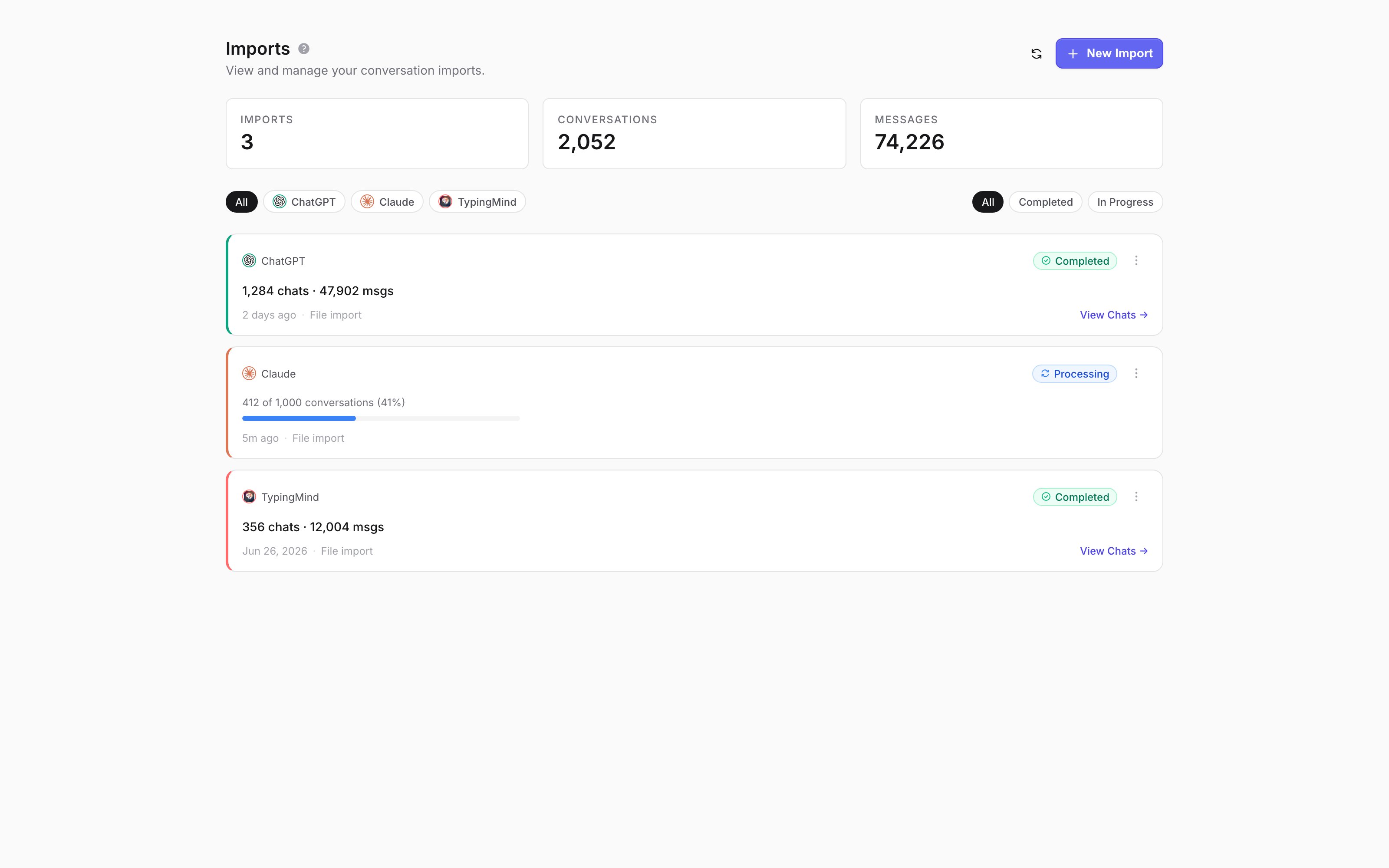
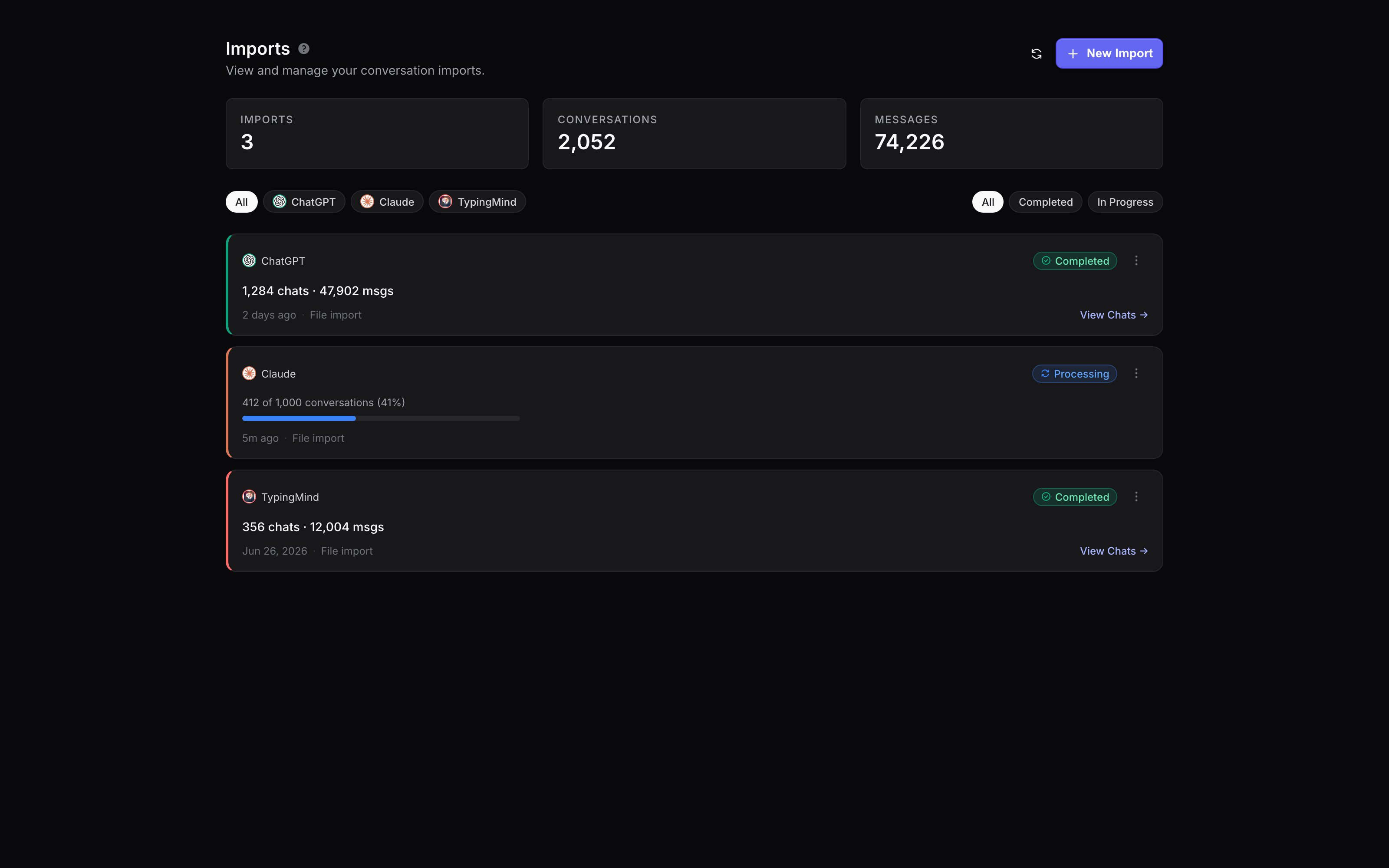
<Frame caption="The Imports page: KPI cards summarize your totals, and each import is a card showing platform, status, and counts.">
  <img className="block dark:hidden" src="https://mintcdn.com/memoryplugin/0D7zqA9Ak-TR54pG/images/screenshots/chat-history/imports-page.png?fit=max&auto=format&n=0D7zqA9Ak-TR54pG&q=85&s=346495545849c0af04c92a9e6e4ae9d7" alt="Redesigned Imports page with Imports, Conversations, and Messages KPI cards, platform and status filter pills, and import cards for a completed ChatGPT import, a processing Claude import, and a completed TypingMind import" width="3200" height="2000" data-path="images/screenshots/chat-history/imports-page.png" />

  <img className="hidden dark:block" src="https://mintcdn.com/memoryplugin/0D7zqA9Ak-TR54pG/images/screenshots/chat-history/imports-page-dark.png?fit=max&auto=format&n=0D7zqA9Ak-TR54pG&q=85&s=380ae9cb350d5ef4a0f97697221bee40" alt="Redesigned Imports page with Imports, Conversations, and Messages KPI cards, platform and status filter pills, and import cards for a completed ChatGPT import, a processing Claude import, and a completed TypingMind import" width="3200" height="2000" data-path="images/screenshots/chat-history/imports-page-dark.png" />
</Frame>

### Viewing imports

Each import shows:

* **Platform**, identified by a colored card (ChatGPT, Claude, TypingMind, Grok, Gemini, DeepSeek)
* **Source**: File import or Online sync
* **Status badge**: Queued, Processing, Completed, Completed with skips, or Failed
* **Progress**: percentage complete plus conversation and message counts
* **Relative timestamps** (for example, "2 days ago")

Three KPI cards at the top of the page sum your total **Imports**, **Conversations**, and **Messages**. You can filter by platform and by status (All, Completed, Failed, In Progress).
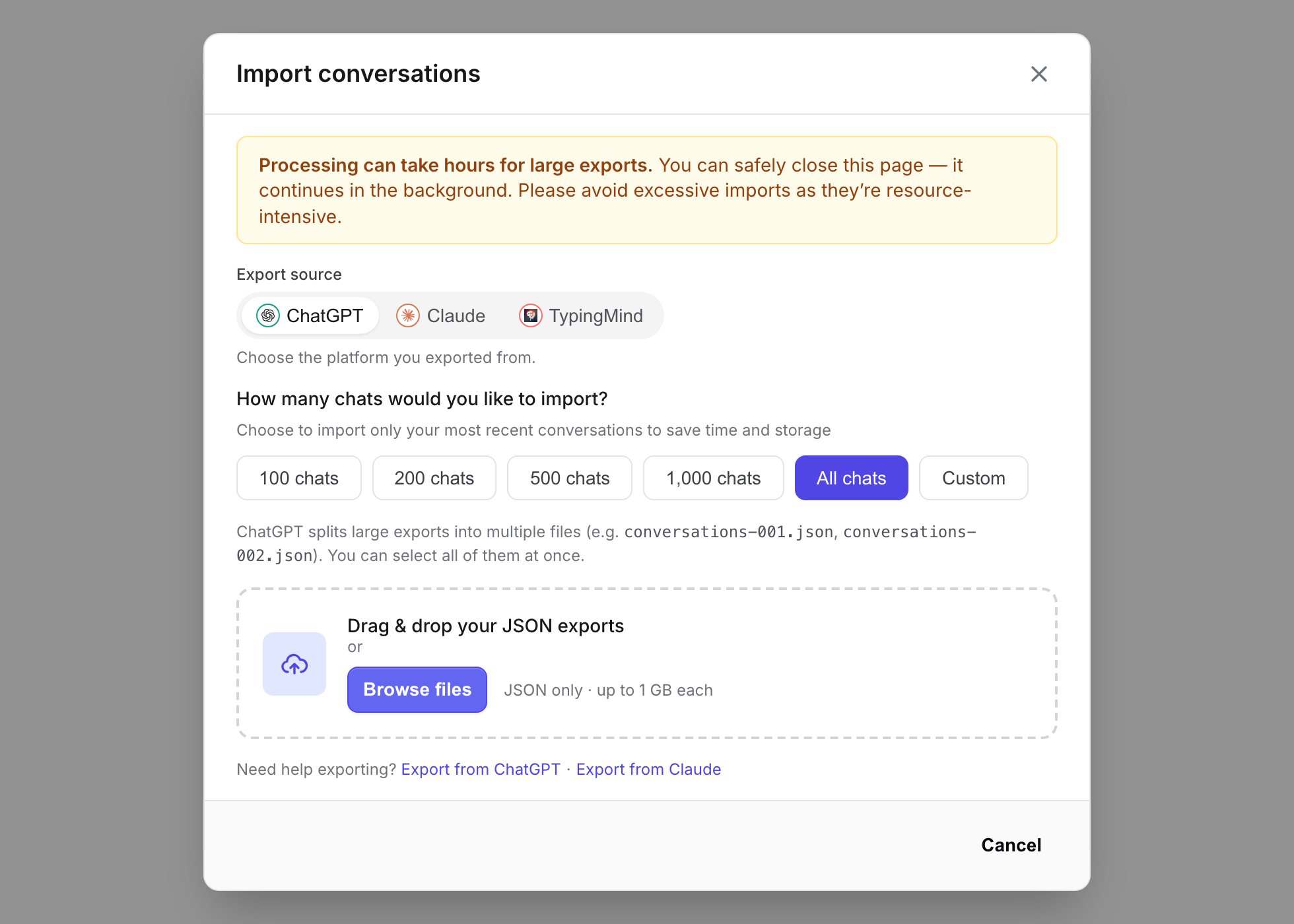
<Frame caption="Starting a new import: pick the export source, choose how many chats to import, and drop in your JSON export.">
  <img src="https://mintcdn.com/memoryplugin/0D7zqA9Ak-TR54pG/images/screenshots/chat-history/import-modal.png?fit=max&auto=format&n=0D7zqA9Ak-TR54pG&q=85&s=4f199dc72175a3d06008752b3b068ec3" alt="New Import modal with a warning banner, an Export source selector (ChatGPT, Claude, TypingMind), chat-count presets, and a JSON drag-and-drop zone" width="1960" height="1400" data-path="images/screenshots/chat-history/import-modal.png" />
</Frame>

### Processing status

Processing runs automatically in the background with periodic progress updates. You can close the tab and it keeps going. Large exports can take several minutes to hours. If an import fails, retry it from the import's menu. For imports that skipped conversations, you can view the skipped list and retry just those.

### Deleting imports
<Warning>
  Deleting an import permanently removes all conversations from that upload,
  including from search and your Chats list. This cannot be undone. Re-importing
  later uses your processing quota again.
</Warning>

Deleting an import asks you to type `confirm delete` first.

## Chats Tab

The **Browse** tab lists your imported conversations for browsing and management.

### Viewing your chats

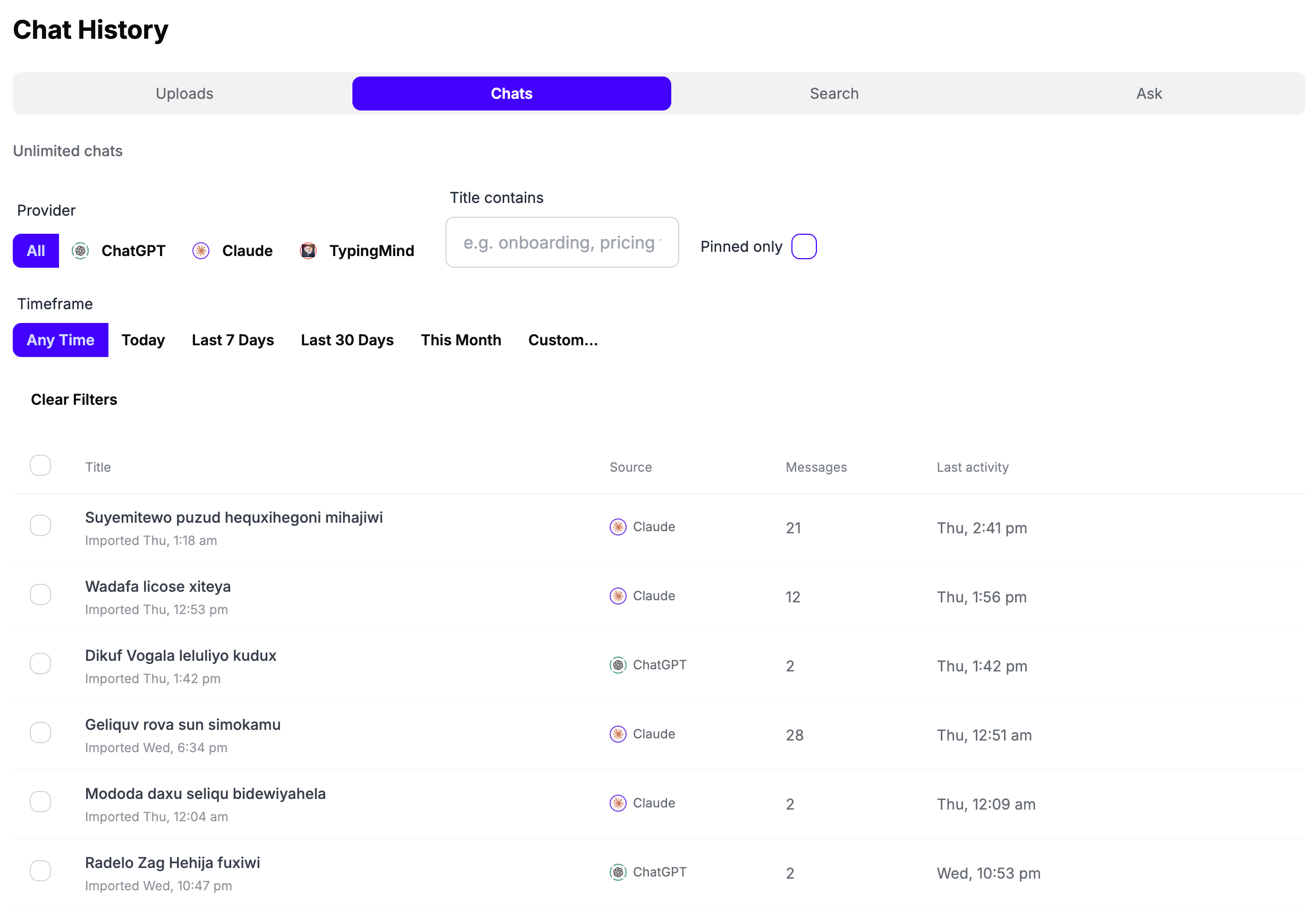
The list shows columns for **Title**, **Source**, **Messages**, and **Last activity**. Excluded conversations carry an **Excluded** badge. Click any row to open the full conversation.

A counter at the top shows your usage: on Core, **{n} / 500 chats** with an **Upgrade for unlimited** link; on Pro, **Unlimited chats**. A **Summary** button opens an AI summary of your whole chat history.

<img src="https://mintcdn.com/memoryplugin/puS0CXqqwTMpEYkc/images/chat-history/chats-page-simple.png?fit=max&auto=format&n=puS0CXqqwTMpEYkc&q=85&s=20bcc5c85e9dfac471b768ed7d25d30e" alt="Chats Page" width="2476" height="1730" data-path="images/chat-history/chats-page-simple.png" />

### Filtering conversations

Use the filters bar to narrow the list:

* **Search** conversation titles ("Search chats...")
* **Provider**, or all providers
* **Timeframe**: Any time, Today, Last 7 days, Last 30 days, This month, or a custom **Date range**
* **Pinned only**, to see just your pinned chats
* **Has summary**, to see chats that already have a summary

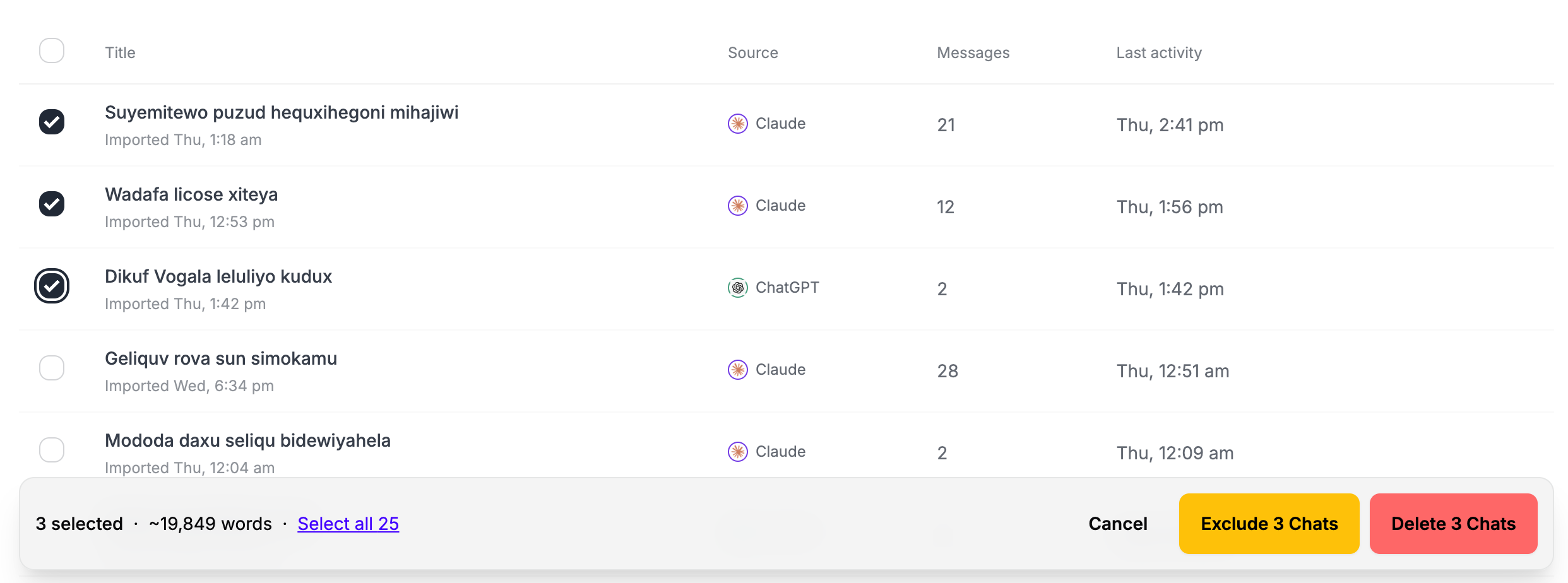
Select multiple chats to act on them together. The bulk bar shows how many are selected (with **Select all** for the full set) and offers **Exclude**, **Delete**, and **Cancel**.
<img src="https://mintcdn.com/memoryplugin/puS0CXqqwTMpEYkc/images/chat-history/chats-page-bulk-actions.png?fit=max&auto=format&n=puS0CXqqwTMpEYkc&q=85&s=f757ac089c27fa37466ff2bd9fce0e35" alt="Bulk Chat Actions" width="2484" height="924" data-path="images/chat-history/chats-page-bulk-actions.png" />

### Managing individual chats

Open a chat to reach its actions, or use the row menu.

<img src="https://mintcdn.com/memoryplugin/puS0CXqqwTMpEYkc/images/chat-history/chat-page-chat-actions.png?fit=max&auto=format&n=puS0CXqqwTMpEYkc&q=85&s=6b85224ca62f1cd22d56cedcf4d7603f" alt="Individual Chat Actions" width="2510" height="436" data-path="images/chat-history/chat-page-chat-actions.png" />

<AccordionGroup>
  <Accordion title="Pin / Unpin" icon="thumbtack">
    Pin conversations you want to protect. A pinned chat cannot be deleted until you unpin it, so it won't be removed by accident or during a bulk delete. Use the **Pinned only** filter to see just your pinned chats.

    This is useful for frequently referenced discussions and critical project conversations, and for protecting chats you want to keep when managing your 500-chat Core quota.
  </Accordion>

  <Accordion title="Open in original platform" icon="arrow-up-right-from-square">
    **Open in {platform}** takes you to the conversation on the platform it came from. You need to be signed in to the right account there, and the conversation must still exist on that platform.
  </Accordion>

  <Accordion title="Exclude from search" icon="eye-slash" id="excluding-chats">
    Excluding a chat removes its content while keeping a placeholder so you can undo later. From the bulk bar, **Exclude** opens a confirmation ("Excluding will remove all message content and vectors ... Titles and basic metadata remain so you can undo later").

    When you exclude a chat:

    * All message content and vectors are permanently deleted
    * The title and basic metadata stay as a placeholder, marked **Excluded**
    * It won't appear in search results or be used as context
    * It doesn't count toward your Core quota
    * It won't be re-imported or re-indexed on future syncs or uploads

    To reverse it, use **Unexclude** (you'll see an "Unexcluded" confirmation). Excluding is the clean way to free Core quota or permanently drop sensitive conversations.
  </Accordion>

  <Accordion title="Delete permanently" icon="trash">
    **Delete** removes a chat from MemoryPlugin. Your conversations on ChatGPT, Claude, or any other platform are not affected.

    * It's removed immediately, and from backups after 30 days
    * This cannot be undone
    * A deleted chat **can come back** in a future import (online sync or a JSON re-import)

    Use **Exclude** if you want to stop a chat from ever being re-imported. Use **Delete** if you just want it gone now and don't mind it returning later.
  </Accordion>
</AccordionGroup>

### Summaries

Open a conversation to generate a summary of it. You can generate a general summary or pull out specific information using presets: **Key decisions**, **Action items**, **Ruled-out ideas**, **Style rules**, or **Technical specs**.

## Search Tab

Search across your imported chats to find specific conversations.

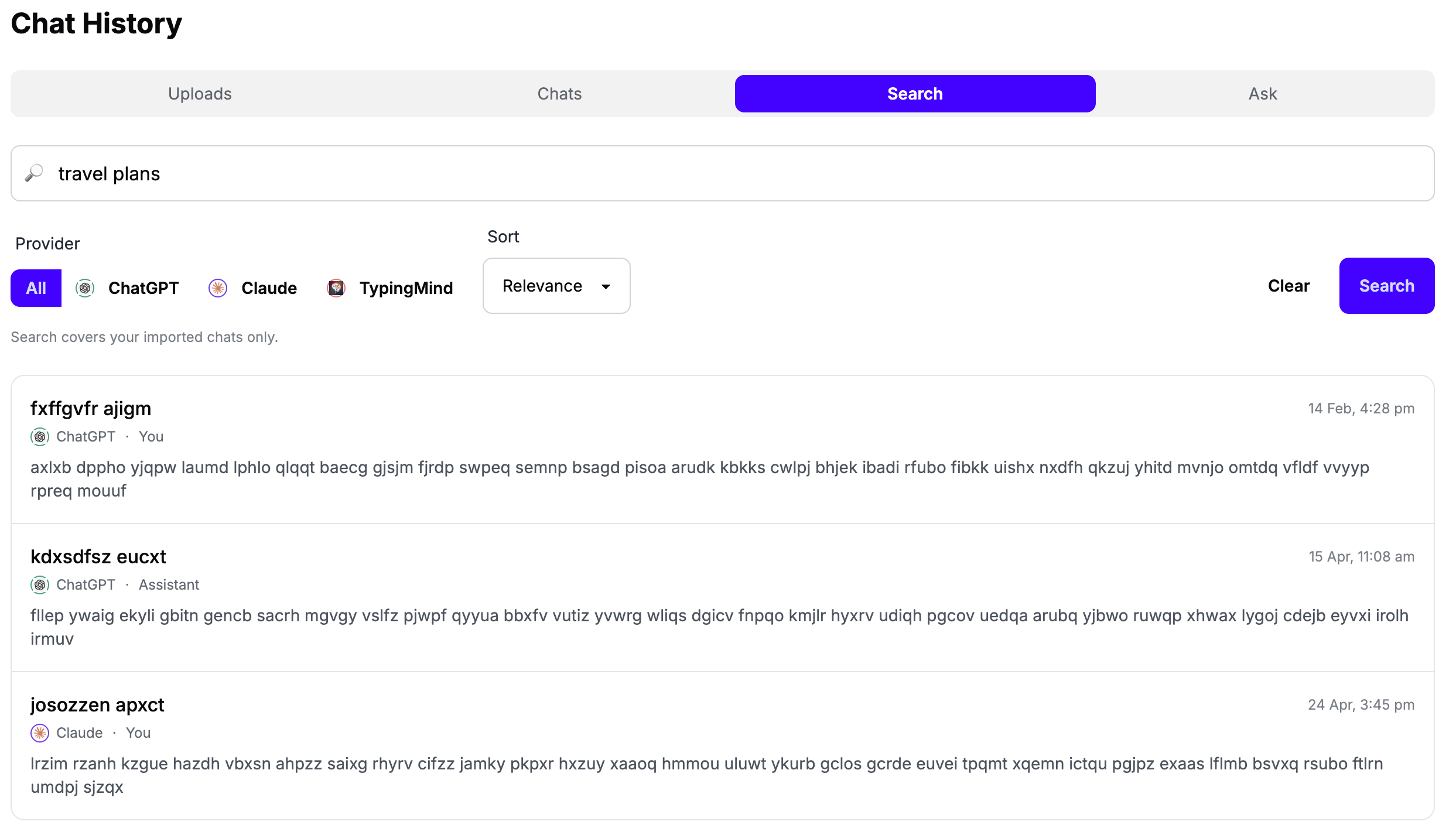
<img src="https://mintcdn.com/memoryplugin/puS0CXqqwTMpEYkc/images/chat-history/chat-history-search-results.png?fit=max&auto=format&n=puS0CXqqwTMpEYkc&q=85&s=703f95cca493734c447b426fa7ebcfe8" alt="Search Results" width="2486" height="1426" data-path="images/chat-history/chat-history-search-results.png" />

### How it works

Search combines semantic (meaning-based) matching with keyword matching to surface the most relevant conversations. Type in plain language, including time references like "last July" or "in 2024", and the parsed date range appears as a removable chip you can clear.
<Note>
  Results are not deterministic. Running the same query again can return a
  slightly different set as the system re-ranks relevant conversations. Search
  covers your imported chats only.
</Note>

### How to search

1. Open the **Search** tab in your [Chat History dashboard](https://memoryplugin.com/dashboard/chat-history)
2. Type a natural-language query (for example, "pricing feedback last July")
3. Optionally use the **Provider** toggle to limit to one platform, and **Sort** by **Relevance** or **Time**
4. Click **Search**
5. Click any result to open the full conversation

### Understanding results

Each result row shows the conversation title, a relative date, the provider, and whether the matching message was from **You** or the **Assistant**, with a snippet you can expand using **Show more** / **Show less**.

## Activity Tab

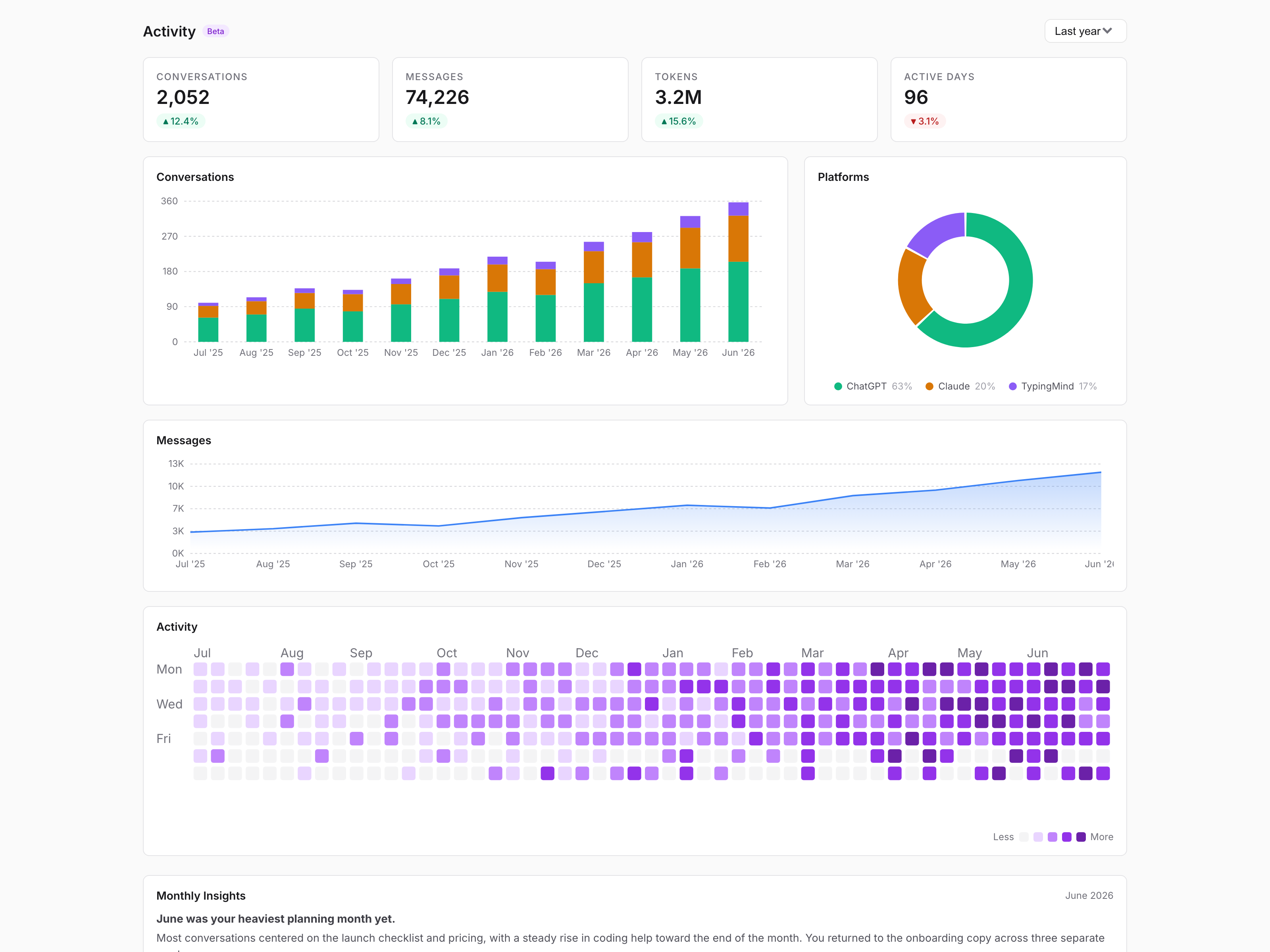
The **Activity** tab (marked **Beta**) shows analytics about your chat history.

<Frame caption="The Activity tab: KPI cards, conversation and message trends, a platform breakdown, and an activity heatmap.">
  <img src="https://mintcdn.com/memoryplugin/0D7zqA9Ak-TR54pG/images/screenshots/chat-history/activity-tab.png?fit=max&auto=format&n=0D7zqA9Ak-TR54pG&q=85&s=3317babfb351a4903ca893aac194df5e" alt="Activity tab showing Conversations, Messages, Tokens, and Active Days KPI cards, a stacked Conversations bar chart, a Platforms donut, a Messages trend chart, and an activity heatmap with a Less-to-More legend" width="3200" height="2400" data-path="images/screenshots/chat-history/activity-tab.png" />
</Frame>

* **KPI cards**: Conversations, Messages, Tokens, and Active Days
* **Conversations** and **Messages** charts over time
* **Platforms** breakdown, showing how your usage splits across tools
* **Activity** heatmap, a grid of when you chat most (legend runs "Less" to "More")
* **Range selector**: Last 30 days, Last 3 months, Last 6 months, Last year, or All time

### Monthly Insights

On the Pro plan, you can enable **Monthly Insights**: AI-generated reflections on each month's conversations, surfacing recurring themes and how your focus shifts over time. On other plans, this section shows as available on Pro.

## Troubleshooting

<AccordionGroup>
  <Accordion title="Upload failed or stuck" icon="circle-exclamation">
    **Symptoms**: upload doesn't start, shows an error, or stays at 0%.

    **Try**:

    * Retry the import from its menu
    * If it persists, contact support with a screenshot
  </Accordion>

  <Accordion title="Processing takes too long" icon="clock">
    **Symptoms**: progress seems stuck.

    **Try**:

    * Large exports can take several minutes to hours
    * Processing continues in the background, so you can close the tab
    * If it's stuck for over 24 hours, contact support with a screenshot
  </Accordion>

  <Accordion title="Search returns no results" icon="magnifying-glass-minus">
    **Symptoms**: search doesn't find conversations you expect.

    **Try**:

    * Wait until your first import is fully processed
    * Rephrase the query
    * Check whether the chat was excluded from search
    * If still nothing, contact support
  </Accordion>

  <Accordion title="Excluded chats still appearing" icon="eye">
    **Symptoms**: excluded conversations show up in the list or in results.

    **Try**:

    * Wait a few minutes and refresh; exclusion takes a moment to apply
    * Another chat with similar content may be the actual match
    * If the same excluded chat keeps appearing, contact support
  </Accordion>

  <Accordion title="Reached import limit" icon="gauge-high">
    **Symptoms**: can't import more chats on the Core plan.

    **Try**:

    * **Exclude** old chats from the Chats tab (each frees one slot)
    * **Delete** imports you no longer need from the Imports tab
    * **Upgrade to Pro** for unlimited chats
  </Accordion>
</AccordionGroup>

<Warning>
  If issues persist, [contact support](https://memoryplugin.com) with a
  screenshot, a description of what's happening, and the steps you've already
  tried.
</Warning>

## Next Steps

<CardGroup cols={2}>
  <Card title="Importing Your Chats" icon="cloud-arrow-up" href="/features/chat-history/importing">
    Export and import more of your chat history
  </Card>

  <Card title="Using Chat History" icon="sparkles" href="/features/chat-history/using">
    Add chat history context to your AI conversations
  </Card>
</CardGroup>