> ## Documentation Index
> Fetch the complete documentation index at: https://help.memoryplugin.com/llms.txt
> Use this file to discover all available pages before exploring further.

# Using Chat History

> Add chat history context to your AI conversations

export const ArticleInfo = ({author, lastUpdated}) => {
  const authorAvatar = author === 'asad' ? '/images/author-asad.jpeg' : null;
  const formatDate = dateInput => {
    if (!dateInput) return '';
    if (typeof dateInput === 'string' && !dateInput.match(/^\d{4}-\d{2}-\d{2}/)) {
      return dateInput;
    }
    try {
      const date = new Date(dateInput);
      const now = new Date();
      const diffTime = Math.abs(now - date);
      const diffDays = Math.floor(diffTime / (1000 * 60 * 60 * 24));
      if (diffDays === 0) return 'today';
      if (diffDays === 1) return '1 day ago';
      if (diffDays < 7) return `${diffDays} days ago`;
      if (diffDays < 30) return `${Math.ceil(diffDays / 7)} week${Math.ceil(diffDays / 7) > 1 ? 's' : ''} ago`;
      if (diffDays < 365) return `${Math.ceil(diffDays / 30)} month${Math.ceil(diffDays / 30) > 1 ? 's' : ''} ago`;
      return `${Math.ceil(diffDays / 365)} year${Math.ceil(diffDays / 365) > 1 ? 's' : ''} ago`;
    } catch {
      return dateInput;
    }
  };
  return <div style={{
    display: "flex",
    alignItems: "center",
    gap: "8px",
    marginBottom: "16px",
    padding: "8px 12px",
    backgroundColor: "var(--ifm-color-emphasis-100)",
    borderRadius: "6px",
    fontSize: "14px",
    color: "var(--ifm-color-content-secondary)",
    border: "1px solid var(--ifm-color-emphasis-200)",
    opacity: "0.8"
  }}>
      <div style={{
    width: "40px",
    height: "40px",
    borderRadius: "50%",
    background: authorAvatar || "linear-gradient(45deg, #4F46E5, #7C3AED)",
    display: "flex",
    alignItems: "center",
    justifyContent: "center",
    color: "white",
    fontWeight: "bold",
    fontSize: "18px"
  }}>
        {authorAvatar ? <img src={authorAvatar} alt={author} style={{
    width: "100%",
    height: "100%",
    borderRadius: "50%"
  }} /> : author?.[0]?.toUpperCase()}
      </div>
      <div>
        <div style={{
    fontWeight: "400",
    fontSize: "14px"
  }}>Written by <span style={{
    fontWeight: "600"
  }}>{author}</span></div>
        <div style={{
    fontSize: "14px"
  }}>Last updated <span style={{
    fontWeight: "600"
  }}>{formatDate(lastUpdated)}</span></div>
      </div>
    </div>;
};

<ArticleInfo author="asad" lastUpdated="2026-03-23" />

Once you've imported your chat history, you can use it to add relevant context to your new AI conversations.

## See It In Action

Here's what Chat History Memory does for your conversations:

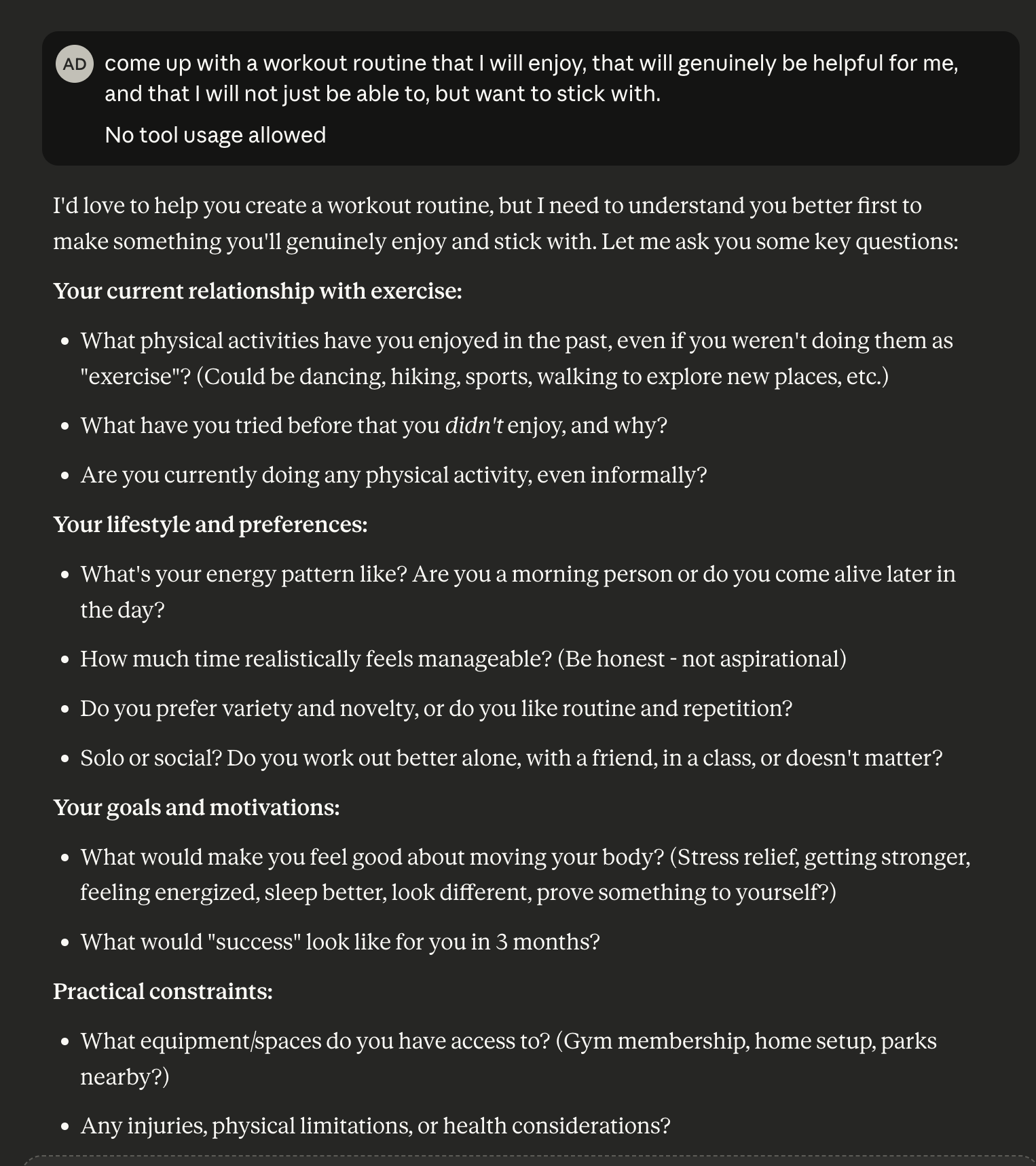
**Without MemoryPlugin:**

<img src="https://mintcdn.com/memoryplugin/puS0CXqqwTMpEYkc/images/chat-history/mcp-without-memoryplugin.png?fit=max&auto=format&n=puS0CXqqwTMpEYkc&q=85&s=0fbd99d65aafbb1716b8a46f48bd9fe2" alt="Without MemoryPlugin" width="1526" height="1718" data-path="images/chat-history/mcp-without-memoryplugin.png" />

The AI has no context about your past conversations and gives generic responses.

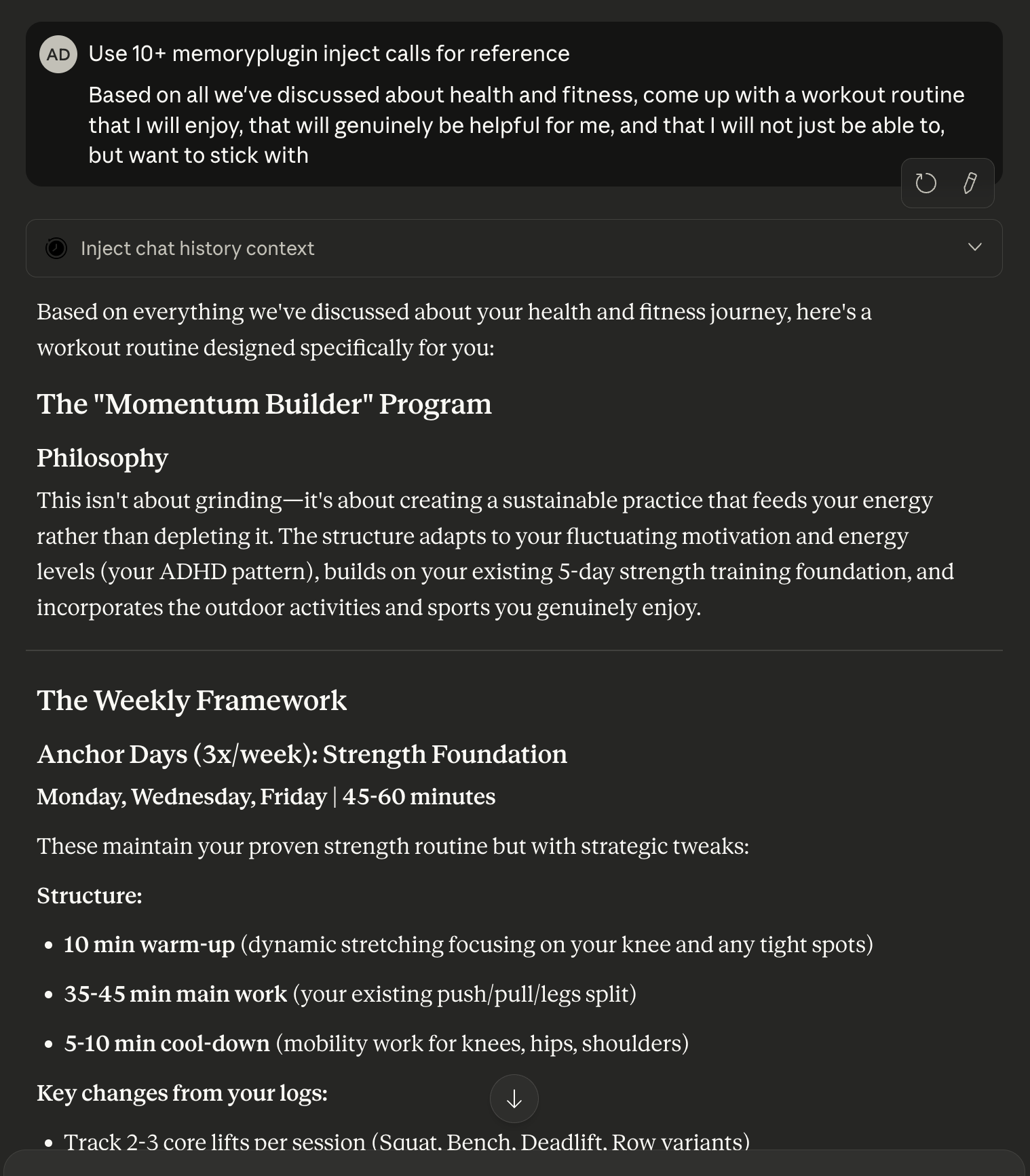
**With MemoryPlugin:**

<img src="https://mintcdn.com/memoryplugin/puS0CXqqwTMpEYkc/images/chat-history/mcp-with-memoryplugin.png?fit=max&auto=format&n=puS0CXqqwTMpEYkc&q=85&s=333d21bb7b4de00b53955fee798893e6" alt="With MemoryPlugin" width="1518" height="1734" data-path="images/chat-history/mcp-with-memoryplugin.png" />

The AI sees relevant context from your chat history and provides personalized, informed responses based on your previous discussions.

## How It Works Behind the Scenes

When chat history context is requested, MemoryPlugin performs intelligent retrieval and summarization:

1. **Query Understanding** - Your query is analyzed by an AI to generate multiple search variations and extract temporal filters (like "last month")
2. **Hybrid Search** - Runs semantic (meaning-based) and keyword searches in parallel across your chat history
3. **Reranking** - Results are reranked by relevance to your specific query
4. **Context Expansion** - For each match, surrounding messages are fetched for complete context
5. **Intelligent Summarization** - Expanded context is summarized to fit your token budget (e.g., 50,000 tokens of raw conversation might be summarized into 2,000 tokens)

This isn't just dumping raw chunks—it's intelligently finding, expanding, and condensing the most relevant parts of your conversations.

<Note>
  Each inject call typically takes 3-4 seconds to complete all these steps.
</Note>

## Browser Extension

The [Browser Extension](/integrations/browser-extension) works across all major AI platforms.

**Supported Platforms:**
ChatGPT • Claude • Gemini • Google AI Studio • Grok • Poe • DeepSeek • Qwen • And more...

**How it works:**

* Performs **one round of context retrieval** per message
* Can be configured for automatic injection (adds context to every message) or manual (only when you click the MemoryPlugin button)
* Uses default token limits configured in extension settings

<Note>
  Chat History Memory is completely separate from Regular Memory in the browser
  extension. They use different systems and buttons.
</Note>

## Remote MCP Server (More Powerful)

The [Remote MCP Server](/integrations/remote-mcp-server) offers the most powerful and flexible way to use Chat History Memory.

**Supported Platforms:**
Claude Desktop • Claude Web • Claude Mobile • Mistral AI • Cursor • Continue • Other MCP-compatible clients

**Why it's more powerful:**

* **Multiple rounds of retrieval** - Can fetch context multiple times in a single conversation
* **Parallel queries** - Send an array of queries that all run simultaneously (e.g., 12 different searches about a topic)
* **User control** - You tell the AI exactly when and how to fetch context through natural language
* **Token control** - Specify how many tokens of context to fetch (e.g., "fetch 2000 tokens")
* **Fetch large amounts** - Can retrieve 20,000-30,000 tokens of context when needed

**How to use it:**

You control the MCP server through natural language instructions to the AI:

```
"At the start of every conversation, use the memoryplugin_inject tool
to learn about my skills and learning style"

"Use the memoryplugin inject tool to fetch context about my hobbies"

"Make 5 parallel inject queries to fetch context about this project
from different angles - one for technical details, one for design
decisions, one for user feedback, one for implementation challenges,
and one for future plans"
```

The AI will make the tool calls you request, MemoryPlugin returns the context, and the AI weaves it naturally into its response.

<Info>
  **Best platforms:** Claude (Desktop, Web, or Mobile) and Mistral AI with the
  Remote MCP Server provide the best experience. These models excel at agentic
  tool use and naturally incorporating retrieved context into responses.
</Info>

### Controlling What Gets Added

Use [exclusions](/features/chat-history/dashboard#excluding-chats) to remove specific chats from being used as context:

* Sensitive conversations you want to keep private
* Off-topic chats that aren't useful for context
* Outdated discussions no longer relevant

When you exclude a chat, its data is deleted and it won't be re-imported in future uploads. A placeholder remains to prevent automatic re-processing.

## Searching and Analyzing Your History

Beyond adding context to conversations, you can actively search and analyze your chat history:

<CardGroup cols={2}>
  <Card title="Search Your History" icon="magnifying-glass">
    Perform powerful semantic searches across all your conversations. Find specific discussions by topic, keyword, or timeframe.

    [Go to Dashboard → Search](/features/chat-history/dashboard#search-tab)
  </Card>

  <Card title="Ask Questions" icon="message-question">
    Get AI-powered answers synthesized from your entire chat history. Ask natural language questions and receive comprehensive responses with citations.

    [Go to Dashboard → Ask](/features/chat-history/dashboard#ask-tab)
  </Card>
</CardGroup>

## Tips for Best Results

<AccordionGroup>
  <Accordion title="Be specific in your instructions" icon="message">
    When using the MCP server, tell the AI exactly what context you want. Instead of just activating MemoryPlugin, say "fetch context about my React projects" or "get information about my cooking preferences from past conversations."
  </Accordion>

  <Accordion title="Use parallel queries for complex topics" icon="arrows-split">
    For comprehensive coverage, request multiple parallel queries: "Make 10 inject
    queries to fetch context about this topic from different angles." The AI can
    search for technical details, design decisions, user feedback, and more
    simultaneously.
  </Accordion>

  <Accordion title="Adjust based on your needs" icon="sliders">
    Sometimes you want extensive context (20+ queries, high token count).
    Sometimes you want none. Useful for all kinds of tasks—even creative writing
    or documentation where past context helps maintain consistency.
  </Accordion>

  <Accordion title="Control timing" icon="clock">
    You can tell the AI when to fetch context: at the start of every conversation, only when you mention it, for specific types of questions, etc. It's entirely up to you.
  </Accordion>
</AccordionGroup>

## Limitations

<AccordionGroup>
  <Accordion title="Doesn't track evolution of facts" icon="timeline">
    Chat History currently doesn't understand how facts have changed over time. If you struggled with understanding photosynthesis in March but mastered it by June, the AI might not know which is current. This is something we're working to improve.
  </Accordion>

  <Accordion title="Performance varies by model" icon="gauge">
    Results depend on how well your AI model uses the retrieved context. Some models are better at incorporating external context than others.
  </Accordion>
</AccordionGroup>

## Troubleshooting

<AccordionGroup>
  <Accordion title="Context Not Appearing" icon="message-slash">
    **Solutions**:

    * Ensure Browser Extension or Remote MCP Server is installed and signed in
    * For browser extension: Check that Chat History is enabled in settings
    * For MCP: Make sure you're explicitly telling the AI to use the inject tool
    * Verify you have uploaded and processed chat history
  </Accordion>

  <Accordion title="Irrelevant Context" icon="filter">
    **Solutions**:

    * Be more specific in your prompts or instructions to the AI
    * Exclude irrelevant chats from the Chats tab
    * For MCP: Tell the AI to use fewer tokens or be more specific in its queries
  </Accordion>
</AccordionGroup>

<Warning>
  If issues persist, [contact support](https://memoryplugin.com) with: -
  Platform you're using (ChatGPT, Claude, etc.) - Integration method (Browser
  Extension or Remote MCP Server) - Description of the issue
</Warning>

## Next Steps

<CardGroup cols={2}>
  <Card title="View Dashboard" icon="table-columns" href="/features/chat-history/dashboard">
    Search your history, ask questions, and manage your conversations
  </Card>

  <Card title="Browser Extension Setup" icon="chrome" href="/integrations/browser-extension">
    Install and configure the Browser Extension
  </Card>

  <Card title="Remote MCP Server Setup" icon="server" href="/integrations/remote-mcp-server">
    Set up the Remote MCP Server for Claude Desktop and other clients
  </Card>

  <Card title="Back to Introduction" icon="arrow-left" href="/features/chat-history/introduction">
    Review what Chat History Memory is and why it matters
  </Card>
</CardGroup>