> ## Documentation Index
> Fetch the complete documentation index at: https://help.memoryplugin.com/llms.txt
> Use this file to discover all available pages before exploring further.
# Import from ChatGPT
> Copy ChatGPT's saved memories into MemoryPlugin from the extension
export const ArticleInfo = ({author, lastUpdated}) => {
const authorAvatar = author === 'Alara' ? '/images/author-alara.jpg' : author === 'asad' ? '/images/author-alara.jpg' : null;
const formatDate = dateInput => {
if (!dateInput) return '';
if (typeof dateInput === 'string' && !dateInput.match(/^\d{4}-\d{2}-\d{2}/)) {
return dateInput;
}
try {
const date = new Date(dateInput);
const now = new Date();
const diffTime = Math.abs(now - date);
const diffDays = Math.floor(diffTime / (1000 * 60 * 60 * 24));
if (diffDays === 0) return 'today';
if (diffDays === 1) return '1 day ago';
if (diffDays < 7) return `${diffDays} days ago`;
if (diffDays < 30) return `${Math.ceil(diffDays / 7)} week${Math.ceil(diffDays / 7) > 1 ? 's' : ''} ago`;
if (diffDays < 365) return `${Math.ceil(diffDays / 30)} month${Math.ceil(diffDays / 30) > 1 ? 's' : ''} ago`;
return `${Math.ceil(diffDays / 365)} year${Math.ceil(diffDays / 365) > 1 ? 's' : ''} ago`;
} catch {
return dateInput;
}
};
return
{authorAvatar ? : author?.[0]?.toUpperCase()}
Written by {author}
Last updated {formatDate(lastUpdated)}
;
};
ChatGPT keeps its own "saved memories" about you: facts it has picked up over time and reuses inside ChatGPT. Those memories are locked to ChatGPT. This page copies them into MemoryPlugin in one pass, so every other AI tool you use can read them too.
This imports ChatGPT's **saved memories** (the personal facts ChatGPT stores about you), not your chat conversation history. To bring in full conversations, see [Chat History](/features/chat-history/introduction).
## What you need
* The [MemoryPlugin browser extension](/integrations/browser-extension) installed and enabled
* A ChatGPT account that has saved memories
* A MemoryPlugin account, signed in
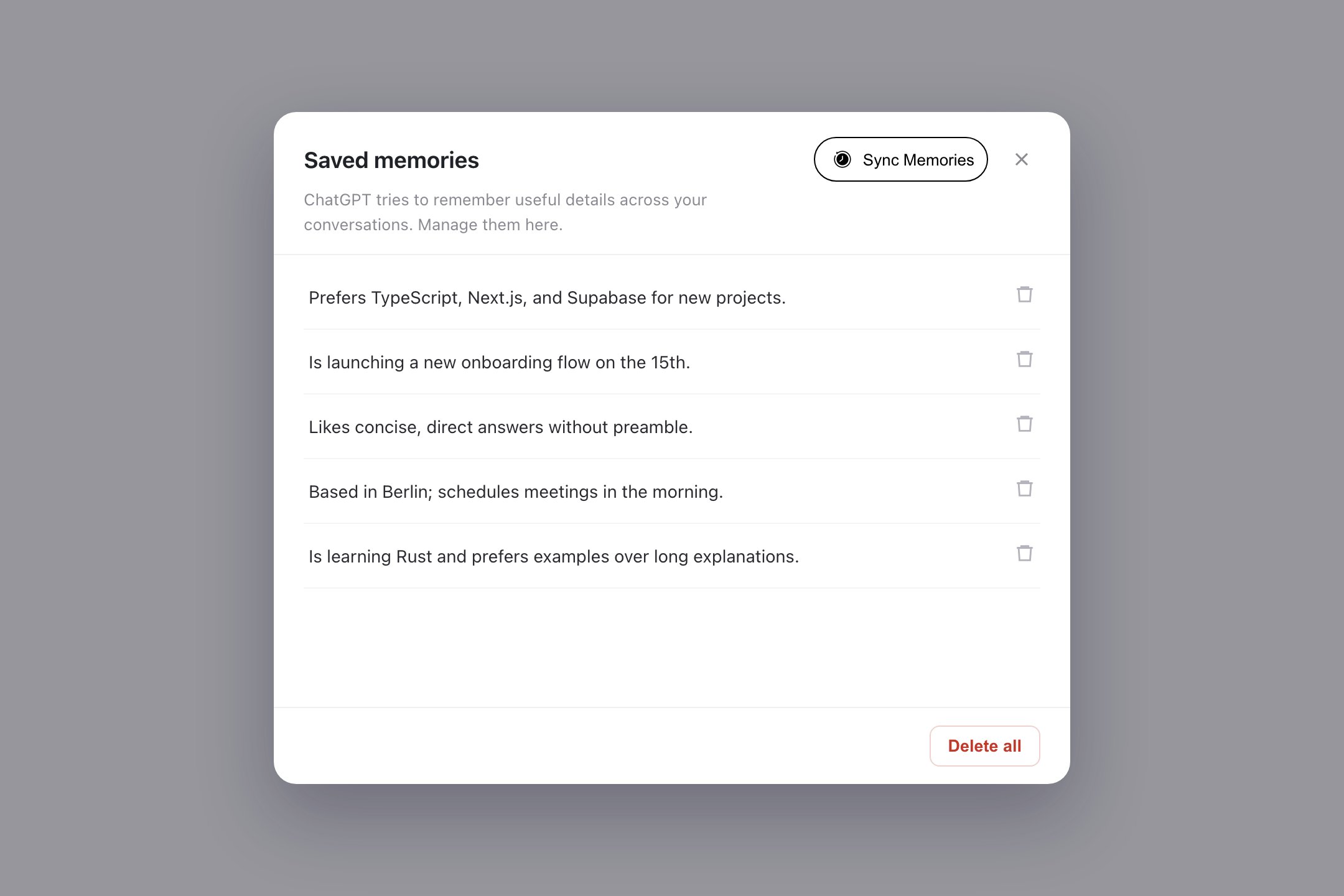
The **Sync Memories** button you use below does not exist in ChatGPT. The MemoryPlugin extension injects it into ChatGPT's memory settings page. If the extension is not installed or not signed in, the button will not appear.
## How to import
Go to ChatGPT in the browser where the extension is installed.
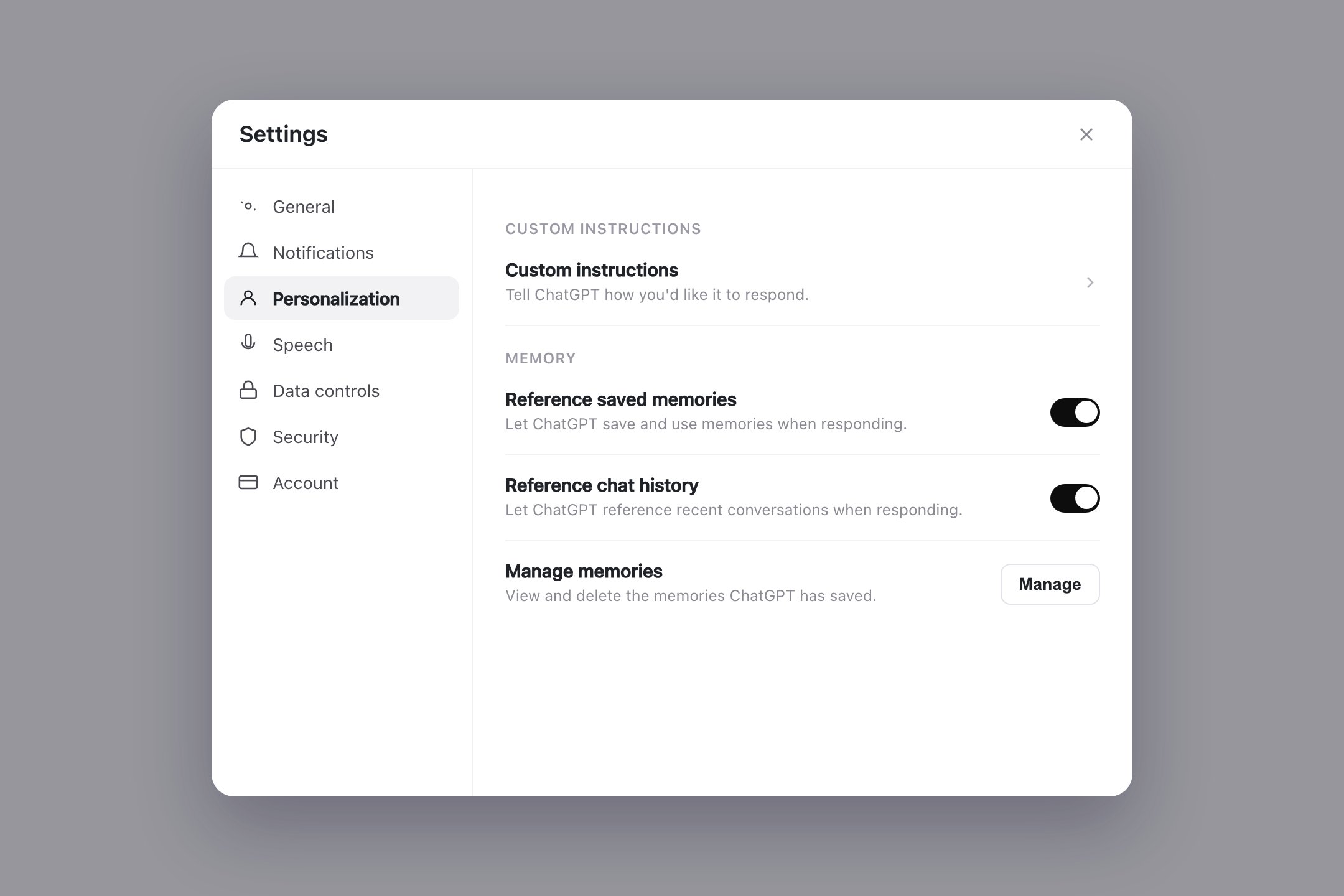
Open **Settings** from your profile menu, go to the **Personalization** tab, then click **Manage memories** to see the list ChatGPT has stored.
This is ChatGPT's own UI as of mid-2026. OpenAI moves these settings around fairly often, so the exact tab names or menu path may differ from what you see. You are looking for the screen that lists your saved memories.
On the memories screen, look for the **Sync Memories** button with the MemoryPlugin logo. The extension adds this button; it is not part of ChatGPT.
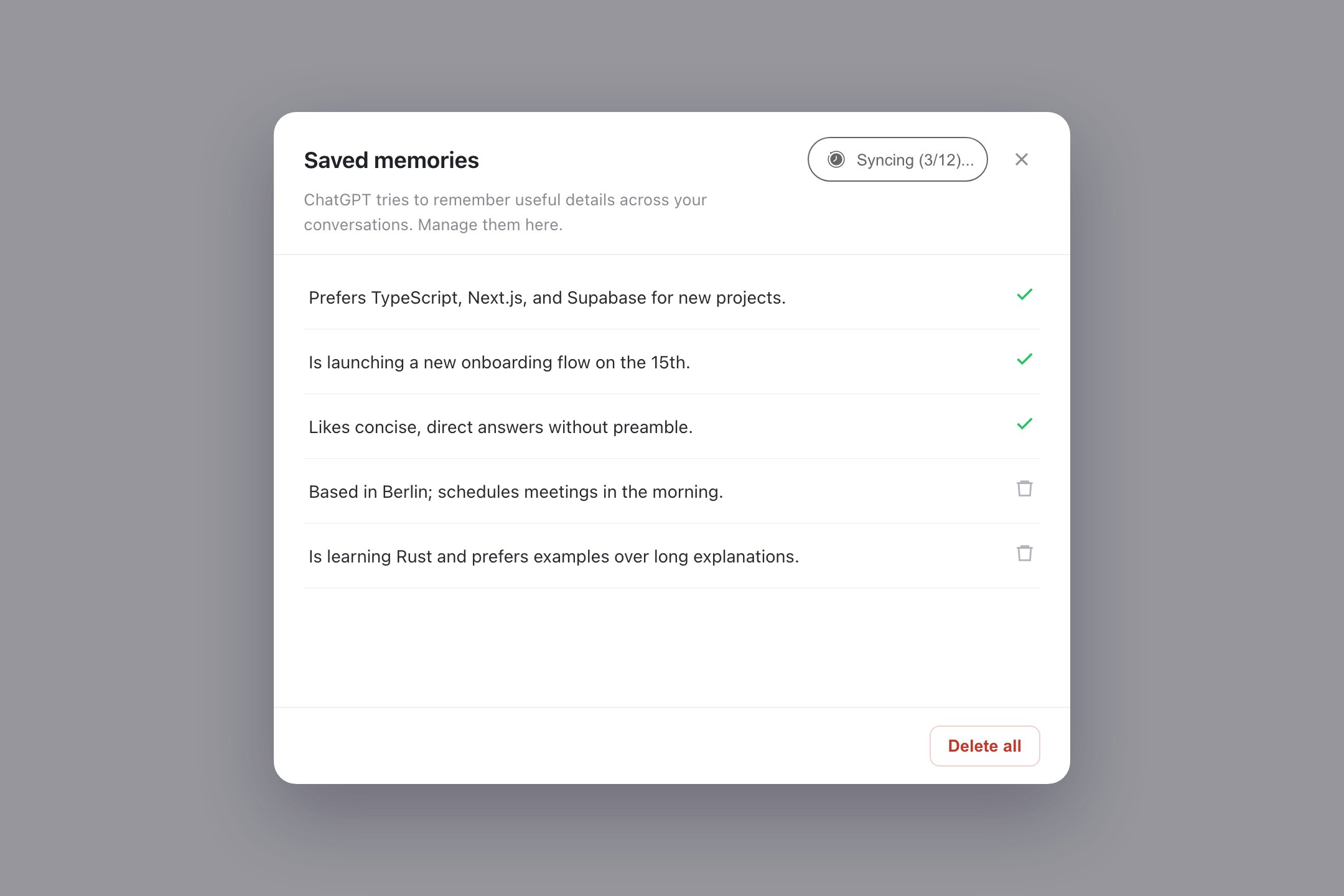
Click the button. It shows its progress, for example **Syncing (3/12)...**, while it copies your memories across, and marks each one with a green check as it lands.
Depending on how many memories you have, this takes a couple of minutes. **Keep this tab open and don't navigate away.** The sync runs in the page, so closing the tab or switching ChatGPT to a new conversation interrupts it.
## What happens during sync
* Every saved memory ChatGPT has is copied into MemoryPlugin.
* Imported memories land in your **General** bucket by default.
* Running the sync again does not create duplicates, so it is safe to re-run if you are unsure it finished.
* Nothing is removed from ChatGPT. This is a copy, not a move.
## After import
1. Open your [dashboard](https://memoryplugin.com/dashboard) to see the imported memories.
2. Move them into other [buckets](/features/memory-buckets) if you want them organized by topic.
3. Use them anywhere. Your ChatGPT memories now work with Claude, Gemini, and every other platform MemoryPlugin supports.
## Common issues
* Confirm the browser extension is installed and enabled.
* Refresh the ChatGPT page so the extension can re-inject the button.
* Make sure you are on the saved-memories screen (Settings, then Personalization, then Manage memories). OpenAI may have renamed these; find the screen that lists your memories.
* Sign out and back into both ChatGPT and MemoryPlugin, then refresh.
* Large collections can take several minutes.
* Open your MemoryPlugin dashboard in another tab to check whether memories are already appearing.
* You can click Sync again. It will not create duplicates.
* Refresh the dashboard page.
* Confirm you are signed into the correct MemoryPlugin account.
* Give it a few more minutes. Processing can lag behind the sync.
## Next steps
Sort your imported memories by topic or project
Let AI group your memories into categories for token-efficient recall
 : author?.[0]?.toUpperCase()}