> ## Documentation Index
> Fetch the complete documentation index at: https://help.memoryplugin.com/llms.txt
> Use this file to discover all available pages before exploring further.
# Memory Buckets
> Organize your memories into separate contexts with MemoryPlugin's bucket system
export const ArticleInfo = ({author, lastUpdated}) => {
const authorAvatar = author === 'Alara' ? '/images/author-alara.jpg' : author === 'asad' ? '/images/author-alara.jpg' : null;
const formatDate = dateInput => {
if (!dateInput) return '';
if (typeof dateInput === 'string' && !dateInput.match(/^\d{4}-\d{2}-\d{2}/)) {
return dateInput;
}
try {
const date = new Date(dateInput);
const now = new Date();
const diffTime = Math.abs(now - date);
const diffDays = Math.floor(diffTime / (1000 * 60 * 60 * 24));
if (diffDays === 0) return 'today';
if (diffDays === 1) return '1 day ago';
if (diffDays < 7) return `${diffDays} days ago`;
if (diffDays < 30) return `${Math.ceil(diffDays / 7)} week${Math.ceil(diffDays / 7) > 1 ? 's' : ''} ago`;
if (diffDays < 365) return `${Math.ceil(diffDays / 30)} month${Math.ceil(diffDays / 30) > 1 ? 's' : ''} ago`;
return `${Math.ceil(diffDays / 365)} year${Math.ceil(diffDays / 365) > 1 ? 's' : ''} ago`;
} catch {
return dateInput;
}
};
return
{authorAvatar ? : author?.[0]?.toUpperCase()}
Written by {author}
Last updated {formatDate(lastUpdated)}
;
};
Keep everything in one pile and your AI starts mixing your side project into your day job, or your dinner preferences into a work question. Memory buckets group related memories into separate, isolated collections. Think of them as folders for your memories.
## What buckets are for
Each bucket is isolated from the others, so your work memories stay apart from personal ones, and one project's details don't mix into another's. Common ways to split them up:
* **Context**: personal, work, hobbies
* **Projects**: separate clients or personal projects
* **Topics**: research, learning material, creative ideas
* **Time periods**: quarterly goals, an event you are planning
Every account starts with a **General** bucket, and new memories land there by default. General cannot be deleted, shared, or reordered, so you always have a place for memories to go.
## Two kinds of bucket
* **Memory buckets** store text snippets, notes, and facts your AI can reference.
* **File buckets** hold uploaded documents (PDF, Word, Markdown, text) that you can search through.
File buckets are still under development. You can upload files through the dashboard and search them from the [Ask](/features/ask) tool, the MCP server, and the TypingMind plugin, but they are not yet wired into the browser extension. If you need memories your AI can read everywhere, use a memory bucket.
## Creating a bucket
In your [dashboard](https://memoryplugin.com/dashboard), click the bucket selector at the top of the sidebar.
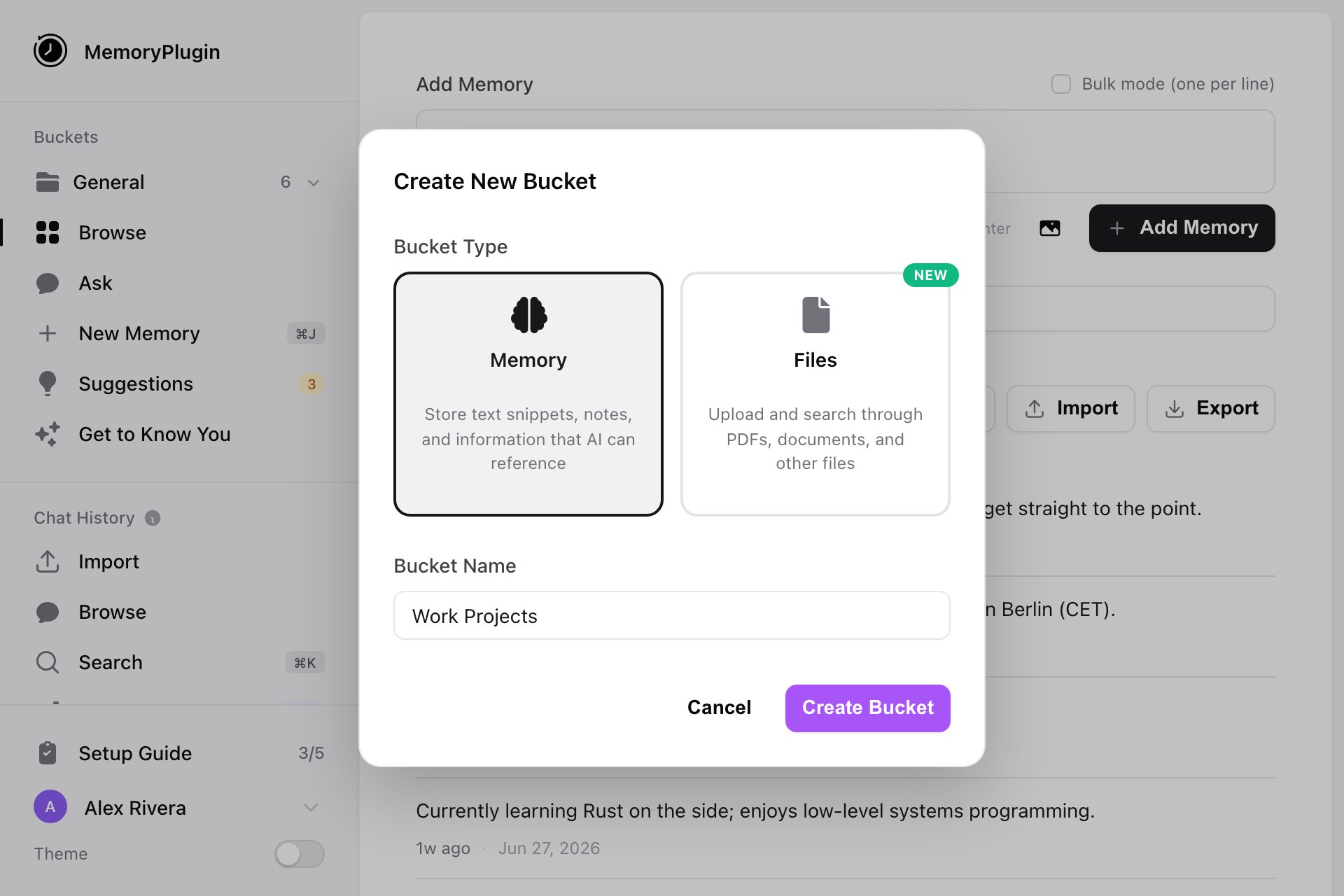
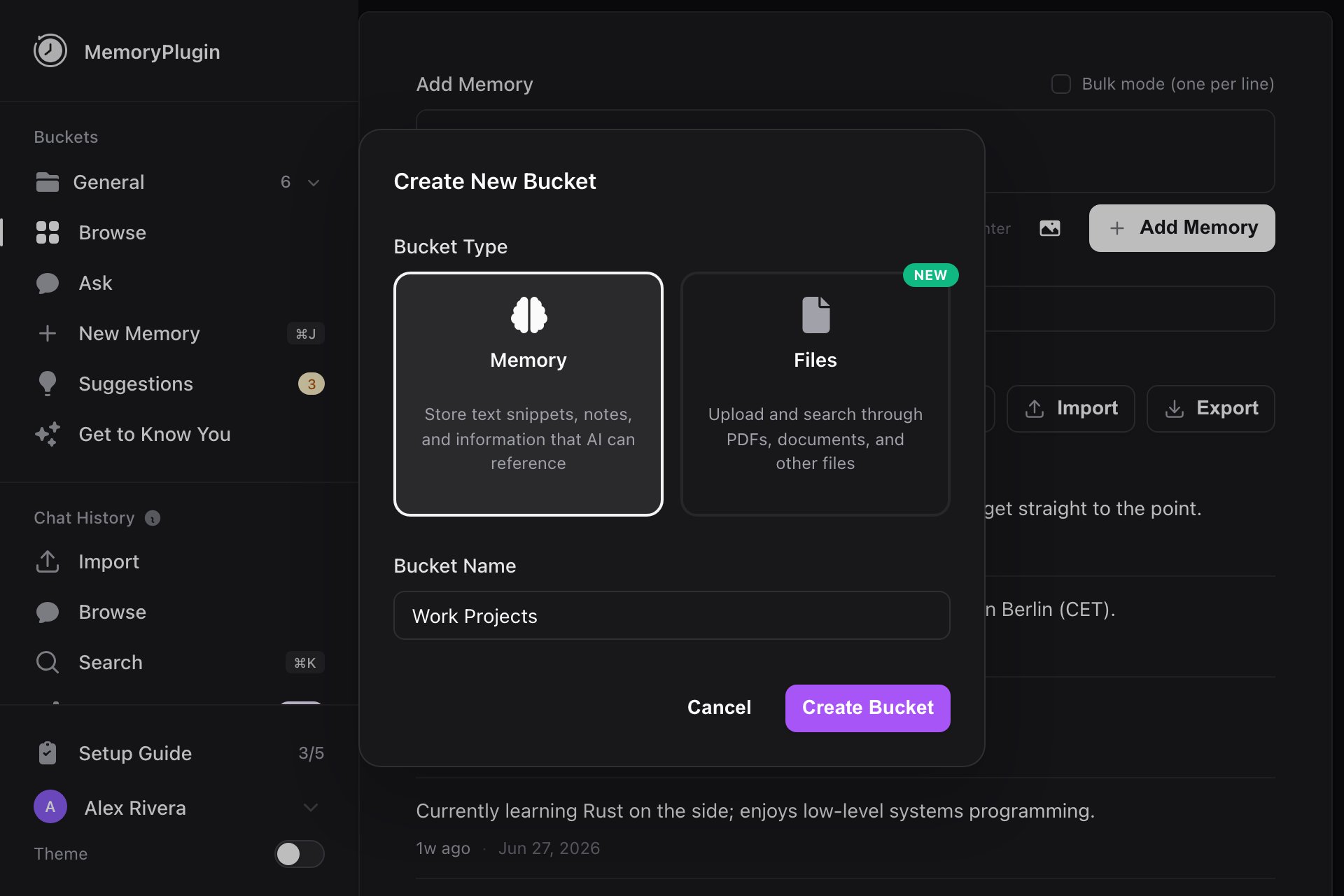
Click **New Memory Bucket** or **New File Bucket**. The **Create New Bucket** dialog opens with the matching **Bucket Type** already selected.
Type a name in **Bucket Name** (for example, "Work Projects").
Click **Create Bucket**.
**Naming rules:**
* Names must be unique, ignoring case. "Work" and "work" count as the same name.
* A name cannot be digits only, like "123". You can include numbers as long as there is other text too, like "Project 123" or "Q1 Goals".
## Using a bucket across tools
### Browser extension
Click the MemoryPlugin button, then pick a bucket from the dropdown to set which one the current conversation uses.
### MCP server
Ask the AI to load or store memories in a named bucket, or set a default bucket in your MCP client configuration.
### Custom GPT
Ask the MemoryPlugin Custom GPT to work with a specific bucket, for example "Load memories from my Work bucket" or "Store this in my Personal bucket."
## Managing buckets
From the bucket selector you can sort buckets by **Last Updated**, **A to Z**, or **Custom Order** (drag to reorder), and each row has actions to view info, rename, share, and delete.
### Bucket info
The bucket info dialog shows the bucket ID, memory or file count, number of Smart Categories, and total tokens. It also breaks token usage down by model, so you can see how close the bucket is to each context window (see below). The bar turns yellow at 50% and red at 90%.
### Renaming
Use the **Rename bucket** action, type a new name, and confirm. The same naming rules apply.
### Moving memories between buckets
Move a single memory from its row, or use [bulk operations](/features/bulk-operations) to move many at once. Moving a memory into a bucket that is shared with you asks for confirmation first, since it becomes visible to everyone with access to that bucket.
### Deleting
You can delete any bucket except **General**. Deleting a bucket permanently deletes every memory in it, and it cannot be undone, so the confirm dialog tells you how many memories will go with it.
## Limits
### Number of buckets
There is no limit on how many buckets you can create.
### Smart Memory
* Needs at least **30 memories** in a bucket before it can build categories.
* Won't process a bucket over **600,000 tokens** or **2,000 memories**.
### Memory Suggestions
Suggestions skip any single memory over **10,000 tokens** during analysis.
### Context windows
The bucket info dialog compares your bucket's size against each model's context window so you can tell whether it will fit:
| Model | Context window |
| ------------ | ---------------- |
| ChatGPT Plus | 32,000 tokens |
| ChatGPT Pro | 128,000 tokens |
| Claude | 200,000 tokens |
| Gemini | 1,000,000 tokens |
A bucket larger than a model's window won't fit in a single load for that model. This is one reason to split large collections into focused buckets, or to use [Smart Memory](/features/smart-memory) so only relevant categories load.
## Example structures
General, Client-Acme Corp, Client-Beta LLC, Personal Projects, Learning
General, Project-WebApp, Project-MobileApp, Technical Research, Work Notes
General, YouTube Channel, Blog Content, Client Work, Research & Ideas
General, Literature, Experiments, Methods, Writing
## Next steps
Group large buckets into categories for efficient recall
Move or delete many memories at once
 : author?.[0]?.toUpperCase()}