{authorAvatar ?  : author?.[0]?.toUpperCase()}
Written by {author}
Last updated {formatDate(lastUpdated)}

 That last step is where the token savings come from. Think of a filing cabinet with labeled drawers: your AI reads the labels first, then opens only the drawer the conversation needs instead of tipping the whole cabinet onto the desk. Marketing describes it as "90% less tokens." The mechanism is straightforward: loading a handful of category summaries costs far fewer tokens than loading every memory in the bucket, and the AI only expands a category when the conversation calls for it. The exact saving depends on how large your bucket is and how much of it a given conversation actually needs.
## Requirements and limits
* **Memory buckets only.** File buckets and buckets shared to you cannot be categorized.
* **At least 30 memories** in the bucket before it can build categories.
* **Won't process** a bucket over **600,000 tokens** or **2,000 memories**.
## Building categories
That last step is where the token savings come from. Think of a filing cabinet with labeled drawers: your AI reads the labels first, then opens only the drawer the conversation needs instead of tipping the whole cabinet onto the desk. Marketing describes it as "90% less tokens." The mechanism is straightforward: loading a handful of category summaries costs far fewer tokens than loading every memory in the bucket, and the AI only expands a category when the conversation calls for it. The exact saving depends on how large your bucket is and how much of it a given conversation actually needs.
## Requirements and limits
* **Memory buckets only.** File buckets and buckets shared to you cannot be categorized.
* **At least 30 memories** in the bucket before it can build categories.
* **Won't process** a bucket over **600,000 tokens** or **2,000 memories**.
## Building categories
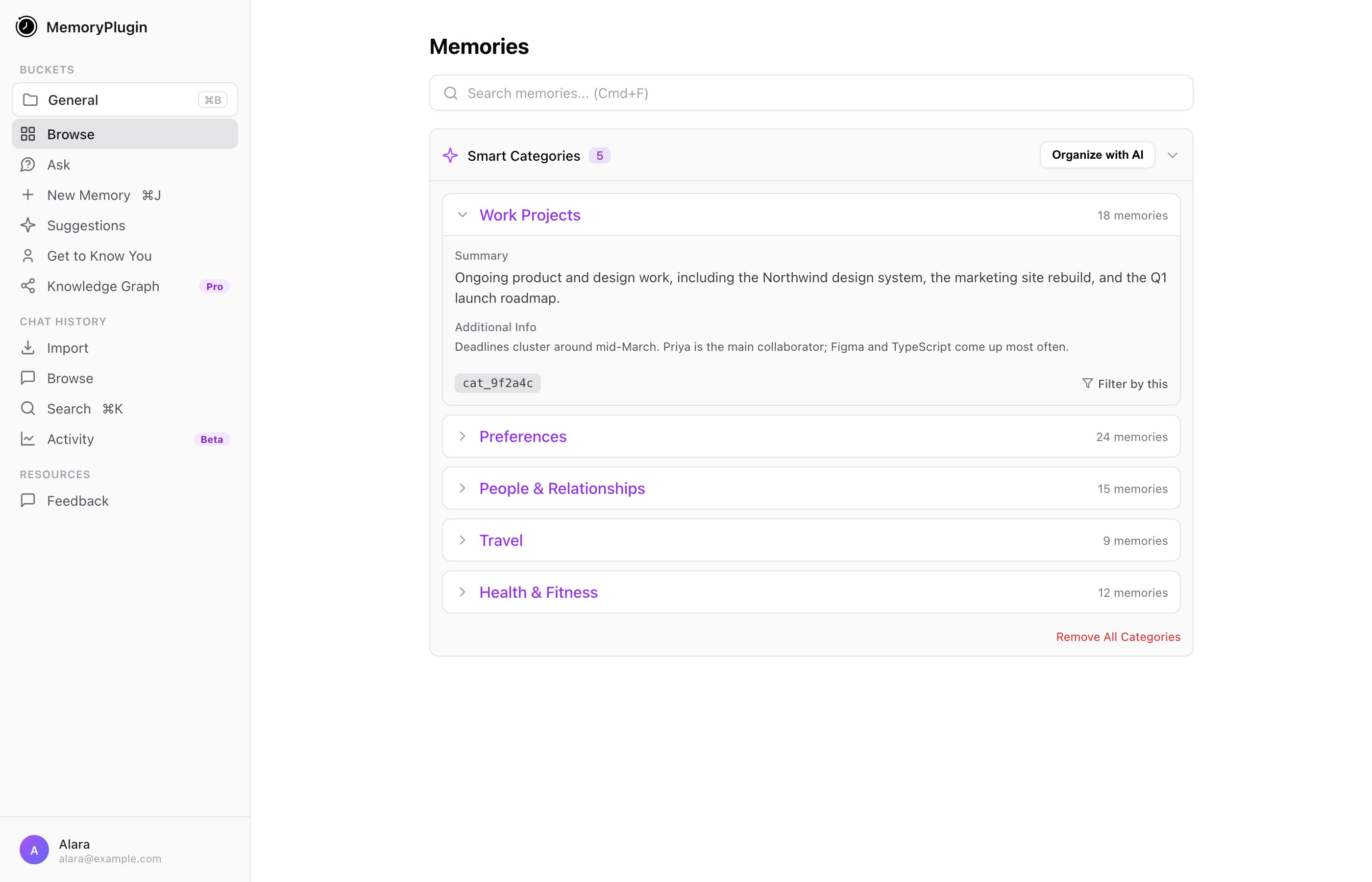
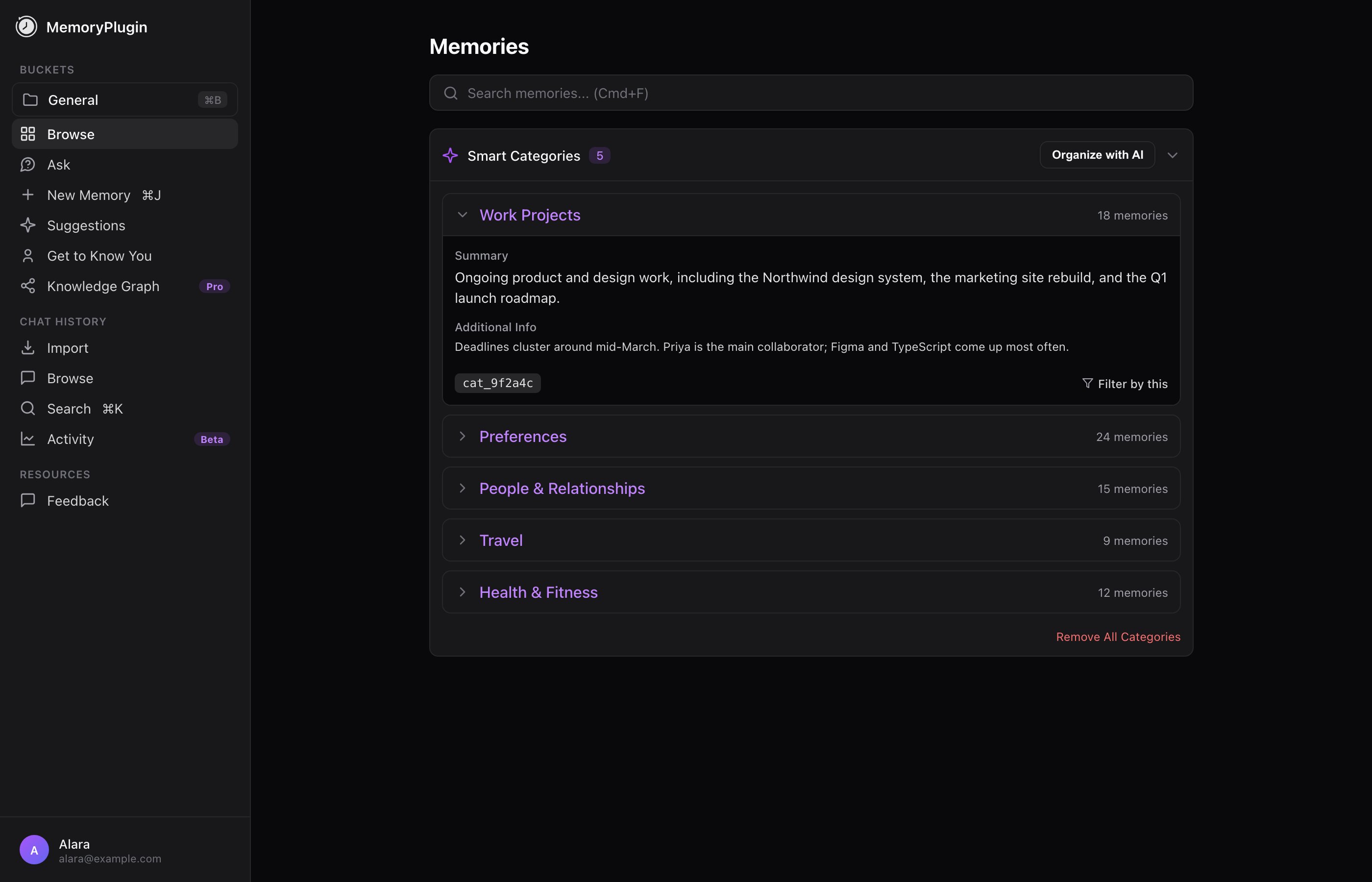 ### What each category gives you
* **Name**: the theme the AI identified.
* **Summary**: a high-level overview of the memories in the category.
* **Additional Info**: deeper context about what the category covers. This is what helps your AI decide when to load the category, so it tends to matter more than the summary for recall quality.
* **Memory count**: how many memories are grouped there.
Each category also has a copyable category ID and a **Filter by this** option to narrow the memory list in the dashboard.
## Resetting categories
To clear categories and start over, click **Remove All Categories**. The **Reset categories for {bucket}** dialog asks you to type `reset my categories` to confirm, because it cannot be undone. Resetting removes every category, detaches category assignments from every memory in the bucket, and clears Smart Memory progress so you can recategorize from scratch.
## Where categories are available
Once a bucket has Smart Categories:
* **Browser extension**: turn on **Smart Mode** and your AI can load specific categories in chat on ChatGPT, Claude, and other supported platforms.
* **MCP server**: MCP clients can call `list_bucket_categories` and `list_category_memories` to browse categories and pull memories from one.
* **TypingMind plugin**: exposes the same `list_bucket_categories` and `list_category_memories` functions.
* **Custom GPT**: does not expose the category tools today. It works with buckets and memories, but not category-level loading.
## When it helps most
Smart Memory earns its keep on large buckets. If you have hundreds or thousands of memories, or several dense projects in one bucket, categories keep recall focused and cut token cost. A small bucket of a few dozen memories is usually fine to load whole, which is why the 30-memory minimum exists.
## Next steps
### What each category gives you
* **Name**: the theme the AI identified.
* **Summary**: a high-level overview of the memories in the category.
* **Additional Info**: deeper context about what the category covers. This is what helps your AI decide when to load the category, so it tends to matter more than the summary for recall quality.
* **Memory count**: how many memories are grouped there.
Each category also has a copyable category ID and a **Filter by this** option to narrow the memory list in the dashboard.
## Resetting categories
To clear categories and start over, click **Remove All Categories**. The **Reset categories for {bucket}** dialog asks you to type `reset my categories` to confirm, because it cannot be undone. Resetting removes every category, detaches category assignments from every memory in the bucket, and clears Smart Memory progress so you can recategorize from scratch.
## Where categories are available
Once a bucket has Smart Categories:
* **Browser extension**: turn on **Smart Mode** and your AI can load specific categories in chat on ChatGPT, Claude, and other supported platforms.
* **MCP server**: MCP clients can call `list_bucket_categories` and `list_category_memories` to browse categories and pull memories from one.
* **TypingMind plugin**: exposes the same `list_bucket_categories` and `list_category_memories` functions.
* **Custom GPT**: does not expose the category tools today. It works with buckets and memories, but not category-level loading.
## When it helps most
Smart Memory earns its keep on large buckets. If you have hundreds or thousands of memories, or several dense projects in one bucket, categories keep recall focused and cut token cost. A small bucket of a few dozen memories is usually fine to load whole, which is why the 30-memory minimum exists.
## Next steps