> ## Documentation Index
> Fetch the complete documentation index at: https://help.memoryplugin.com/llms.txt
> Use this file to discover all available pages before exploring further.

# Browser Extension

> Use MemoryPlugin with any Chromium-based browser or Safari on iOS and macOS

export const ArticleInfo = ({author, lastUpdated}) => {
  const authorAvatar = author === 'Alara' ? '/images/author-alara.jpg' : author === 'asad' ? '/images/author-alara.jpg' : null;
  const formatDate = dateInput => {
    if (!dateInput) return '';
    if (typeof dateInput === 'string' && !dateInput.match(/^\d{4}-\d{2}-\d{2}/)) {
      return dateInput;
    }
    try {
      const date = new Date(dateInput);
      const now = new Date();
      const diffTime = Math.abs(now - date);
      const diffDays = Math.floor(diffTime / (1000 * 60 * 60 * 24));
      if (diffDays === 0) return 'today';
      if (diffDays === 1) return '1 day ago';
      if (diffDays < 7) return `${diffDays} days ago`;
      if (diffDays < 30) return `${Math.ceil(diffDays / 7)} week${Math.ceil(diffDays / 7) > 1 ? 's' : ''} ago`;
      if (diffDays < 365) return `${Math.ceil(diffDays / 30)} month${Math.ceil(diffDays / 30) > 1 ? 's' : ''} ago`;
      return `${Math.ceil(diffDays / 365)} year${Math.ceil(diffDays / 365) > 1 ? 's' : ''} ago`;
    } catch {
      return dateInput;
    }
  };
  return <div style={{
    display: "flex",
    alignItems: "center",
    gap: "8px",
    marginBottom: "16px",
    padding: "8px 12px",
    backgroundColor: "var(--ifm-color-emphasis-100)",
    borderRadius: "6px",
    fontSize: "14px",
    color: "var(--ifm-color-content-secondary)",
    border: "1px solid var(--ifm-color-emphasis-200)",
    opacity: "0.8"
  }}>
      <div style={{
    width: "40px",
    height: "40px",
    borderRadius: "50%",
    background: authorAvatar || "linear-gradient(45deg, #4F46E5, #7C3AED)",
    display: "flex",
    alignItems: "center",
    justifyContent: "center",
    color: "white",
    fontWeight: "bold",
    fontSize: "18px"
  }}>
        {authorAvatar ? <img src={authorAvatar} alt={author} style={{
    width: "100%",
    height: "100%",
    borderRadius: "50%"
  }} /> : author?.[0]?.toUpperCase()}
      </div>
      <div>
        <div style={{
    fontWeight: "400",
    fontSize: "14px"
  }}>Written by <span style={{
    fontWeight: "600"
  }}>{author}</span></div>
        <div style={{
    fontSize: "14px"
  }}>Last updated <span style={{
    fontWeight: "600"
  }}>{formatDate(lastUpdated)}</span></div>
      </div>
    </div>;
};

<ArticleInfo author="Alara" lastUpdated="2026-07-04" />

The browser extension puts MemoryPlugin directly inside the AI sites you already use. It injects a small panel into the page so you can read and add memories, pull context from past chats, and sync your conversation history, all without leaving the chat. It works across 21+ platforms and is the most complete way to use MemoryPlugin.

## Browser Compatibility

<Tabs>
  <Tab title="Chromium Browsers">
    Works with all Chromium-based browsers:

    * Chrome
    * Arc
    * Opera
    * Microsoft Edge
    * Vivaldi
    * Brave
    * [Quetta Browser](https://play.google.com/store/apps/details?id=net.quetta.browser) (Android)
    * And other Chromium derivatives
  </Tab>

  <Tab title="Safari">
    Available for Safari on:

    * iOS (iPhone and iPad)
    * macOS (Mac computers)
  </Tab>
</Tabs>

<Info>
  Install the extension using the links below, or find them on your [MemoryPlugin Dashboard](https://memoryplugin.com/dashboard) after signing up.
</Info>

<Info>
  Account email independence: Your MemoryPlugin sign‑in email does not need to match the email you use on ChatGPT, Claude, TypingMind, or any other tool. Access and permissions are tied to your MemoryPlugin account (and API key when applicable), not third‑party logins.
</Info>

## Installation

<CardGroup cols={2}>
  <Card title="Chrome Web Store" icon="chrome" href="https://chromewebstore.google.com/detail/memoryplugin-long-term-me/iaelpdacgkkhecjoojjgkhiengnbjacd">
    Install for Chrome and Chromium-based browsers
  </Card>

  <Card title="Safari App Store" icon="safari" href="https://testflight.apple.com/join/3nBR4xdN">
    Install for Safari on iOS and macOS
  </Card>
</CardGroup>

<Note>
  After installation, sign up or log in to your [MemoryPlugin Dashboard](https://memoryplugin.com/dashboard) to start using the extension.
</Note>

## The Panel

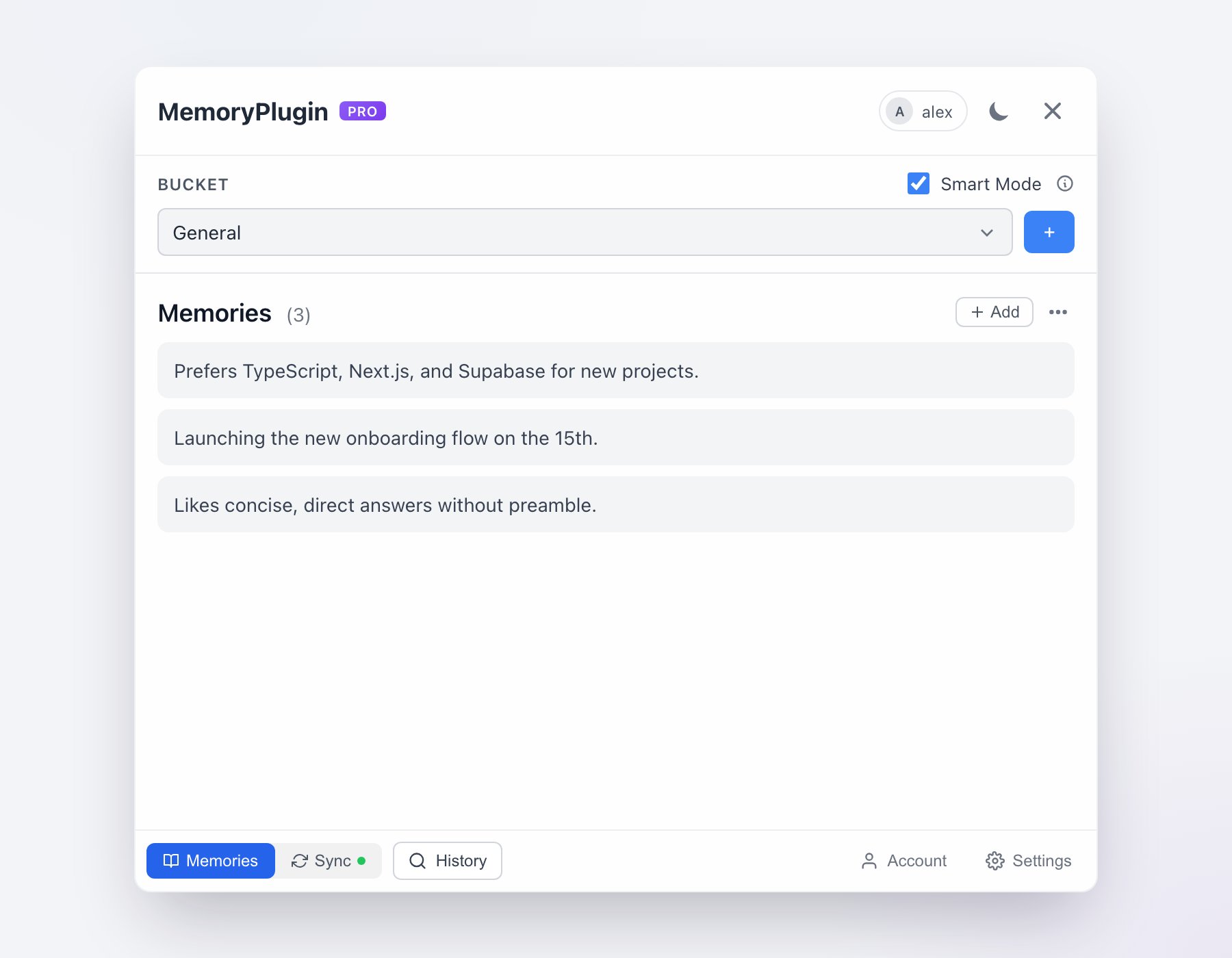
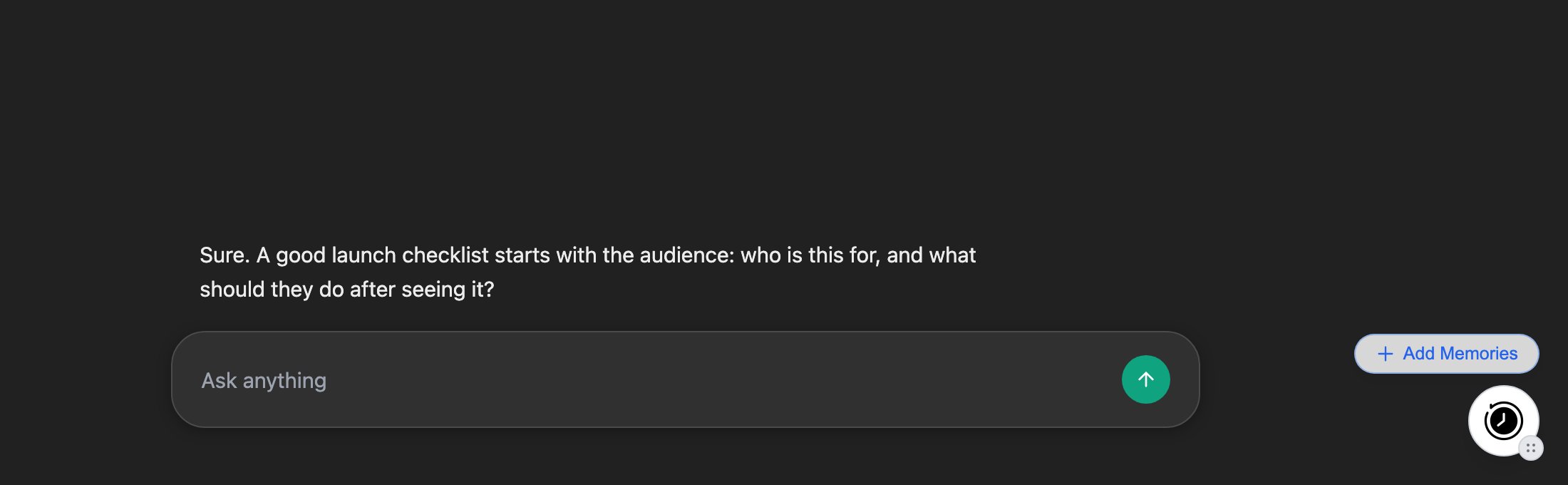
On a supported site you get a round MemoryPlugin button floating on the page. Drag it anywhere; the extension remembers its position per site. Above it sits an **Add Memories** pill (it reads **Login** when you are signed out).

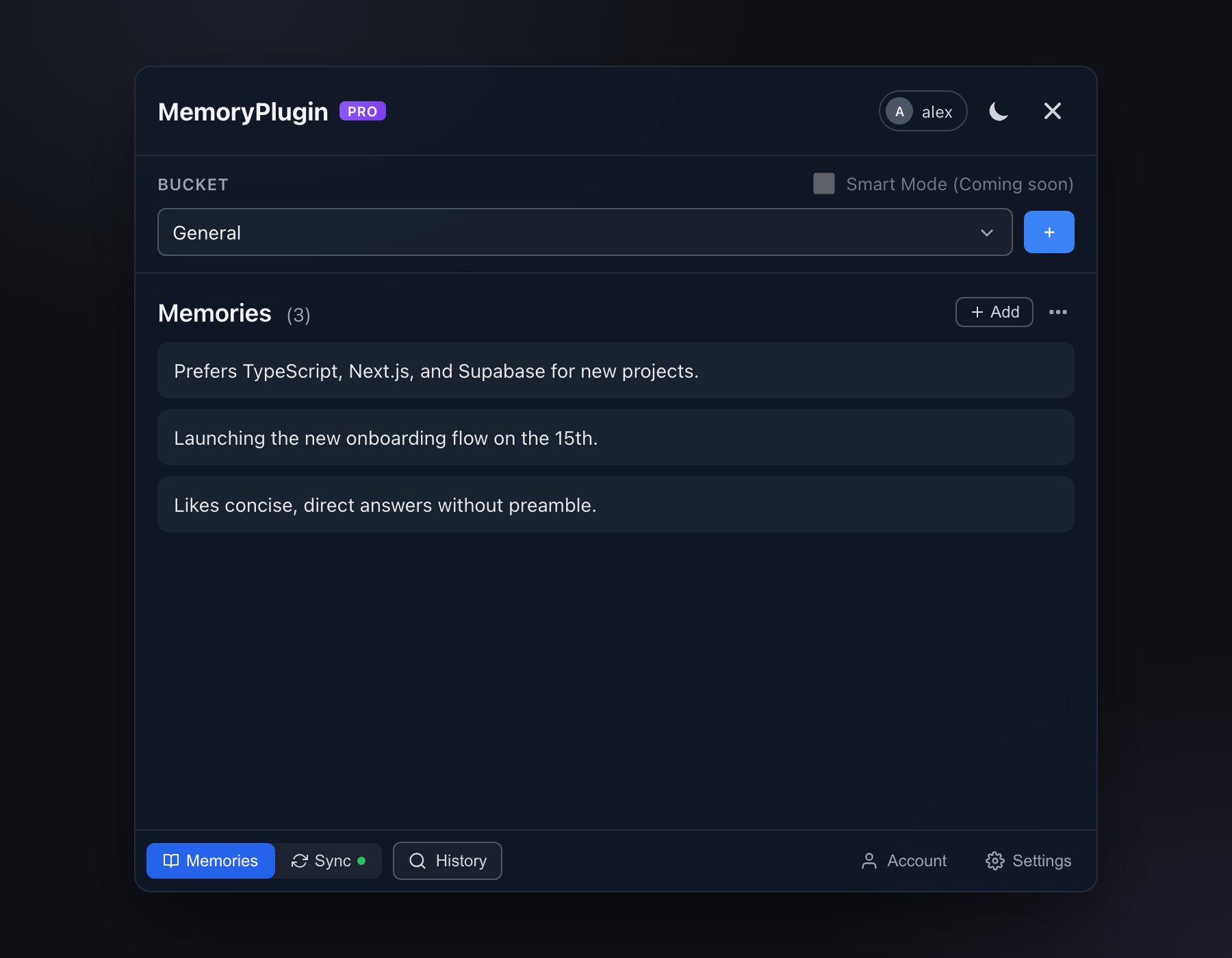
Click the button to open the panel. The header shows **MemoryPlugin**, your plan badge (**CORE**, **PRO**, or **PRO LT**), a dark-mode toggle, and a close button.

<Frame caption="The MemoryPlugin panel: bucket row, your memories, and the tab bar (Memories, Sync, History, Account, Settings) along the bottom.">
  <img className="block dark:hidden" src="https://mintcdn.com/memoryplugin/9o9T_0PzzkacB3w3/images/screenshots/extension/panel-v4.png?fit=max&auto=format&n=9o9T_0PzzkacB3w3&q=85&s=588458d3752aa691df3617b0201d218f" alt="MemoryPlugin extension panel showing the General bucket, three memories, and the bottom tab bar with Memories, Sync, History, Account, and Settings" width="1800" height="1400" data-path="images/screenshots/extension/panel-v4.png" />

  <img className="hidden dark:block" src="https://mintcdn.com/memoryplugin/9o9T_0PzzkacB3w3/images/screenshots/extension/panel-v4-dark.png?fit=max&auto=format&n=9o9T_0PzzkacB3w3&q=85&s=1593daabbcbe12bdcde92c4ad8b9ca05" alt="MemoryPlugin extension panel showing the General bucket, three memories, and the bottom tab bar with Memories, Sync, History, Account, and Settings" width="1800" height="1400" data-path="images/screenshots/extension/panel-v4-dark.png" />
</Frame>

Under the header is the **Bucket** row: a dropdown that defaults to **All Memories**, plus a **Smart Mode** toggle that turns on Smart Memory for the current chat, for token-efficient loading (see [Smart Memory](#smart-memory)).

A tab bar runs along the bottom of the panel:

* **Memories** - view, add, edit, and delete memories in the selected bucket.
* **Sync** - background sync of your chat history (only when Chat History is enabled; a `!` badge appears when more than 100 chats are unsynced).
* **History** - open the Chat History search modal (also `Cmd+Shift+K` / `Ctrl+Shift+K`).
* **Account** - your plan, stat tiles (Memories, Buckets, Chats, Messages), and links to the dashboard and help.
* **Settings** - recall, auto-add, load limits, sync toggles, and the onboarding tour.

### Memories tab

The Memories tab lists the memories in your selected bucket. Use **Add** to write one by hand, or the overflow menu for **Refresh memories**, **Copy memories**, **Export chat**, and **Load limit**. Each memory has inline edit and delete. When a bucket is empty you get a prompt to add your first memory or let the AI save them automatically as you chat.

### Buckets

Buckets are separate contexts for your memories. Switch buckets with the dropdown before you inject, so the AI gets the right context for the conversation. Every account starts with a **General** bucket; create more from the dashboard for work, projects, or anything else you want to keep apart. See [Memory Buckets](/features/memory-buckets) for the full model.

## Injecting Memories
<Warning>
  The extension does not inject memories on its own by default. Press the MemoryPlugin button to activate it for a chat, or turn on auto-add in Settings.
</Warning>

Activating a chat pastes two things into the composer:

1. Your memories from the chosen bucket.
2. Instructions telling the AI what MemoryPlugin is and how to save new memories.

Without this step the AI cannot read your memories or create new ones for that conversation.

Depending on the platform, activation happens through one of two controls:

* **Quick inject button** - a compact button inline in the composer where the platform's layout allows it. Its tooltip reads *"Inject Memories from chosen Bucket"*.
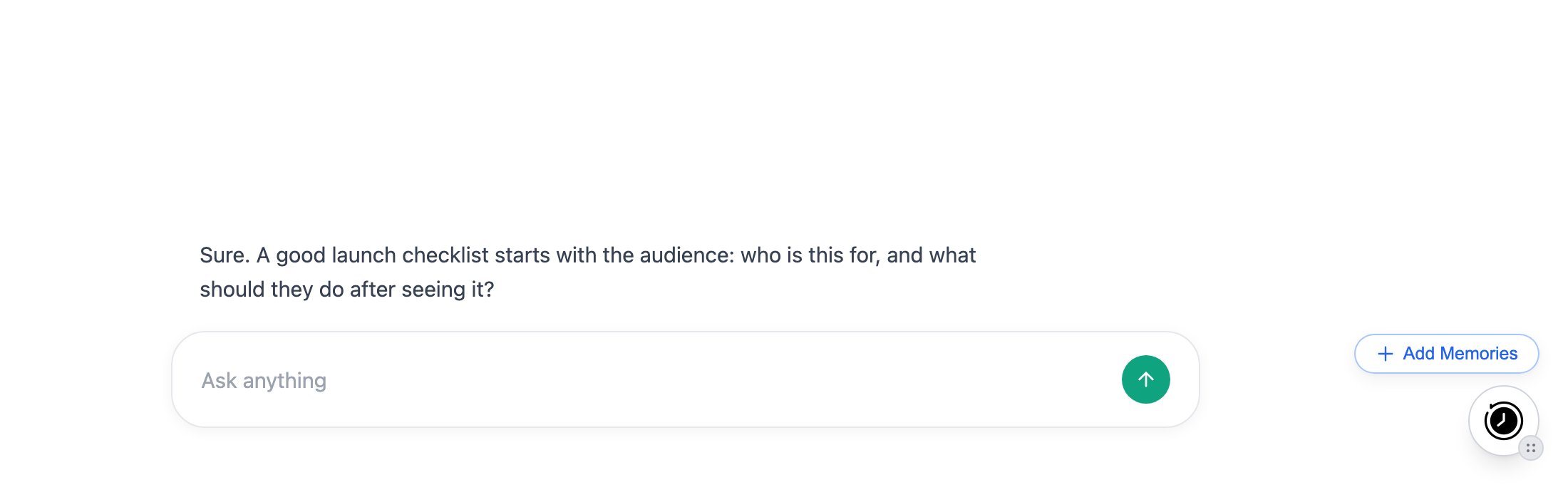
* **Add Memories pill** - on platforms where the inline button doesn't fit, a glass **Add Memories** pill appears above the floating MemoryPlugin button instead.

<Frame caption="The Add Memories pill sits above the floating button when the inline control doesn't fit.">
  <img className="block dark:hidden" src="https://mintcdn.com/memoryplugin/0D7zqA9Ak-TR54pG/images/screenshots/extension/add-memories-pill.png?fit=max&auto=format&n=0D7zqA9Ak-TR54pG&q=85&s=a5aa66c1717814ec3d918fba6826830b" alt="Add Memories pill above the MemoryPlugin floating button, next to the chat composer" width="2200" height="680" data-path="images/screenshots/extension/add-memories-pill.png" />

  <img className="hidden dark:block" src="https://mintcdn.com/memoryplugin/0D7zqA9Ak-TR54pG/images/screenshots/extension/add-memories-pill-dark.png?fit=max&auto=format&n=0D7zqA9Ak-TR54pG&q=85&s=f21ac3509fb28f5acc87e8efffd00c47" alt="Add Memories pill above the MemoryPlugin floating button, next to the chat composer" width="2200" height="680" data-path="images/screenshots/extension/add-memories-pill-dark.png" />
</Frame>

### Auto-Inject in New Chats

Turn on **Automatically add memories in new conversations** in Settings to skip the manual step. When you send your first message in a new chat, the extension shows an **Auto-injecting memories** prompt with a 5-second countdown and a **Cancel** button, then injects. Cancel if you do not want memories in that conversation.

## Adding New Memories

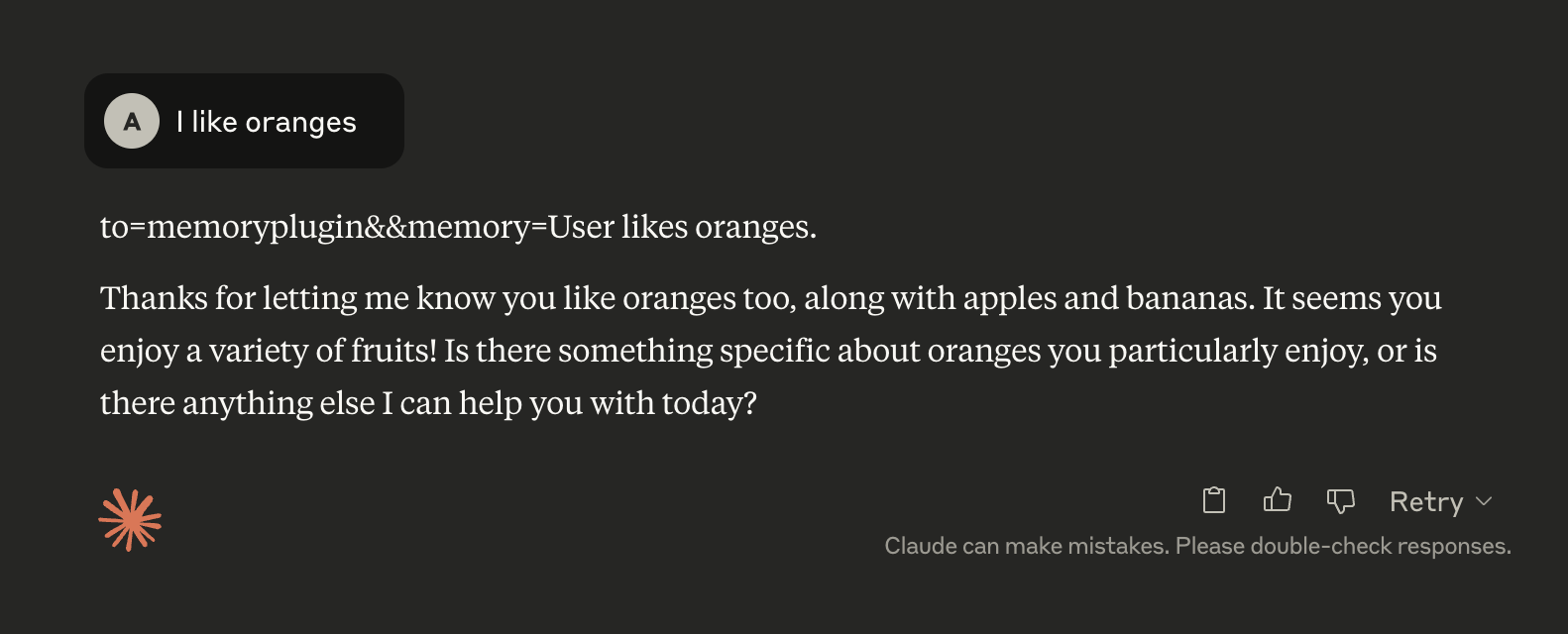
Once a chat is active, the AI is told to save memories by emitting a marker line that the extension watches for:

```
to=memoryplugin&&memory=[memory text here]
```

On ChatGPT the marker uses `tool=memoryplugin&&memory=...` instead. The AI adds a memory in one of two cases:

* **Automatic** - it decides something is worth remembering long term.
* **Manual** - you explicitly ask it to remember something.
<img src="https://mintcdn.com/memoryplugin/7JRbRjKuQWC5r5_N/images/browser-extension/memory-added.png?fit=max&auto=format&n=7JRbRjKuQWC5r5_N&q=85&s=261d666791d29d2ea5d8457796d0e92b" alt="AI adding a new memory with the special format" width="1582" height="640" data-path="images/browser-extension/memory-added.png" />

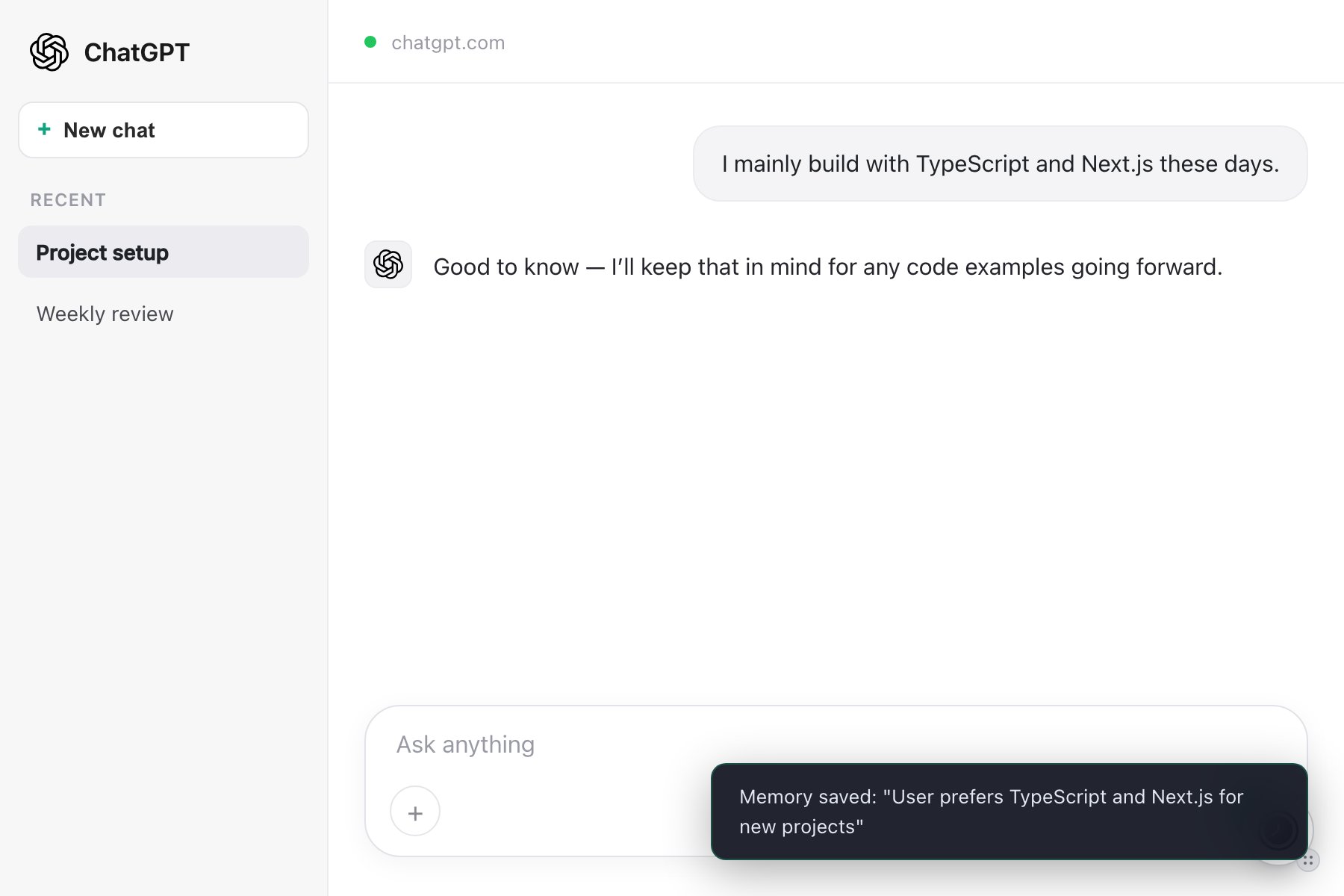
When the extension detects and saves a new memory, it shows a confirmation toast (for example *Memory saved: "User prefers morning meetings"*).
<Frame caption="The confirmation toast the extension shows after saving a memory.">
  <img src="https://mintcdn.com/memoryplugin/9o9T_0PzzkacB3w3/images/screenshots/extension/memory-saved-toast.png?fit=max&auto=format&n=9o9T_0PzzkacB3w3&q=85&s=82270c4d55e95dbfc57a039a8027f2b5" alt="Memory saved toast reading: Memory saved: User prefers TypeScript and Next.js for new projects" width="1800" height="1200" data-path="images/screenshots/extension/memory-saved-toast.png" />
</Frame>

### Save a highlight with "Extract memory"

You do not have to wait for the AI to save something. Select at least 3 characters of text anywhere in a chat and a floating **Extract memory** pill appears. Click it, the label changes to **Extracting...**, and a toast confirms *Memory saved: "..."*. It is the fastest way to keep a specific line from a conversation.

<video controls playsInline className="w-full aspect-video rounded-xl" src="https://mintcdn.com/memoryplugin/9o9T_0PzzkacB3w3/videos/extract-memory-pill.mp4?fit=max&auto=format&n=9o9T_0PzzkacB3w3&q=85&s=8c04308000a91583ff5948506272e179" data-path="videos/extract-memory-pill.mp4" />

## Smart Memory

Smart Memory keeps token use down and the AI focused by organizing a bucket into categories and loading only what a conversation needs.

### How it works

1. **Automatic categorization** - it analyzes the memories in a bucket and groups them into a handful of categories.
2. **Category summaries** - each category gets a short summary the AI can see at a glance.
3. **On-demand loading** - full category detail is loaded only when it is relevant to what you are discussing.
4. **Token efficiency** - the AI is not handed every memory on every message.

### Turning it on

1. Select a specific bucket. Smart Memory does not apply to **All Memories**.
2. Enable it once for that bucket (via the **Smart Mode** toggle in the panel, or in the dashboard).
3. New memories are assigned to categories automatically from then on.

In-chat, the AI loads a category or adds a categorized memory using markers like `<memoryplugin command="load_category" category="[id]" reason="[why]" />` and `<memoryplugin command="add_memory">[what to remember]</memoryplugin>`. Smart Memory is included on the Core plan.

## Chat History

Beyond memories, the extension can bring your past conversations into a chat and keep your history synced.

### Recall in a chat

With **Chat History Recall** on (Settings), the AI can pull concise, relevant details from your past chats when it needs them. It decides when to search and writes its own queries. Before sending, you may see an **Add chat history context?** prompt with **Add** / **Skip this chat** / **Cancel**. To skip recall for a single message, include `#nohistory` anywhere in that message.

### Sync tab

<video controls playsInline className="w-full aspect-video rounded-xl" src="https://mintcdn.com/memoryplugin/9o9T_0PzzkacB3w3/videos/enable-auto-sync.mp4?fit=max&auto=format&n=9o9T_0PzzkacB3w3&q=85&s=b80ba8974cb84cd09980423c66398be2" data-path="videos/enable-auto-sync.mp4" />

The Sync tab captures new conversations directly from the platform you are on, so no file export is needed. Supported sync platforms:

* ChatGPT
* Claude
* Gemini (experimental)
* Grok
* DeepSeek
* TypingMind

Open the Sync tab, then use the **Sync** dropdown for **Sync All**, **Sync current page**, or **Choose chats...**. Progress shows as *"{x} of {y} unsynced chats"* and you can cancel mid-run. Auto-sync (every hour, per platform) is toggled in Settings under Background Sync.

<Note>
  Gemini sync is experimental. Gemini can change without warning, so this integration may break; contact support if you hit a problem. For large backlogs, uploading an export from the dashboard is faster than syncing chat by chat. See [Chat History](/features/chat-history/introduction).
</Note>

### Search your history (Cmd+Shift+K)

Press `Cmd+Shift+K` (`Ctrl+Shift+K` on Windows and Linux), or use the **History** tab, to open the Chat History modal without leaving the page. Search across your synced conversations, filter by provider (Claude, ChatGPT, Gemini, Grok, DeepSeek, TypingMind) or **Starred**, open a conversation, copy its transcript, or jump to the original. Each conversation can also generate an AI summary or extract specifics (Key decisions, Action items, Ruled-out ideas, Style rules, Technical specs).

<video controls playsInline className="w-full aspect-video rounded-xl" src="https://mintcdn.com/memoryplugin/9o9T_0PzzkacB3w3/videos/chat-history-search.mp4?fit=max&auto=format&n=9o9T_0PzzkacB3w3&q=85&s=cef676422e3f5802cd7fab4f11d156d9" data-path="videos/chat-history-search.mp4" />

## Import Your ChatGPT Memories

The extension can copy the memories ChatGPT has saved about you into MemoryPlugin in one click. The full walkthrough lives on its own page:

<Card title="Import from ChatGPT memory" icon="download" href="/features/chatgpt-memory-import">
  Step-by-step guide to importing your ChatGPT memories
</Card>

## Settings

Open the **Settings** tab in the panel to control extension behavior:

* **Chat History Recall** - let the AI recall context from past conversations when it needs it.
* **Automatically add memories in new conversations** - inject on your first message in a new chat, after a 5-second countdown you can cancel.
* **Maximum memories to load** - `25`, `50`, `100`, `150`, or `200`. Lower values load faster.
* **Background Sync** - per-platform auto-sync toggles (Auto-sync ChatGPT, Claude, Gemini, Grok, DeepSeek, and TypingMind conversations), plus a **View Sync Status & History** button.
* **How MemoryPlugin Works** - reopen the onboarding tour.

## Onboarding

On first install the extension opens an interactive tour, **Essentials**, with four short chapters: what MemoryPlugin is, activating the plugin, saving memories, and chat history and sync. You can skip it, and reopen it any time from Settings via **How MemoryPlugin Works**.

## Supported Platforms

The extension injects into 21+ AI sites, including:

<CardGroup cols={3}>
  <Card title="ChatGPT" icon="robot">
    chatgpt.com
  </Card>

  <Card title="Claude" icon="robot">
    claude.ai
  </Card>

  <Card title="Gemini" icon="robot">
    gemini.google.com
  </Card>

  <Card title="Grok" icon="robot">
    grok.com
  </Card>

  <Card title="DeepSeek" icon="robot">
    chat.deepseek.com
  </Card>

  <Card title="Perplexity" icon="robot">
    perplexity.ai
  </Card>

  <Card title="TypingMind" icon="robot">
    typingmind.com
  </Card>

  <Card title="Mistral" icon="robot">
    chat.mistral.ai
  </Card>

  <Card title="Kimi" icon="robot">
    kimi.com
  </Card>

  <Card title="Qwen" icon="robot">
    chat.qwen.ai
  </Card>

  <Card title="Z.ai" icon="robot">
    chat.z.ai
  </Card>

  <Card title="OpenRouter" icon="robot">
    openrouter.ai
  </Card>

  <Card title="Poe" icon="robot">
    poe.com
  </Card>

  <Card title="Google AI Studio" icon="robot">
    aistudio.google.com
  </Card>

  <Card title="NotebookLM" icon="robot">
    notebooklm.google.com
  </Card>

  <Card title="LibreChat" icon="robot">
    Self-hosted instances
  </Card>

  <Card title="ChatLLM" icon="robot">
    apps.abacus.ai
  </Card>

  <Card title="MiniMax" icon="robot">
    MiniMax Chat
  </Card>
</CardGroup>

## Privacy & Security

<Info>
  Your memories are stored on MemoryPlugin servers and are only accessible to you when logged in.
</Info>

* **You stay in control** - memories are added only when you activate a chat, turn on auto-add, or extract a highlight yourself.
* **Encrypted transmission** - all data moves over HTTPS.
* **Authentication** - access requires you to be logged in.
* **Bucket isolation** - memories stay separated by bucket for different contexts.

### Permissions

The extension needs a few browser permissions to work:

* **Storage** - cache your authentication and preferences.
* **Host access** - inject the panel into supported AI sites.
* **Cookies** - keep your login session.

## Troubleshooting

<AccordionGroup>
  <Accordion title="Button not appearing">
    Make sure you are on a supported platform and the extension is enabled, then refresh the page.
  </Accordion>

  <Accordion title="Memories not loading">
    Check that you are signed in to your MemoryPlugin account and have a working connection.
  </Accordion>

  <Accordion title="Sync not working">
    The Sync tab needs you signed in to both MemoryPlugin and the source platform. If you see "You might not be logged in", open that platform in a new tab, sign in, then come back and refresh.
  </Accordion>

  <Accordion title="Extension permissions">
    Confirm the extension is allowed to run on the AI sites you use.
  </Accordion>

  <Accordion title="Memory not being added">
    The AI's response has to contain the marker `to=memoryplugin&&memory=[text]` (or `tool=memoryplugin&&memory=...` on ChatGPT). Ask it again to remember the item if it did not.
  </Accordion>

  <Accordion title="Canvas mode issues">
    The extension adapts to ChatGPT's Canvas mode. Refresh if the buttons do not appear correctly.
  </Accordion>
</AccordionGroup>

## Next Steps

<CardGroup cols={2}>
  <Card title="Organize with Buckets" icon="folder" href="/features/memory-buckets">
    Learn how to organize your memories into different contexts
  </Card>

  <Card title="Try MCP Server" icon="server" href="/integrations/mcp-server">
    Use MemoryPlugin with desktop AI applications
  </Card>
</CardGroup>