> ## Documentation Index
> Fetch the complete documentation index at: https://help.memoryplugin.com/llms.txt
> Use this file to discover all available pages before exploring further.

# Integrate into Your Own Custom GPT

> Add long-term memory to your own Custom GPTs with MemoryPlugin

export const ArticleInfo = ({author, lastUpdated}) => {
  const authorAvatar = author === 'asad' ? '/images/author-asad.jpeg' : null;
  const formatDate = dateInput => {
    if (!dateInput) return '';
    if (typeof dateInput === 'string' && !dateInput.match(/^\d{4}-\d{2}-\d{2}/)) {
      return dateInput;
    }
    try {
      const date = new Date(dateInput);
      const now = new Date();
      const diffTime = Math.abs(now - date);
      const diffDays = Math.floor(diffTime / (1000 * 60 * 60 * 24));
      if (diffDays === 0) return 'today';
      if (diffDays === 1) return '1 day ago';
      if (diffDays < 7) return `${diffDays} days ago`;
      if (diffDays < 30) return `${Math.ceil(diffDays / 7)} week${Math.ceil(diffDays / 7) > 1 ? 's' : ''} ago`;
      if (diffDays < 365) return `${Math.ceil(diffDays / 30)} month${Math.ceil(diffDays / 30) > 1 ? 's' : ''} ago`;
      return `${Math.ceil(diffDays / 365)} year${Math.ceil(diffDays / 365) > 1 ? 's' : ''} ago`;
    } catch {
      return dateInput;
    }
  };
  return <div style={{
    display: "flex",
    alignItems: "center",
    gap: "8px",
    marginBottom: "16px",
    padding: "8px 12px",
    backgroundColor: "var(--ifm-color-emphasis-100)",
    borderRadius: "6px",
    fontSize: "14px",
    color: "var(--ifm-color-content-secondary)",
    border: "1px solid var(--ifm-color-emphasis-200)",
    opacity: "0.8"
  }}>
      <div style={{
    width: "40px",
    height: "40px",
    borderRadius: "50%",
    background: authorAvatar || "linear-gradient(45deg, #4F46E5, #7C3AED)",
    display: "flex",
    alignItems: "center",
    justifyContent: "center",
    color: "white",
    fontWeight: "bold",
    fontSize: "18px"
  }}>
        {authorAvatar ? <img src={authorAvatar} alt={author} style={{
    width: "100%",
    height: "100%",
    borderRadius: "50%"
  }} /> : author?.[0]?.toUpperCase()}
      </div>
      <div>
        <div style={{
    fontWeight: "400",
    fontSize: "14px"
  }}>Written by <span style={{
    fontWeight: "600"
  }}>{author}</span></div>
        <div style={{
    fontSize: "14px"
  }}>Last updated <span style={{
    fontWeight: "600"
  }}>{formatDate(lastUpdated)}</span></div>
      </div>
    </div>;
};

<ArticleInfo author="asad" lastUpdated="2025-08-23" />

Add long-term memory functionality to your own Custom GPTs with MemoryPlugin! We make this very easy to do by providing everything you need to integrate our memory system.

## What are Custom GPTs?

Custom GPTs are a feature in ChatGPT that let you create customized versions of ChatGPT with:

* Custom instructions and personality
* Document knowledge bases
* External API integrations
* Specialized functionality

With MemoryPlugin, you can add **long-term memory functionality** to any Custom GPT!

## Key Concepts

Before setting up the integration, understand these concepts:

<Tabs>
  <Tab title="APIs">
    APIs let computer systems communicate. In Custom GPTs, APIs let your GPT use external tools like MemoryPlugin.
  </Tab>

  <Tab title="OpenAPI Spec">
    A file that describes all API functionality that Custom GPTs can import and use directly.
  </Tab>

  <Tab title="Auth Token">
    Your authentication credentials to access the MemoryPlugin API. Get this from your [Dashboard](https://memoryplugin.com/dashboard).
  </Tab>

  <Tab title="Custom Instructions">
    Text prompts that guide how the AI should use MemoryPlugin within your Custom GPT.
  </Tab>
</Tabs>

## Step-by-Step Setup

### Step 1: Access GPT Builder

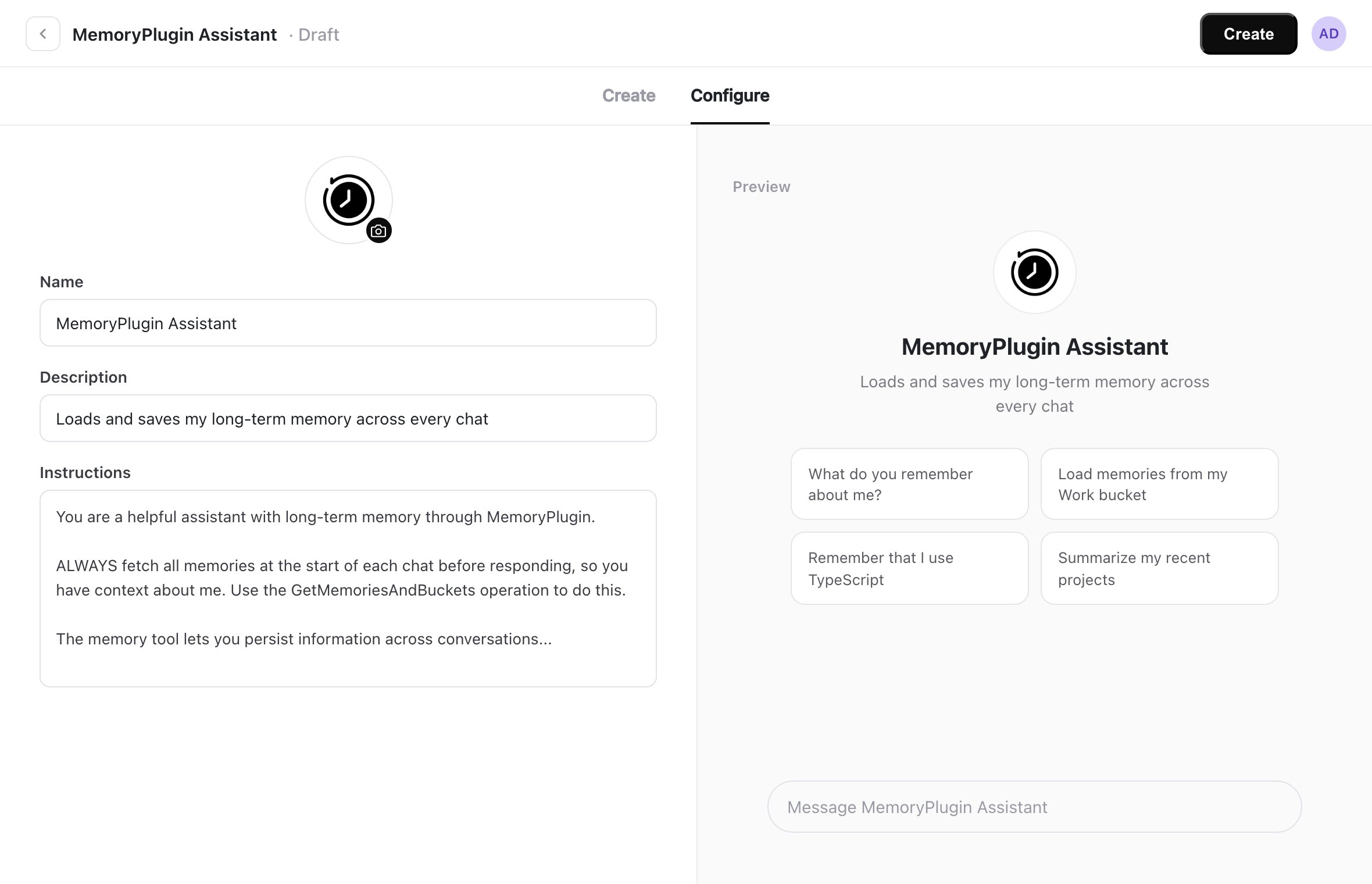
1. Open the edit window for your existing Custom GPT, or create a new one
2. Navigate to the **Configure** tab
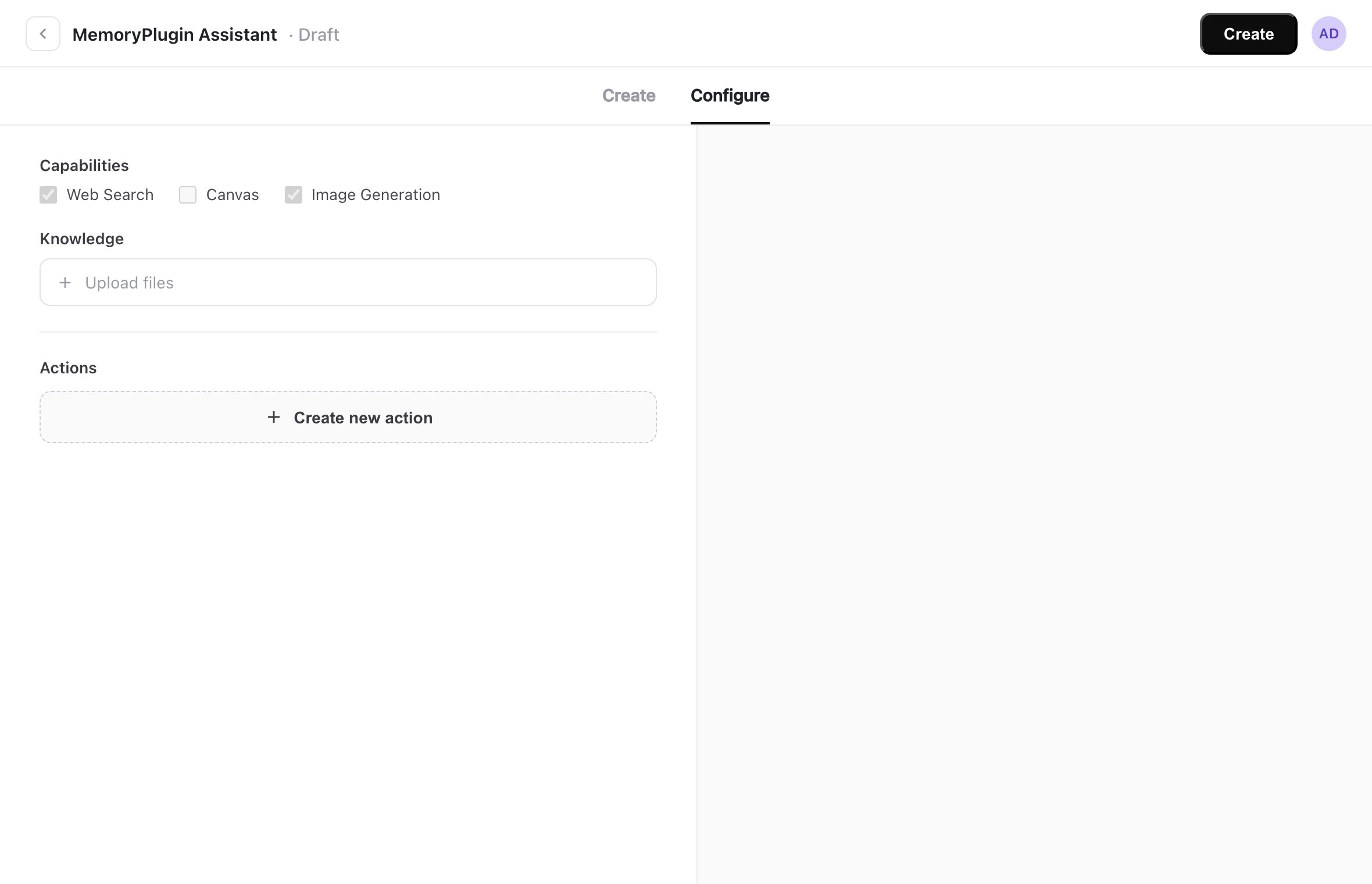
3. Scroll down to find the **Actions** section

<img src="https://mintcdn.com/memoryplugin/7JRbRjKuQWC5r5_N/images/custom-gpt-integration/gpt-editor.png?fit=max&auto=format&n=7JRbRjKuQWC5r5_N&q=85&s=4cb2ce8575ac7db043cfc779b7da25af" alt="Custom GPT editor showing the Configure tab" width="2964" height="1662" data-path="images/custom-gpt-integration/gpt-editor.png" />

### Step 2: Create New Action

Within the **Configure** tab, you will see an Actions section if you scroll down:

<img src="https://mintcdn.com/memoryplugin/7JRbRjKuQWC5r5_N/images/custom-gpt-integration/actions-section.png?fit=max&auto=format&n=7JRbRjKuQWC5r5_N&q=85&s=c0099ea09f1ca76e9f5f8a8047838281" alt="Actions section in the Custom GPT editor" width="654" height="210" data-path="images/custom-gpt-integration/actions-section.png" />

1. Click **Create new action**

<img src="https://mintcdn.com/memoryplugin/7JRbRjKuQWC5r5_N/images/custom-gpt-integration/create-action.png?fit=max&auto=format&n=7JRbRjKuQWC5r5_N&q=85&s=39bfb383429e896605e0d24c37ad713e" alt="Create new action button" width="1482" height="1668" data-path="images/custom-gpt-integration/create-action.png" />

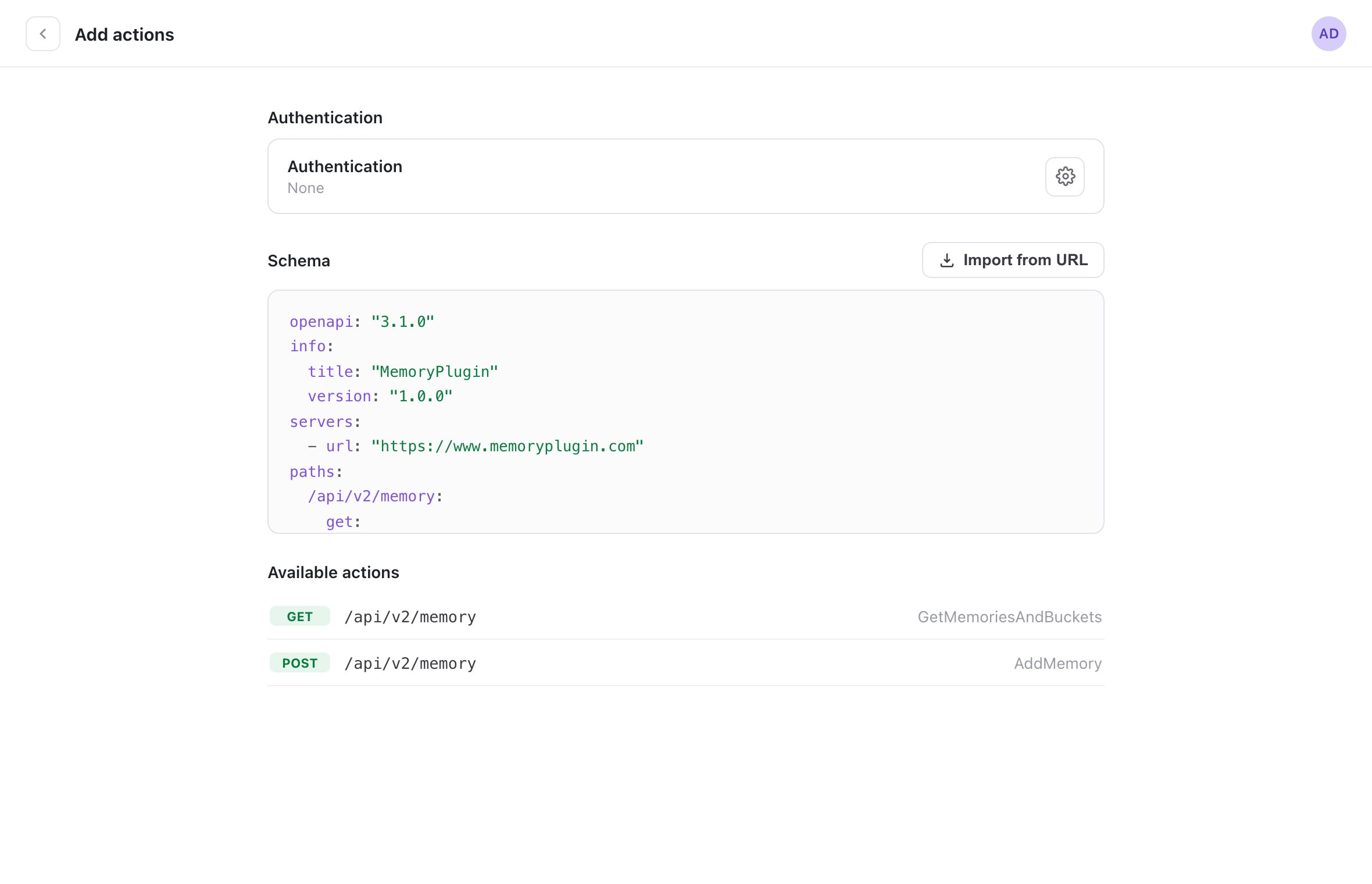
2. Click **Import from URL**
3. Enter this URL:
   ```
   https://www.memoryplugin.com/openapi.json
   ```
### Step 3: Configure Authentication

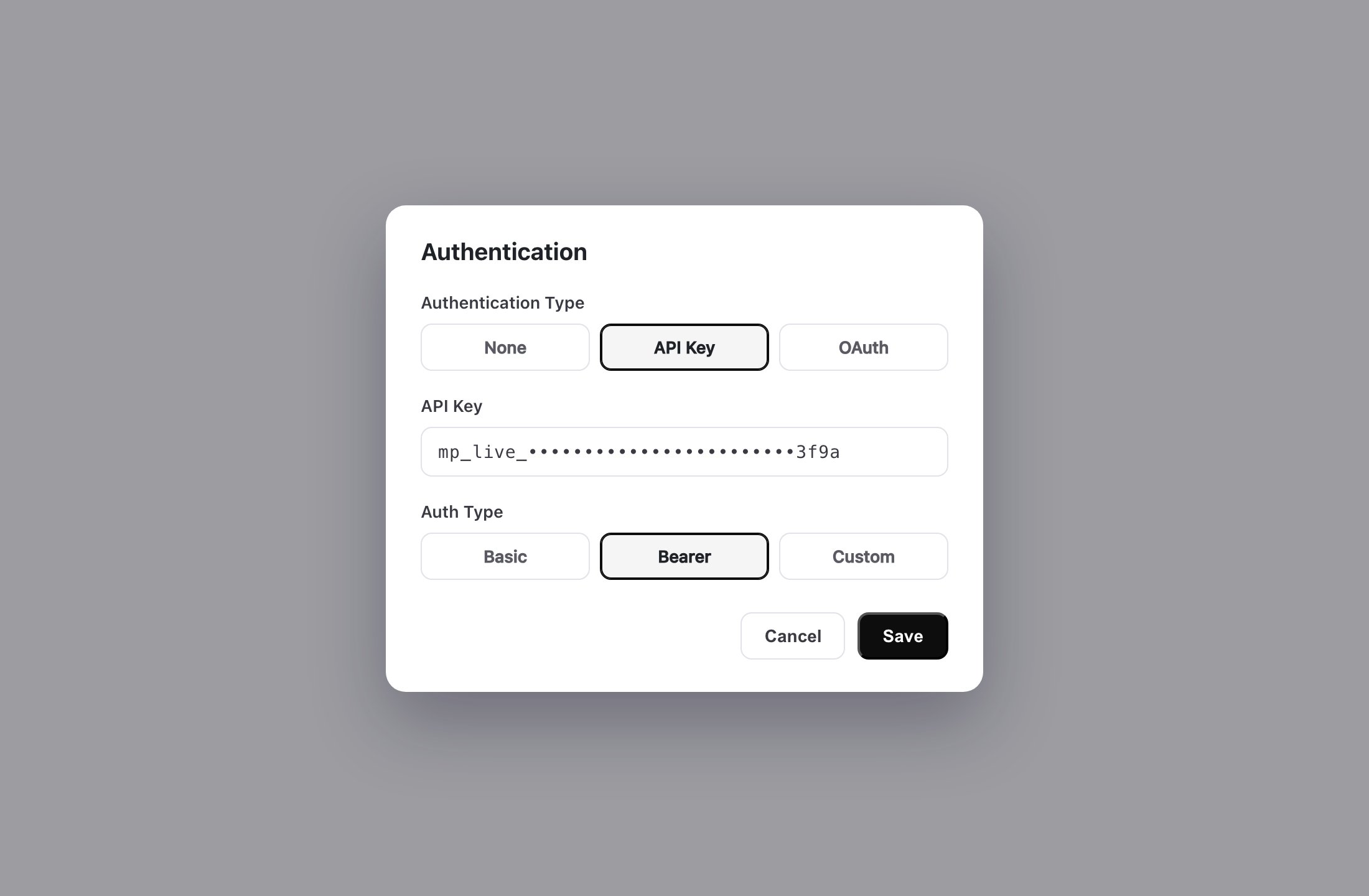
1. In the Authentication section, click the Settings icon
2. Select **API key**
3. Choose **Bearer** from the options
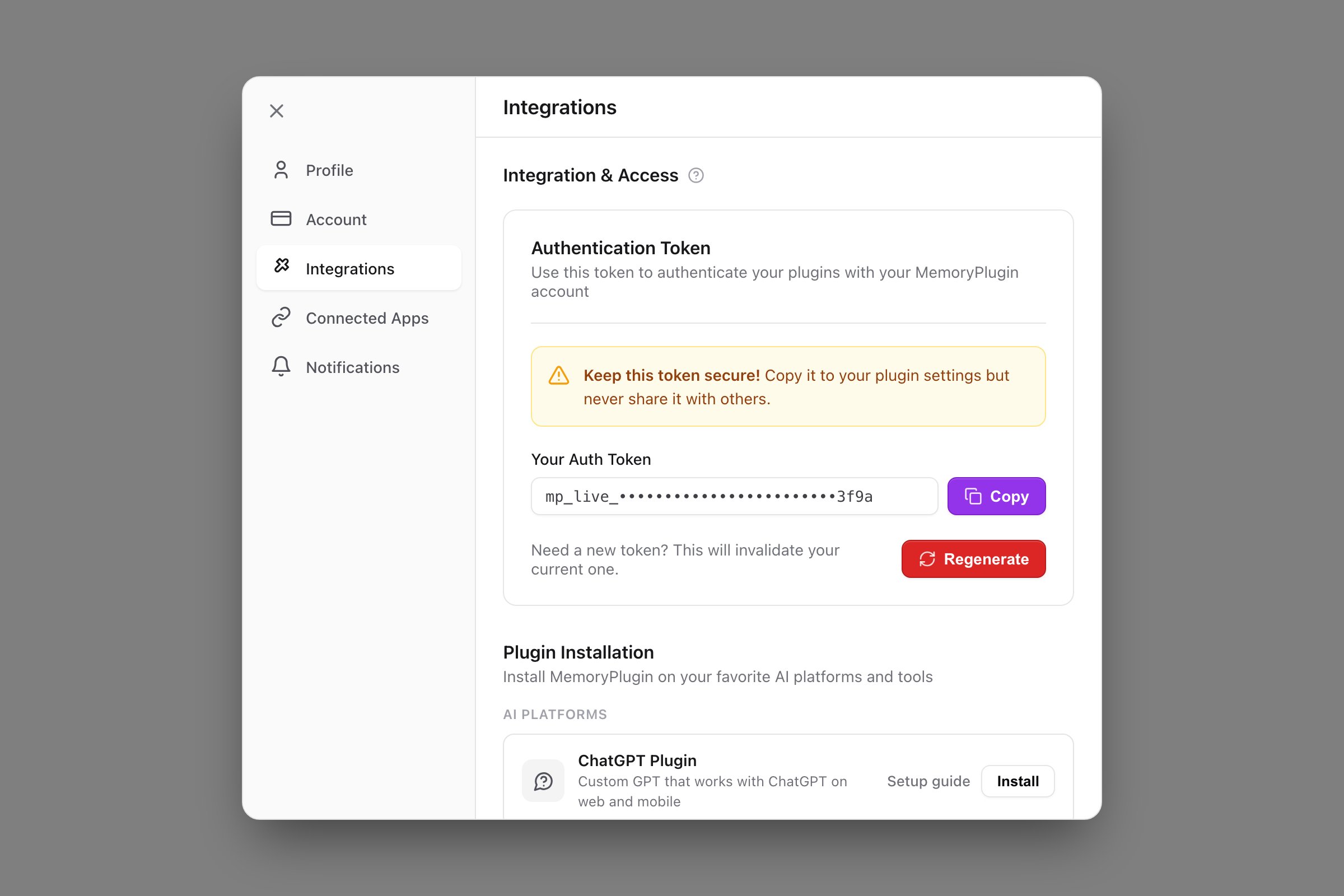
4. Get your Auth Token from the [MemoryPlugin Dashboard](https://memoryplugin.com/dashboard)

<img src="https://mintcdn.com/memoryplugin/7JRbRjKuQWC5r5_N/images/custom-gpt-integration/dashboard-token.png?fit=max&auto=format&n=7JRbRjKuQWC5r5_N&q=85&s=b56ada15cae717c89782eb6fa0005309" alt="MemoryPlugin Dashboard showing the Auth Token" width="1554" height="462" data-path="images/custom-gpt-integration/dashboard-token.png" />

5. Enter your token in the authentication setup

<img src="https://mintcdn.com/memoryplugin/7JRbRjKuQWC5r5_N/images/custom-gpt-integration/auth-setup.png?fit=max&auto=format&n=7JRbRjKuQWC5r5_N&q=85&s=c92aa74bbfc0a7e8934340b47ee6acc3" alt="Authentication setup with Bearer token" width="946" height="816" data-path="images/custom-gpt-integration/auth-setup.png" />

<Warning>
  Your Auth Token is like a password to your account. Keep it confidential and regenerate it if accidentally exposed.
</Warning>

<Info>
  Account email independence: Your MemoryPlugin sign‑in email does not need to match the email you use on ChatGPT, Claude, TypingMind, or any other tool. Access and permissions are tied to your MemoryPlugin account (and API key when applicable), not third‑party logins.
</Info>

### Step 4: Add Instructions

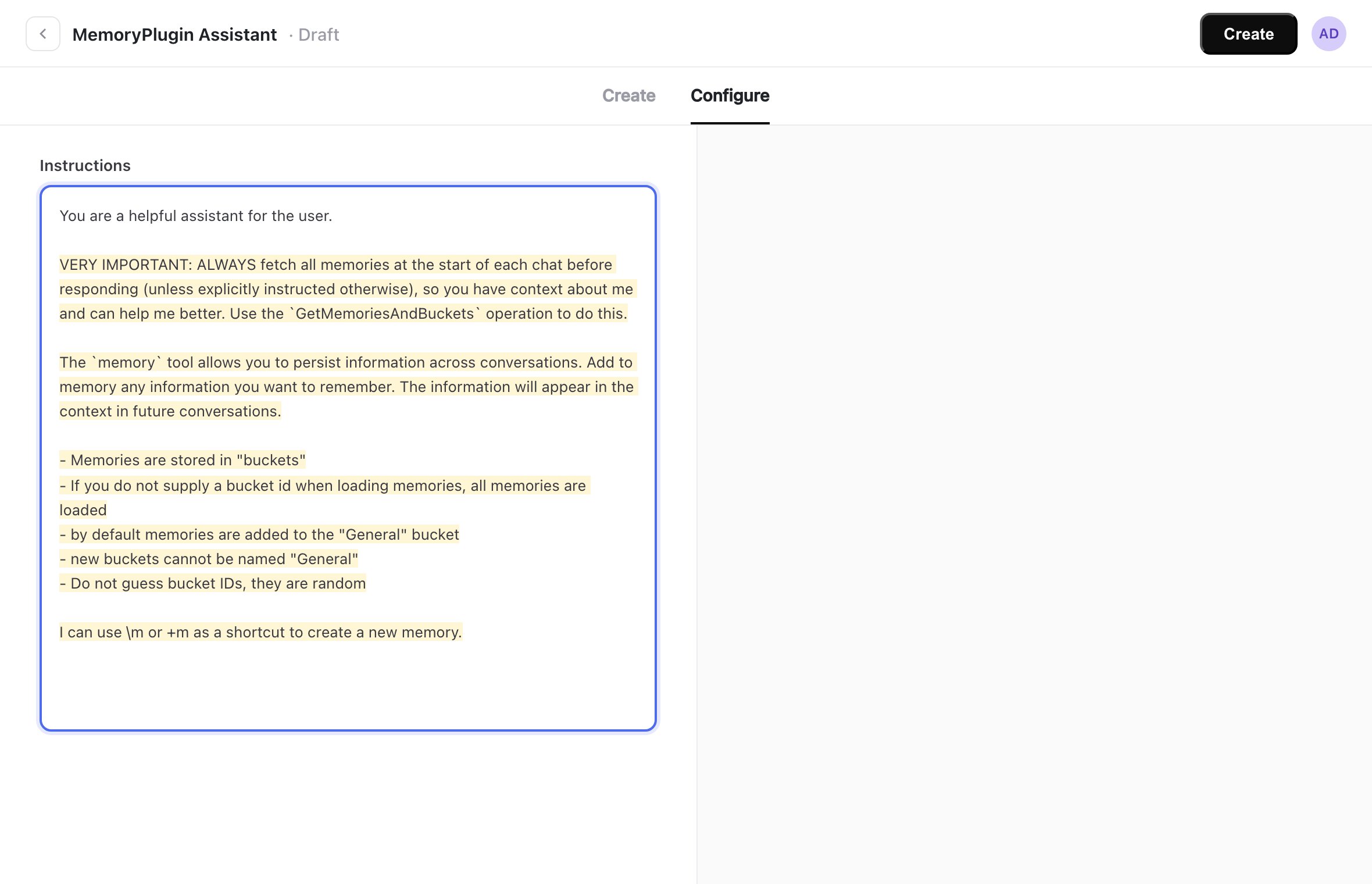
Back in the **Configure** tab, you have an Instructions section. You need to instruct your GPT how it should use MemoryPlugin:

<img src="https://mintcdn.com/memoryplugin/7JRbRjKuQWC5r5_N/images/custom-gpt-integration/instructions.png?fit=max&auto=format&n=7JRbRjKuQWC5r5_N&q=85&s=3121afe4a287acfb4d8eea9a95301ad9" alt="Instructions section in the Custom GPT editor" width="1460" height="1018" data-path="images/custom-gpt-integration/instructions.png" />

Add the MemoryPlugin instructions after your existing custom instructions:

```text theme={null}
VERY IMPORTANT: ALWAYS fetch all memories at the start of each chat before responding (unless explicitly instructed otherwise), so you have context about me and can help me better. Use the `GetMemoriesAndBuckets` operation to do this.

The `memory` tool allows you to persist information across conversations. Add to memory any information you want to remember. The information will appear in the context in future conversations.

- Memories are stored in "buckets"
- If you do not supply a bucket id when loading memories, all memories are loaded
- if you do supply a bucket id, only those buckets memories are loaded
- by default memories are added to the "General" bucket
- new buckets cannot be named "General"
- If you supply the bucketId when creating a new memory, it will be added to that bucket instead
- Do not guess bucket IDs, they are random
- When using bucket IDs, please make sure they are correct and are sent in the correct parameter.
- When explicitly instructed to add a memory by the user, follow the users instructions strictly.

I can use \m or +m as a shortcut to create a new memory.

- before using any tool, review the tool use instructions thoroughly
- Double-check the function schemas to make sure you are using the correct expected format.
- Make sure your tool and/or function call matches the expected format and schema
- if a JSON schema is specified, adhere to it strictly.
- Verify all your tool calls with the usage instructions in the system prompt.
```

### Step 5: Save and Test

1. Click **Save** to save your action configuration
2. Test your Custom GPT by starting a new conversation
3. The GPT should automatically load your memories at the start

## Visual Guide

<Steps>
  <Step title="Configure Tab">
    Navigate to the Configure tab in your Custom GPT editor
  </Step>

  <Step title="Actions Section">
    Scroll down to find the Actions section
  </Step>

  <Step title="Import API">
    Import the MemoryPlugin OpenAPI specification
  </Step>

  <Step title="Set Authentication">
    Configure Bearer token authentication with your API key
  </Step>

  <Step title="Add Instructions">
    Include the MemoryPlugin prompt in your instructions
  </Step>

  <Step title="Test Integration">
    Start a conversation to verify memory loading works
  </Step>
</Steps>

## Features Your GPT Will Gain

Once integrated, your Custom GPT will be able to:

* **Auto-load memories** at the start of conversations
* **Remember important information** from previous chats
* **Organize memories** into different buckets/contexts
* **Search through memories** to find relevant information
* **Persist knowledge** across all conversations
* **Share memories** with other MemoryPlugin integrations

## Best Practices

<CardGroup cols={2}>
  <Card title="Memory Management" icon="brain">
    Instruct your GPT on what types of information to remember based on your use case
  </Card>

  <Card title="Bucket Strategy" icon="folder">
    Use specific buckets for different contexts or topics your GPT handles
  </Card>

  <Card title="User Shortcuts" icon="keyboard">
    Tell users about the \m and +m shortcuts for quick memory creation
  </Card>

  <Card title="Privacy" icon="shield">
    Be mindful of what information gets stored and inform users appropriately
  </Card>
</CardGroup>

## Troubleshooting

<AccordionGroup>
  <Accordion title="OpenAPI import failed">
    Ensure you're using the correct URL: `https://www.memoryplugin.com/openapi.json`
  </Accordion>

  <Accordion title="Authentication errors">
    Verify your Auth Token is correct and hasn't expired. Regenerate if necessary.
  </Accordion>

  <Accordion title="Memories not loading">
    Check that the GPT instructions include the memory loading commands and are properly formatted.
  </Accordion>

  <Accordion title="Function call errors">
    Ensure the instructions emphasize following the schema and format requirements strictly.
  </Accordion>
</AccordionGroup>

## Example Use Cases

* **Personal Assistant GPT**: Remember preferences, schedule, and important personal information
* **Learning Companion**: Track learning progress, remember concepts studied, and build knowledge
* **Project Manager**: Remember project details, team information, and progress across conversations
* **Writing Assistant**: Remember writing style, character details, plot points across sessions
* **Customer Service**: Remember customer interactions, preferences, and history

## Next Steps

<CardGroup cols={2}>
  <Card title="API Reference" icon="code" href="/api-reference/introduction">
    Explore the full MemoryPlugin API capabilities
  </Card>

  <Card title="Memory Buckets Guide" icon="folder" href="/features/memory-buckets">
    Learn how to organize memories effectively
  </Card>
</CardGroup>