> ## Documentation Index
> Fetch the complete documentation index at: https://help.memoryplugin.com/llms.txt
> Use this file to discover all available pages before exploring further.

# Official MemoryPlugin Custom GPT

> Use the ready-made MemoryPlugin Custom GPT in ChatGPT on web, desktop, and mobile

export const ArticleInfo = ({author, lastUpdated}) => {
  const authorAvatar = author === 'Alara' ? '/images/author-alara.jpg' : author === 'asad' ? '/images/author-alara.jpg' : null;
  const formatDate = dateInput => {
    if (!dateInput) return '';
    if (typeof dateInput === 'string' && !dateInput.match(/^\d{4}-\d{2}-\d{2}/)) {
      return dateInput;
    }
    try {
      const date = new Date(dateInput);
      const now = new Date();
      const diffTime = Math.abs(now - date);
      const diffDays = Math.floor(diffTime / (1000 * 60 * 60 * 24));
      if (diffDays === 0) return 'today';
      if (diffDays === 1) return '1 day ago';
      if (diffDays < 7) return `${diffDays} days ago`;
      if (diffDays < 30) return `${Math.ceil(diffDays / 7)} week${Math.ceil(diffDays / 7) > 1 ? 's' : ''} ago`;
      if (diffDays < 365) return `${Math.ceil(diffDays / 30)} month${Math.ceil(diffDays / 30) > 1 ? 's' : ''} ago`;
      return `${Math.ceil(diffDays / 365)} year${Math.ceil(diffDays / 365) > 1 ? 's' : ''} ago`;
    } catch {
      return dateInput;
    }
  };
  return <div style={{
    display: "flex",
    alignItems: "center",
    gap: "8px",
    marginBottom: "16px",
    padding: "8px 12px",
    backgroundColor: "var(--ifm-color-emphasis-100)",
    borderRadius: "6px",
    fontSize: "14px",
    color: "var(--ifm-color-content-secondary)",
    border: "1px solid var(--ifm-color-emphasis-200)",
    opacity: "0.8"
  }}>
      <div style={{
    width: "40px",
    height: "40px",
    borderRadius: "50%",
    background: authorAvatar || "linear-gradient(45deg, #4F46E5, #7C3AED)",
    display: "flex",
    alignItems: "center",
    justifyContent: "center",
    color: "white",
    fontWeight: "bold",
    fontSize: "18px"
  }}>
        {authorAvatar ? <img src={authorAvatar} alt={author} style={{
    width: "100%",
    height: "100%",
    borderRadius: "50%"
  }} /> : author?.[0]?.toUpperCase()}
      </div>
      <div>
        <div style={{
    fontWeight: "400",
    fontSize: "14px"
  }}>Written by <span style={{
    fontWeight: "600"
  }}>{author}</span></div>
        <div style={{
    fontSize: "14px"
  }}>Last updated <span style={{
    fontWeight: "600"
  }}>{formatDate(lastUpdated)}</span></div>
      </div>
    </div>;
};

<ArticleInfo author="Alara" lastUpdated="2026-07-04" />

This page covers the official MemoryPlugin Custom GPT: a ready-made GPT you open in ChatGPT that loads and saves your memories for you. Nothing to build. If you want to add MemoryPlugin to a Custom GPT you are building yourself, see [Integrate into your own Custom GPT](/integrations/custom-gpt-integration) instead.

Custom GPTs run inside the ChatGPT app on web, desktop, and mobile.

## Open the Custom GPT

<Card title="MemoryPlugin Custom GPT" icon="external-link" href="https://chatgpt.com/g/g-pPRwrR7LI-memoryplugin">
  Open the official MemoryPlugin Custom GPT
</Card>

<Info>
  Account email independence: Your MemoryPlugin sign‑in email does not need to match the email you use on ChatGPT, Claude, TypingMind, or any other tool. Access and permissions are tied to your MemoryPlugin account (and API key when applicable), not third‑party logins.
</Info>

## How to use it

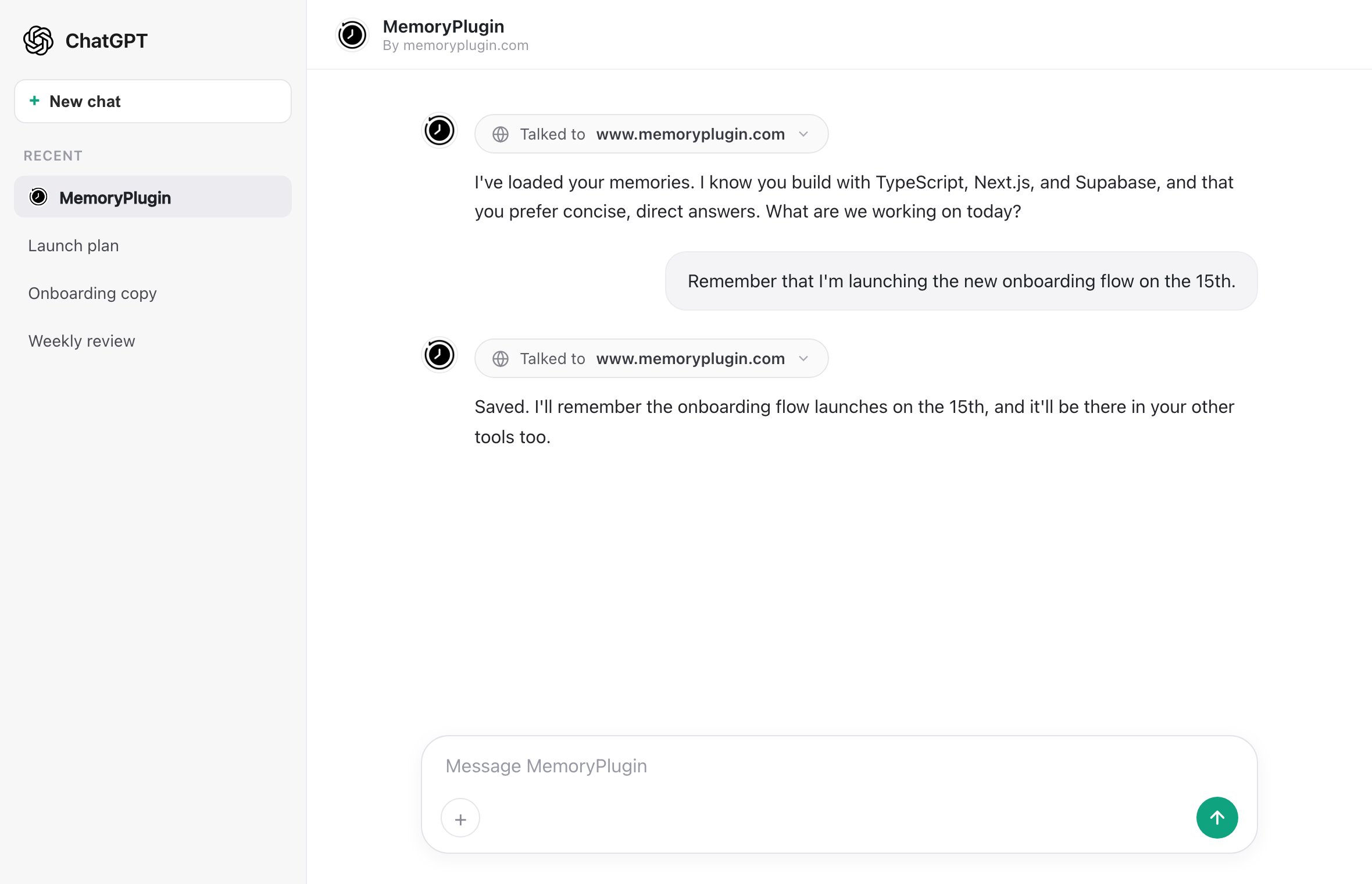
Start your chat with the MemoryPlugin GPT and it loads your memories automatically, then saves new ones as you talk.

<Warning>
  As of mid-2026, a Custom GPT can only run on a limited set of ChatGPT models (currently GPT-4o and GPT-5 Auto). OpenAI changes which models this covers fairly often. If you want to stay on a specific model such as GPT-5 Pro or a legacy model, the [browser extension](/integrations/browser-extension) works across models and is the better choice.
</Warning>

### Starting a new chat

1. Open the MemoryPlugin Custom GPT.
2. Start a new conversation. Your memories load at the start.
3. The GPT fetches your existing memories at the beginning of each chat.
4. Ask it to load memories from a specific bucket if you only want that context.

<img src="https://mintcdn.com/memoryplugin/0D7zqA9Ak-TR54pG/images/screenshots/custom-gpt/custom-gpt-interface.png?fit=max&auto=format&n=0D7zqA9Ak-TR54pG&q=85&s=2ec9cc9615d1bc4afd06d1359c08b404" alt="Custom GPT interface showing MemoryPlugin automatically loading memories" width="2360" height="1520" data-path="images/screenshots/custom-gpt/custom-gpt-interface.png" />

### Using it inside an existing chat

On web and desktop you can pull the Custom GPT into a chat you already started:

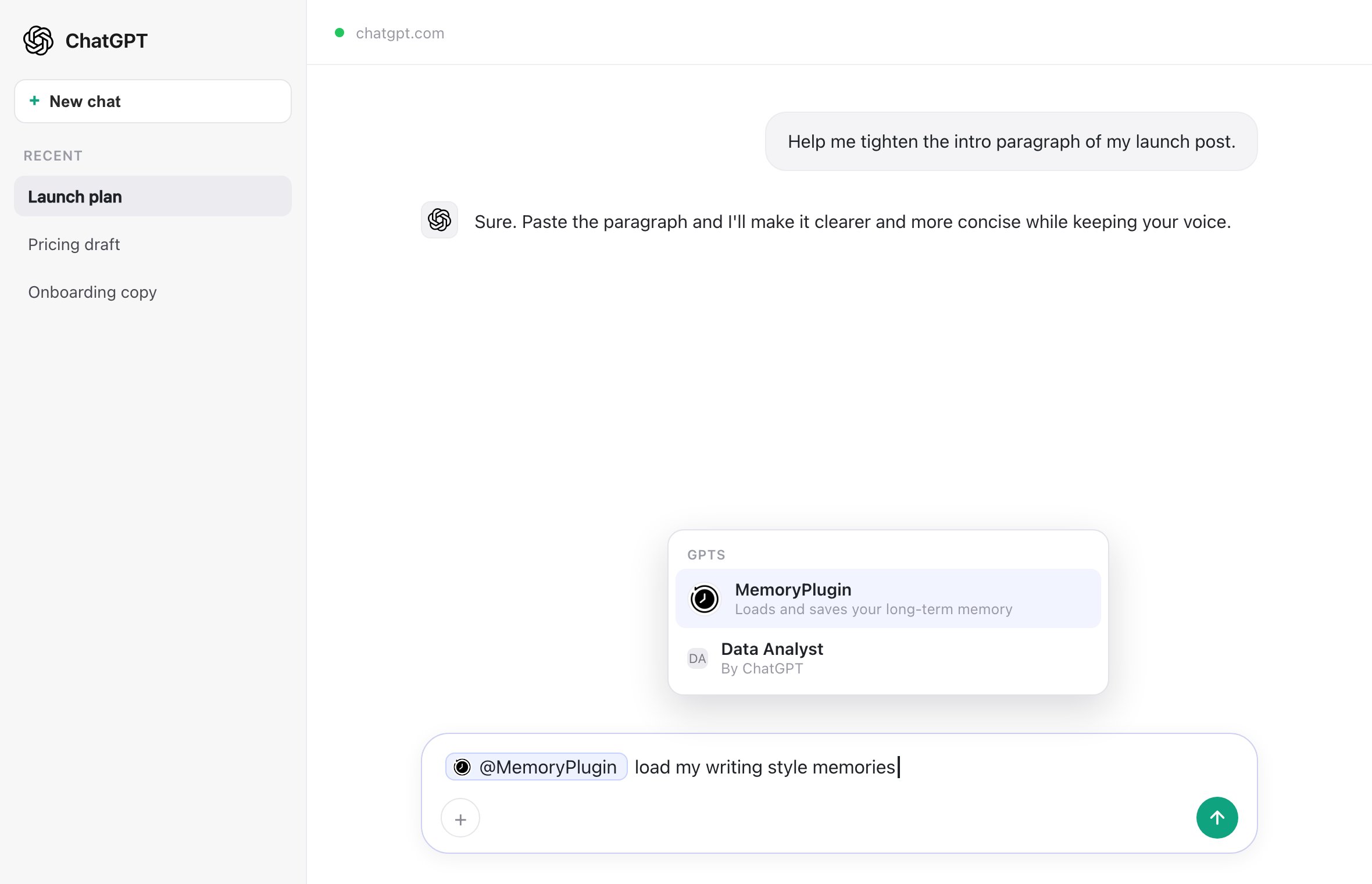
1. Type `@` in the chat input.
2. Type "MemoryPlugin" and select it.
3. From that point, messages run on the Custom GPT's model instead of the one you had selected.
4. Ask it to load memories or save new ones while it is active.
<img src="https://mintcdn.com/memoryplugin/0D7zqA9Ak-TR54pG/images/screenshots/custom-gpt/at-mention.png?fit=max&auto=format&n=0D7zqA9Ak-TR54pG&q=85&s=2020326861ad77ede04beae3fbdcdf80" alt="Using @MemoryPlugin to invoke the Custom GPT in an existing chat" width="2360" height="1520" data-path="images/screenshots/custom-gpt/at-mention.png" />

## What it does

* **Loads memories automatically** at the start of a new chat, so the GPT has context about you right away.
* **Saves memories** when you ask it to remember something.
* **Loads from a specific bucket** when you name one.
* **Syncs everywhere.** Memories you create here show up in the browser extension, the MCP server, and every other MemoryPlugin integration, because they all read one account.

## Limitations

Worth knowing before you rely on it:

* It only runs on the models OpenAI allows for Custom GPTs (see the warning above).
* You cannot switch to a different ChatGPT model while the Custom GPT is active.
* Automatic memory loading happens when you start a chat with the GPT, not in arbitrary chats.
* Once you invoke it with `@` in an existing chat, the rest of that chat uses the Custom GPT's model.

## When this is the right fit

* You are on mobile and want memory without installing anything.
* You want quick memory access with no browser extension.
* The model restriction does not matter for how you work.

## Getting started

<Steps>
  <Step title="Open the Custom GPT">
    Go to the [MemoryPlugin Custom GPT](https://chatgpt.com/g/g-pPRwrR7LI-memoryplugin).
  </Step>

  <Step title="Start a chat">
    Begin a new conversation. The GPT loads your memories automatically.
  </Step>

  <Step title="Pick a bucket (optional)">
    Ask for a specific bucket: "Load memories from my Work bucket."
  </Step>

  <Step title="Chat normally">
    Keep chatting. The GPT saves important information as you go.
  </Step>
</Steps>

## Next steps

<CardGroup cols={2}>
  <Card title="Build your own Custom GPT" icon="puzzle-piece" href="/integrations/custom-gpt-integration">
    Add MemoryPlugin actions to a GPT you create yourself
  </Card>

  <Card title="Memory Buckets" icon="folder" href="/features/memory-buckets">
    Organize memories into separate contexts
  </Card>

  <Card title="Browser Extension" icon="browser" href="/integrations/browser-extension">
    Memory across models and 21+ platforms
  </Card>
</CardGroup>