> ## Documentation Index
> Fetch the complete documentation index at: https://help.memoryplugin.com/llms.txt
> Use this file to discover all available pages before exploring further.
# MCP Server (local)
> Run MemoryPlugin as a local MCP process so any MCP client can read and write your memory
export const ArticleInfo = ({author, lastUpdated}) => {
const authorAvatar = author === 'Alara' ? '/images/author-alara.jpg' : author === 'asad' ? '/images/author-alara.jpg' : null;
const formatDate = dateInput => {
if (!dateInput) return '';
if (typeof dateInput === 'string' && !dateInput.match(/^\d{4}-\d{2}-\d{2}/)) {
return dateInput;
}
try {
const date = new Date(dateInput);
const now = new Date();
const diffTime = Math.abs(now - date);
const diffDays = Math.floor(diffTime / (1000 * 60 * 60 * 24));
if (diffDays === 0) return 'today';
if (diffDays === 1) return '1 day ago';
if (diffDays < 7) return `${diffDays} days ago`;
if (diffDays < 30) return `${Math.ceil(diffDays / 7)} week${Math.ceil(diffDays / 7) > 1 ? 's' : ''} ago`;
if (diffDays < 365) return `${Math.ceil(diffDays / 30)} month${Math.ceil(diffDays / 30) > 1 ? 's' : ''} ago`;
return `${Math.ceil(diffDays / 365)} year${Math.ceil(diffDays / 365) > 1 ? 's' : ''} ago`;
} catch {
return dateInput;
}
};
return
{authorAvatar ? : author?.[0]?.toUpperCase()}
Written by {author}
Last updated {formatDate(lastUpdated)}
;
};
The Model Context Protocol (MCP) lets AI clients call external tools. MemoryPlugin ships an MCP server, so any MCP client can store and recall your memory and chat history through it. This page covers the **local** server, which runs on your machine via Node.js.
Most people should use the [hosted Remote MCP server](/integrations/remote-mcp-server) instead. It needs no Node.js and no token in a config file: you connect by URL and approve access in your browser. Use this local server only when you specifically want a process on your own machine, for example to keep the connection fully under your control or when your client cannot do the browser sign-in flow. The tools and data are the same either way.
## What is MCP?
MCP is a standard from Anthropic for how AI apps talk to external tools and data sources. There are two halves:
* **MCP clients**: the app you chat in (Claude Desktop, Cursor, Windsurf, and others).
* **MCP servers**: tools the client can call. MemoryPlugin is one, and it adds memory and chat-history recall.
[Claude Desktop](https://claude.ai/download) is a common MCP client because Anthropic created the protocol, but 100+ other tools support MCP.
## Requirements
You need three things:
1. **Node.js** to run the server. [Download it from nodejs.org](https://nodejs.org).
2. **An MCP client** such as Claude Desktop, Cursor, or Windsurf.
3. **A MemoryPlugin account** to get your auth token.
Local MCP setup is more technical than the other integrations. You edit a JSON config file by hand and paste in a token. If that is not what you want, the [Remote MCP server](/integrations/remote-mcp-server) is the easier path.
## Setup
You do not install the server like an app. You add a config entry to your MCP client that tells it to run the MemoryPlugin server on demand.
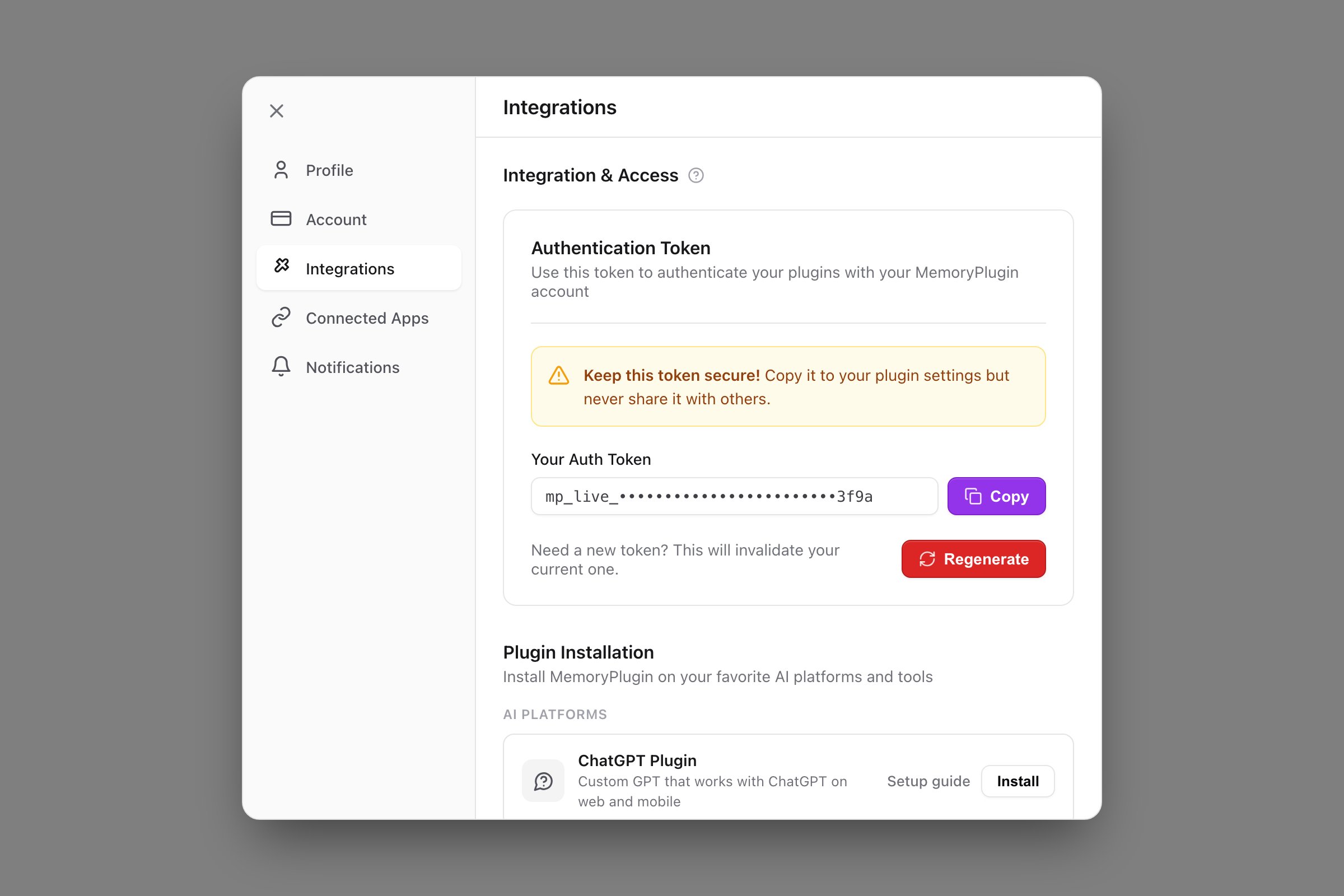
In the [MemoryPlugin dashboard](https://memoryplugin.com/dashboard), open the account menu and go to **Settings → Integrations**. Under **Authentication Token**, click **Copy** to copy **Your Auth Token**.
This token is like a password to your account. Paste it into your config, but never share it. If it leaks, click **Regenerate** on the same screen to invalidate the old one.
Add the MemoryPlugin entry to your client's MCP config file (see the example below) and paste your token in as `MEMORY_PLUGIN_TOKEN`.
Restart your client so it picks up the new server. The AI then calls the MemoryPlugin tools when they are relevant.
Account email independence: Your MemoryPlugin sign‑in email does not need to match the email you use on ChatGPT, Claude, TypingMind, or any other tool. Access and permissions are tied to your MemoryPlugin account (and API key when applicable), not third‑party logins.
For client-specific steps, see the [official MCP quickstart](https://modelcontextprotocol.io/quickstart/user) and the [@memoryplugin/mcp-server npm page](https://www.npmjs.com/package/@memoryplugin/mcp-server).
## Configuration example
Every MCP client has its own config format, but they follow the same shape. Here is an example for Claude Desktop:
```json theme={null}
{
"mcpServers": {
"memoryplugin": {
"command": "npx",
"args": ["@memoryplugin/mcp-server"],
"env": {
"MEMORY_PLUGIN_TOKEN": "your-auth-token-here"
}
}
}
}
```
This runs `npx @memoryplugin/mcp-server` when the client needs it, which downloads and starts the server automatically. There is nothing to install ahead of time.
## Supported MCP clients
Anthropic's official CLI tool
AI-powered code editor
AI development environment
AI assistant for developers
AI assistant application
AI coding assistant
GitHub Copilot Chat in VS Code
Any client that speaks MCP works
## Available tools
The server exposes 12 tools, grouped by feature. Each tool ships with a description that tells the AI when and how to use it, so most of the time the client calls the right one on its own.
### Memory tools
| Tool | Description |
| -------------------------- | ------------------------------------------------------------------------------------------------------------------------- |
| `store_memory` | Save information for future recall. The AI is prompted to proactively save preferences, decisions, and important context. |
| `get_memories_and_buckets` | Retrieve saved memories, optionally filtered by bucket. Also returns the available buckets. |
| `search_memories` | Semantic search across memories, ranked by relevance. |
| `list_buckets` | List your memory buckets. |
| `create_bucket` | Create a new bucket to organize memories. |
| `update_or_move_memories` | Edit a memory's text, move it to another bucket, or bulk-move up to 100 memories at once. |
### Smart Memory tools
For buckets with Smart Memory enabled:
| Tool | Description |
| ------------------------ | --------------------------------------------------------------------------------- |
| `list_bucket_categories` | Get the Smart Categories for a bucket, including summaries and topic information. |
| `list_category_memories` | Load every memory in a specific category. |
### Chat History tools
Search and pull from your imported and synced conversations:
| Tool | Description |
| -------------------------- | --------------------------------------------------------------------------------------------------------- |
| `recall_chat_history` | Search past conversations and get synthesized context back. Supports parallel queries for complex topics. |
| `get_conversation_summary` | Get one conversation's details: the full transcript for short chats, an AI summary for long ones. |
| `get_full_conversation` | Retrieve the complete transcript of a past conversation. |
### File tools
Query your uploaded documents:
| Tool | Description |
| ----------------------- | ----------------------------------------------------------------------------------------- |
| `search_uploaded_files` | Search documents in your file buckets. Returns relevant passages with file and page info. |
Chat History recall returns about 600 tokens of context by default, up to a hard cap of 2,000. That keeps recall useful without flooding the conversation.
## What you get through MCP
* **Memories** stored and recalled across conversations
* **Buckets** to keep separate contexts apart
* **Smart Memory** categories and summaries
* **Chat History** search across your imported conversations
* **File search** over your uploaded documents
* The same data across every tool you connect, because it all reads one account
## Troubleshooting
Confirm Node.js is installed and on your PATH. Run `node --version` in a terminal; you should see a version like `v20.10.0`.
Recopy the token from **Settings → Integrations** and make sure you pasted the whole string. If in doubt, click **Regenerate** and update your config with the new token.
1. Check the config file for typos.
2. Confirm the config is in the location your client expects.
3. Run `npx @memoryplugin/mcp-server` directly in a terminal to see if it starts.
Restart your client fully. Some clients only detect new servers on a clean restart.
## Next steps
The easier, no-install path: connect by URL
Organize your memories into separate contexts
AI-organized categories and summaries
Upload documents to query via MCP
 : author?.[0]?.toUpperCase()}