> ## Documentation Index
> Fetch the complete documentation index at: https://help.memoryplugin.com/llms.txt
> Use this file to discover all available pages before exploring further.
# Remote MCP server (hosted)
> Connect any MCP client to MemoryPlugin's hosted server over HTTP or SSE, with OAuth sign-in and no install
export const ArticleInfo = ({author, lastUpdated}) => {
const authorAvatar = author === 'Alara' ? '/images/author-alara.jpg' : author === 'asad' ? '/images/author-alara.jpg' : null;
const formatDate = dateInput => {
if (!dateInput) return '';
if (typeof dateInput === 'string' && !dateInput.match(/^\d{4}-\d{2}-\d{2}/)) {
return dateInput;
}
try {
const date = new Date(dateInput);
const now = new Date();
const diffTime = Math.abs(now - date);
const diffDays = Math.floor(diffTime / (1000 * 60 * 60 * 24));
if (diffDays === 0) return 'today';
if (diffDays === 1) return '1 day ago';
if (diffDays < 7) return `${diffDays} days ago`;
if (diffDays < 30) return `${Math.ceil(diffDays / 7)} week${Math.ceil(diffDays / 7) > 1 ? 's' : ''} ago`;
if (diffDays < 365) return `${Math.ceil(diffDays / 30)} month${Math.ceil(diffDays / 30) > 1 ? 's' : ''} ago`;
return `${Math.ceil(diffDays / 365)} year${Math.ceil(diffDays / 365) > 1 ? 's' : ''} ago`;
} catch {
return dateInput;
}
};
return
{authorAvatar ? : author?.[0]?.toUpperCase()}
Written by {author}
Last updated {formatDate(lastUpdated)}
;
};
Connect an MCP client to MemoryPlugin without running anything on your machine. The hosted Remote MCP server accepts connections over HTTPS, handles sign-in with OAuth 2.0 (PKCE), and supports Dynamic Client Registration (DCR) so most clients register themselves on the first connect.
This is the recommended way to use MemoryPlugin over MCP. Compared with the [local MCP server](/integrations/mcp-server), there is no Node.js to install and no token to paste into a config file: you connect by URL and approve access in your browser. Reach for the local server only when you specifically want the process on your own machine, or when your client cannot do the browser OAuth flow. The tools and data are identical.
Account email independence: Your MemoryPlugin sign‑in email does not need to match the email you use on ChatGPT, Claude, TypingMind, or any other tool. Access and permissions are tied to your MemoryPlugin account (and API key when applicable), not third‑party logins.
## Endpoints
Use whichever URL your client asks for:
**Base URL (with auto-discovery)**
```
https://www.memoryplugin.com
```
**HTTP (streamable)**
```
https://www.memoryplugin.com/api/mcp/mcp
```
**SSE (Server-Sent Events)**
```
https://www.memoryplugin.com/api/mcp/sse
```
Most clients want the full endpoint path. Some only need the base URL and will auto-discover the rest.
## Authentication
The Remote MCP server uses OAuth 2.0 with PKCE and supports Dynamic Client Registration. What this means for you:
* Clients that support DCR register themselves during the first connect. There is nothing to set up in advance.
* You do not hand out any long-lived secret. The client gets tokens after you approve access.
* Your client stores those tokens under its own security model, for example the OS keychain.
Do not paste raw API keys into third-party clients unless their own docs tell you to. Use the built-in OAuth flow when it is available.
### How the connect flow works
Configure your MCP client with one of the Remote MCP endpoints above.
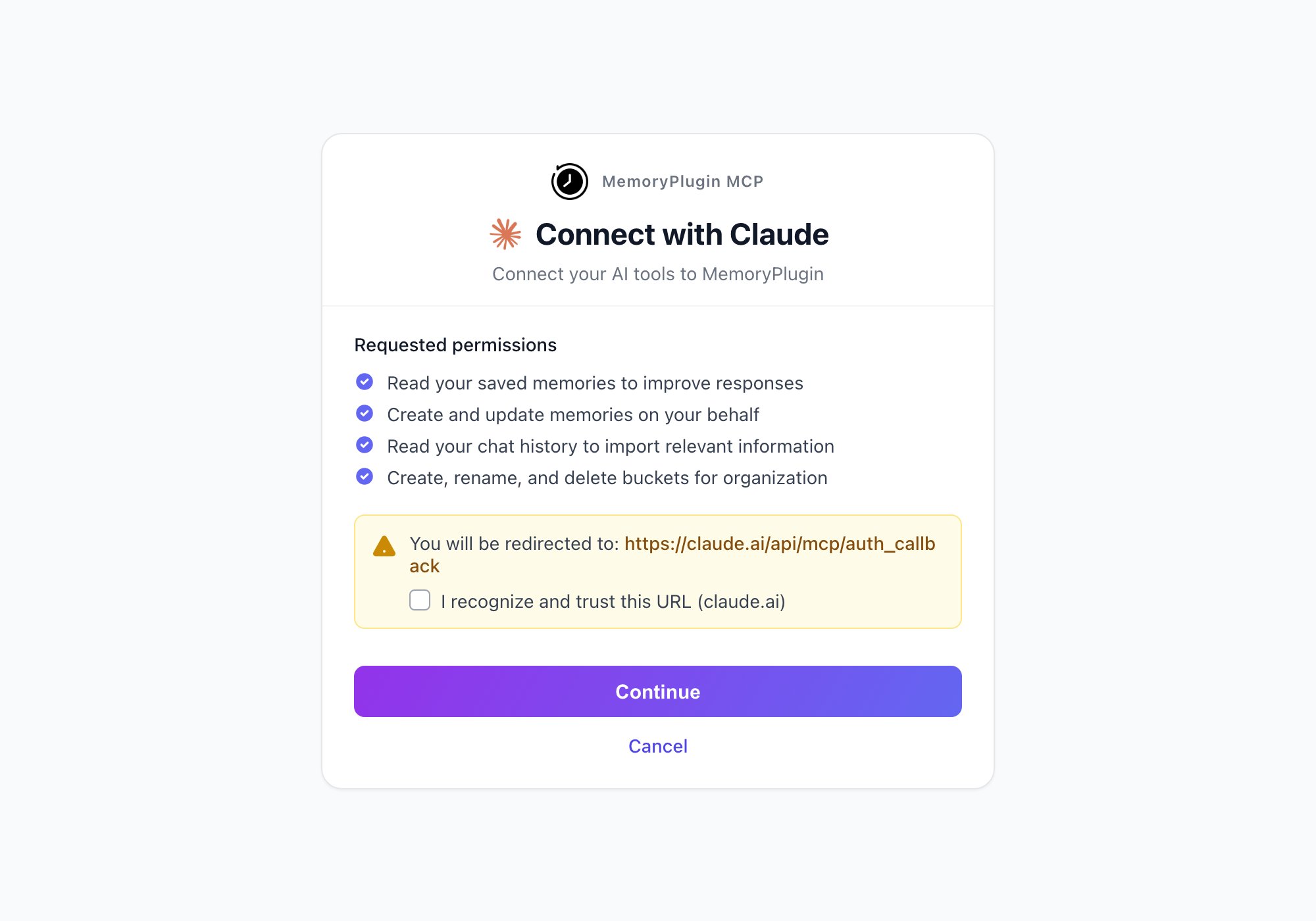
Start or refresh the client. It opens the MemoryPlugin sign-in screen in your browser.
Sign in and approve the connection. The client exchanges the code for tokens behind the scenes.
The client connects and lists the MemoryPlugin tools. You are done.
## Client configuration examples
Each client has its own config schema for remote servers. Use these as a starting point and check your client's docs for exact keys.
### Claude Desktop
Config file location:
* macOS: `~/Library/Application Support/Claude/claude_desktop_config.json`
* Windows: `%APPDATA%/Claude/claude_desktop_config.json`
* Linux: `~/.config/Claude/claude_desktop_config.json`
```json theme={null}
{
"mcpServers": {
"memoryplugin-remote": {
"type": "http",
"url": "https://www.memoryplugin.com/api/mcp/mcp"
}
}
}
```
Claude Desktop handles OAuth with Dynamic Client Registration on the first connection. No keys or tokens go in the config.
### VS Code / GitHub Copilot Chat
Project file: `.vscode/mcp.json`
```json theme={null}
{
"servers": {
"memoryplugin-remote": {
"type": "http",
"url": "https://www.memoryplugin.com/api/mcp/mcp"
}
}
}
```
VS Code supports both HTTP and SSE. It tries HTTP first and falls back to SSE if needed. OAuth with DCR is automatic.
### Cursor, Windsurf, and other clients
* Look for "Remote MCP", "HTTP transport", or "Add server" in your client's settings.
* Try these URLs in order:
1. `https://www.memoryplugin.com/api/mcp/mcp` (full HTTP endpoint)
2. `https://www.memoryplugin.com` (base URL with auto-discovery)
* Set the type to `"http"` if your client requires it.
* Turn on OAuth or DCR if offered. Most current clients do this automatically.
* If your client insists on static credentials, use the local server instead.
### Clients without native remote support
If your client cannot talk to a remote MCP server yet, run a local proxy like `mcp-remote`:
```json theme={null}
{
"mcpServers": {
"memoryplugin-remote": {
"command": "npx",
"args": [
"mcp-remote",
"https://www.memoryplugin.com/api/mcp/sse"
]
}
}
}
```
This starts a local proxy that forwards to the remote server, so it looks like a local MCP server to your client.
## Capabilities
Once connected, the Remote MCP server exposes the same tools as the [local MCP server](/integrations/mcp-server#available-tools), plus a chat-history overview:
* **Memories** to store, retrieve, and search across buckets
* **Smart Memory** categories and summaries
* **Chat History** search and synthesized context from your imported conversations
* **File search** over your uploaded documents
* **Chat History Overview**, an AI-generated summary of your chat history that is shared with the AI automatically for richer context
See the [MCP Server](/integrations/mcp-server#available-tools) page for the full 12-tool list.
## Troubleshooting
Finish the OAuth flow in your default browser. If it keeps happening, sign out in your client and connect again.
Use the [local MCP server](/integrations/mcp-server), or check for a newer client version with HTTP/SSE transport.
Quit the app fully, then reopen it. On macOS, confirm your edits in `~/Library/Application Support/Claude/claude_desktop_config.json`.
Allow outbound HTTPS to `www.memoryplugin.com`. Some corporate proxies block SSE, so prefer the HTTP streamable endpoint if your client supports it.
Some clients require a pre-registered OAuth client instead of DCR. Check your client docs; if that is not supported, fall back to the local server.
Use the `mcp-remote` proxy shown above. It creates a local server that forwards to the remote endpoint, which works with any MCP client.
## Related links
Run MemoryPlugin as a local MCP process via Node.js
REST endpoints, schemas, and examples
Features and pricing
Manage your account and settings
 : author?.[0]?.toUpperCase()}