> ## Documentation Index
> Fetch the complete documentation index at: https://help.memoryplugin.com/llms.txt
> Use this file to discover all available pages before exploring further.
# TypingMind Plugin
> Use MemoryPlugin with TypingMind for enhanced AI conversations with memory, chat history, and file search
export const ArticleInfo = ({author, lastUpdated}) => {
const authorAvatar = author === 'Alara' ? '/images/author-alara.jpg' : author === 'asad' ? '/images/author-alara.jpg' : null;
const formatDate = dateInput => {
if (!dateInput) return '';
if (typeof dateInput === 'string' && !dateInput.match(/^\d{4}-\d{2}-\d{2}/)) {
return dateInput;
}
try {
const date = new Date(dateInput);
const now = new Date();
const diffTime = Math.abs(now - date);
const diffDays = Math.floor(diffTime / (1000 * 60 * 60 * 24));
if (diffDays === 0) return 'today';
if (diffDays === 1) return '1 day ago';
if (diffDays < 7) return `${diffDays} days ago`;
if (diffDays < 30) return `${Math.ceil(diffDays / 7)} week${Math.ceil(diffDays / 7) > 1 ? 's' : ''} ago`;
if (diffDays < 365) return `${Math.ceil(diffDays / 30)} month${Math.ceil(diffDays / 30) > 1 ? 's' : ''} ago`;
return `${Math.ceil(diffDays / 365)} year${Math.ceil(diffDays / 365) > 1 ? 's' : ''} ago`;
} catch {
return dateInput;
}
};
return
{authorAvatar ? : author?.[0]?.toUpperCase()}
Written by {author}
Last updated {formatDate(lastUpdated)}
;
};
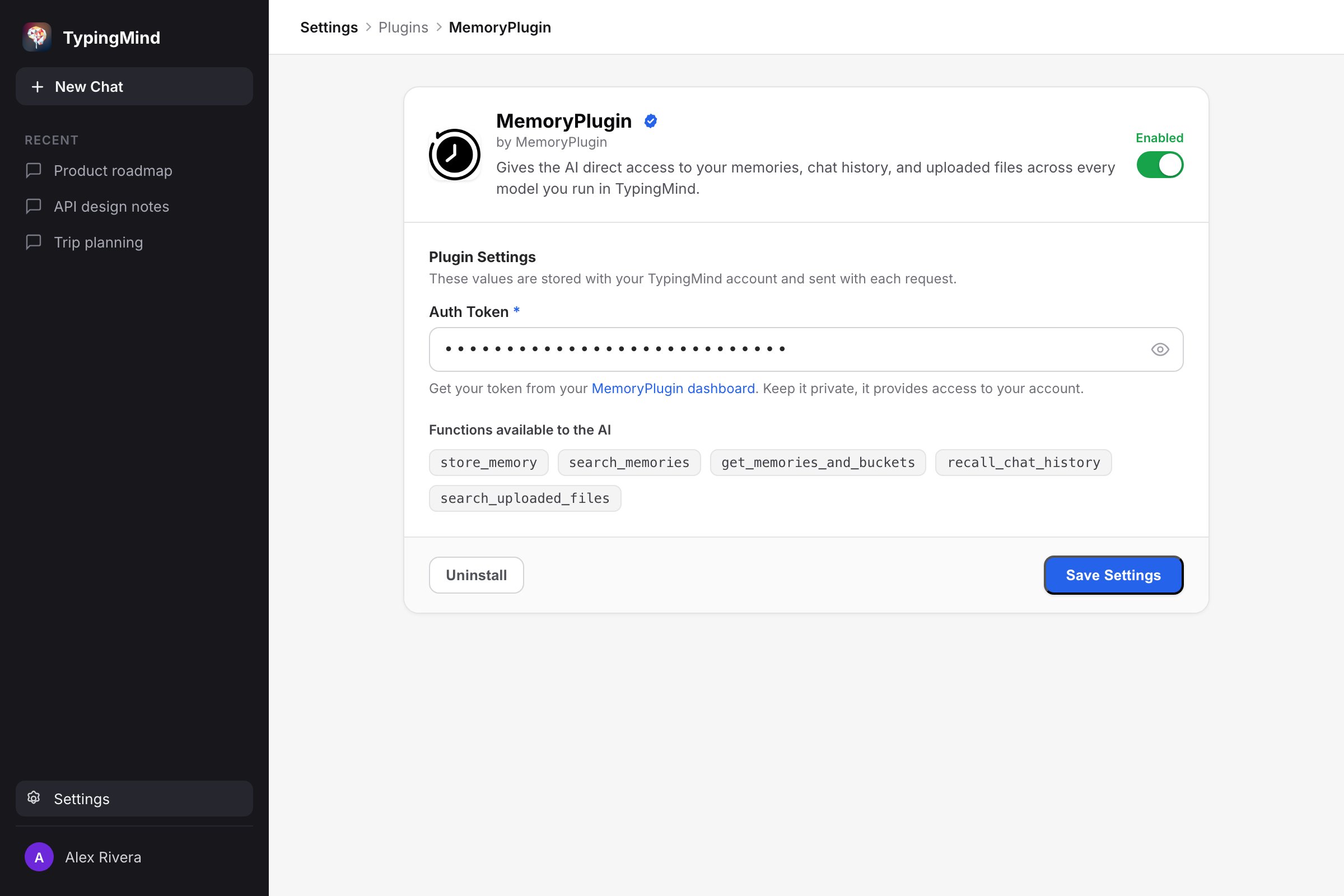
MemoryPlugin has a native TypingMind plugin. It gives the AI direct access to your memories, chat history, and uploaded files, and it works across every AI model you run in TypingMind.
Account email independence: Your MemoryPlugin sign‑in email does not need to match the email you use on ChatGPT, Claude, TypingMind, or any other tool. Access and permissions are tied to your MemoryPlugin account (and API key when applicable), not third‑party logins.
## What is TypingMind?
TypingMind is an alternative interface for AI models that offers:
* Support for multiple AI providers (OpenAI, Claude, Gemini, etc.)
* Enhanced conversation management
* Custom prompts and templates
* Plugin ecosystem for extended functionality
* Team collaboration features
## Installation
Installing MemoryPlugin for TypingMind is a simple one-click process:
Visit your [MemoryPlugin Dashboard](https://memoryplugin.com/dashboard) and find the TypingMind plugin installation link
Click the TypingMind plugin link from your dashboard - this will automatically install the plugin in TypingMind
Enter your MemoryPlugin Auth Token in the plugin settings (available from your dashboard)
The plugin is now ready to use across all your TypingMind conversations
The plugin installation link in your MemoryPlugin Dashboard ensures you always get the latest version with all improvements and fixes.
Keep your Auth Token confidential - it provides access to your MemoryPlugin account.
## Available Functions
The TypingMind plugin provides several functions that AI can use during conversations:
### Memory Functions
| Function | Description |
| -------------------------- | ---------------------------------------------------------------------------- |
| `store_memory` | Save information for future recall. AI proactively stores important details. |
| `search_memories` | Search your saved memories using semantic search. |
| `get_memories_and_buckets` | Load memories (all, or from a specific bucket) along with your bucket list. |
| `list_buckets` | List your memory buckets. |
| `create_bucket` | Create a new memory bucket. |
| `list_bucket_categories` | List the Smart Memory categories in a bucket. |
| `list_category_memories` | Load the memories within a Smart Memory category. |
### Chat History Functions
Search and recall your imported AI conversations:
| Function | Description |
| -------------------------- | ----------------------------------------------------------------------------- |
| `recall_chat_history` | Search past conversations and get synthesized context with source references. |
| `get_conversation_summary` | Get details of a specific conversation from search results. |
| `get_full_conversation` | Retrieve the complete transcript of a past conversation. |
### File Functions
Query your uploaded documents:
| Function | Description |
| ----------------------- | ------------------------------------------------------------------------------------------------------ |
| `search_uploaded_files` | Search documents in your MemoryPlugin file buckets. Returns relevant passages with file and page info. |
## Features
When integrated with TypingMind, MemoryPlugin provides:
AI stores and recalls information across all your conversations
Find context from past AI conversations across ChatGPT, Claude, and more
Ask questions about your uploaded PDFs and documents
Share memories between different AI models in TypingMind
## How to Use
### Basic Memory Usage
1. **Start a conversation** in TypingMind with MemoryPlugin enabled
2. **The AI stores** important information as you chat, using the plugin functions
3. **Ask it to remember** something explicitly when you want to be sure it saves
4. **Name a bucket** when you want to organize memories by context
### Using Chat History
Ask the AI about your past conversations:
```text theme={null}
"What did I discuss about the API project last week?"
"Search my chat history for decisions about the database migration"
"Find conversations where I talked about budget planning"
```
The AI will search your imported conversations and provide synthesized answers with source references.
### Using File Search
Query your uploaded documents:
```text theme={null}
"Search my documents for information about the API rate limits"
"What do my uploaded files say about the onboarding process?"
"Find the section about authentication in my docs"
```
### Working with Buckets
```text theme={null}
"Load my work bucket" - AI loads memories from a specific bucket
"Remember this in my personal bucket: I prefer morning meetings" - AI stores in a specific bucket
"Search my project memories for deadlines" - AI searches within that context
```
## Plugin Behavior
### Automatic Features
* **Proactive Storage**: The AI detects and stores important information as you chat
* **Context Awareness**: It uses the conversation to decide what is worth remembering
* **Date Stamping**: Memories include a date so they stay in order
* **Error Handling**: The plugin shows a clear message if authentication fails
### User Controls
* **Explicit Memory**: Ask the AI directly to remember something
* **Bucket Selection**: Tell the AI which bucket to use
* **Search Queries**: Ask it to find specific information from your memories
## Best Practices
Use different buckets for work, personal, and project-specific memories
Clear, specific information gets stored and retrieved more effectively
Tell the AI directly when something is important enough to save
Periodically check your stored memories through the dashboard
## Troubleshooting
Ensure your Auth Token is correctly entered in the plugin settings and is valid
Check that the plugin is enabled and your internet connection is stable
Check that the bucket name you asked for matches one that exists in your dashboard.
Regenerate your Auth Token from the MemoryPlugin dashboard
Chat history search only covers conversations you have imported. Import an export from your dashboard, or sync with the browser extension, then try again. Chat History is a Pro feature.
## Next Steps
Learn how to organize your memories effectively
Upload documents to query in TypingMind
Set up chat history importing
Use MemoryPlugin with other AI platforms
 : author?.[0]?.toUpperCase()}
 Installing MemoryPlugin for TypingMind is a simple one-click process: