> ## Documentation Index
> Fetch the complete documentation index at: https://help.memoryplugin.com/llms.txt
> Use this file to discover all available pages before exploring further.

# NotebookLM

> Use MemoryPlugin with NotebookLM

export const ArticleInfo = ({author, lastUpdated}) => {
  const authorAvatar = author === 'Alara' ? '/images/author-alara.jpg' : author === 'asad' ? '/images/author-alara.jpg' : null;
  const formatDate = dateInput => {
    if (!dateInput) return '';
    if (typeof dateInput === 'string' && !dateInput.match(/^\d{4}-\d{2}-\d{2}/)) {
      return dateInput;
    }
    try {
      const date = new Date(dateInput);
      const now = new Date();
      const diffTime = Math.abs(now - date);
      const diffDays = Math.floor(diffTime / (1000 * 60 * 60 * 24));
      if (diffDays === 0) return 'today';
      if (diffDays === 1) return '1 day ago';
      if (diffDays < 7) return `${diffDays} days ago`;
      if (diffDays < 30) return `${Math.ceil(diffDays / 7)} week${Math.ceil(diffDays / 7) > 1 ? 's' : ''} ago`;
      if (diffDays < 365) return `${Math.ceil(diffDays / 30)} month${Math.ceil(diffDays / 30) > 1 ? 's' : ''} ago`;
      return `${Math.ceil(diffDays / 365)} year${Math.ceil(diffDays / 365) > 1 ? 's' : ''} ago`;
    } catch {
      return dateInput;
    }
  };
  return <div style={{
    display: "flex",
    alignItems: "center",
    gap: "8px",
    marginBottom: "16px",
    padding: "8px 12px",
    backgroundColor: "var(--ifm-color-emphasis-100)",
    borderRadius: "6px",
    fontSize: "14px",
    color: "var(--ifm-color-content-secondary)",
    border: "1px solid var(--ifm-color-emphasis-200)",
    opacity: "0.8"
  }}>
      <div style={{
    width: "40px",
    height: "40px",
    borderRadius: "50%",
    background: authorAvatar || "linear-gradient(45deg, #4F46E5, #7C3AED)",
    display: "flex",
    alignItems: "center",
    justifyContent: "center",
    color: "white",
    fontWeight: "bold",
    fontSize: "18px"
  }}>
        {authorAvatar ? <img src={authorAvatar} alt={author} style={{
    width: "100%",
    height: "100%",
    borderRadius: "50%"
  }} /> : author?.[0]?.toUpperCase()}
      </div>
      <div>
        <div style={{
    fontWeight: "400",
    fontSize: "14px"
  }}>Written by <span style={{
    fontWeight: "600"
  }}>{author}</span></div>
        <div style={{
    fontSize: "14px"
  }}>Last updated <span style={{
    fontWeight: "600"
  }}>{formatDate(lastUpdated)}</span></div>
      </div>
    </div>;
};

<ArticleInfo author="Alara" lastUpdated="2026-07-04" />

<img src="https://mintcdn.com/memoryplugin/0D7zqA9Ak-TR54pG/images/logos/notebooklm.svg?fit=max&auto=format&n=0D7zqA9Ak-TR54pG&q=85&s=7d232b8aabfe251a5a53db69f0427e42" alt="NotebookLM" width="56" height="56" noZoom style={{ background: "#fff", borderRadius: "14px", padding: "10px", boxShadow: "0 1px 2px rgba(0,0,0,0.12)", boxSizing: "border-box" }} data-path="images/logos/notebooklm.svg" />

NotebookLM is Google's source-grounded research assistant at [notebooklm.google.com](https://notebooklm.google.com). MemoryPlugin adds long-term memory that carries across your other AI tools, through the browser extension.

## Set up
<Steps>
  <Step title="Install the extension">
    Install the [browser extension](/integrations/browser-extension) and sign in to your MemoryPlugin account.
  </Step>

  <Step title="Open a notebook">
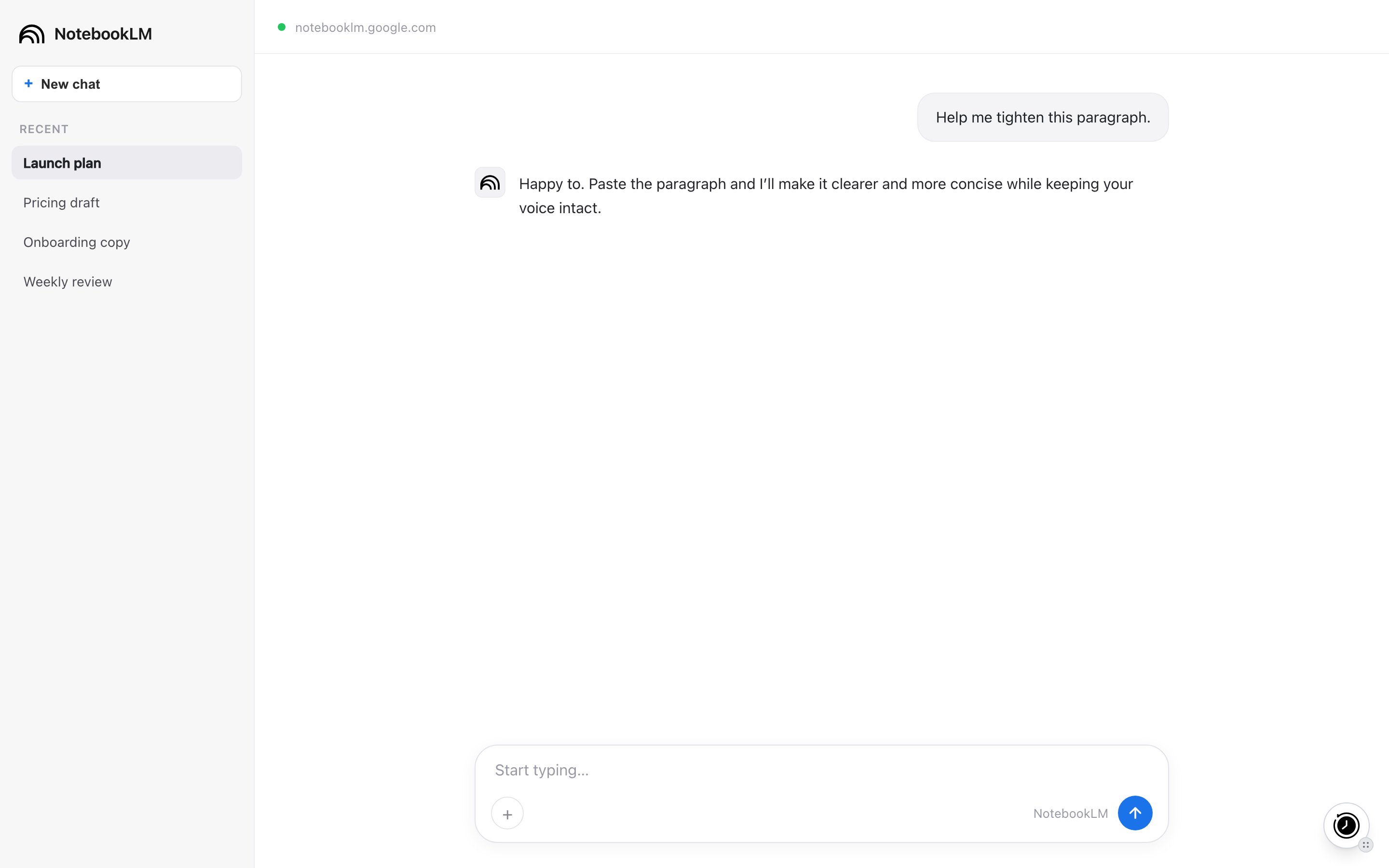
    Go to [notebooklm.google.com](https://notebooklm.google.com) and open a notebook. A floating MemoryPlugin button appears on the page.
  </Step>

  <Step title="Activate for the chat">
    Click the button to inject memories from your selected bucket into the query box, then ask your question. This also tells the model how to save new memories as you go.
  </Step>
</Steps>

<Frame caption="The MemoryPlugin floating button on notebooklm.google.com. Click it to inject memories or open the panel.">
  <img src="https://mintcdn.com/memoryplugin/9o9T_0PzzkacB3w3/images/screenshots/platforms/notebooklm.png?fit=max&auto=format&n=9o9T_0PzzkacB3w3&q=85&s=59008b28d4ee3eaee0c0dd0956a139bf" alt="MemoryPlugin floating button on NotebookLM (notebooklm.google.com)" width="2880" height="1800" data-path="images/screenshots/platforms/notebooklm.png" />
</Frame>

## What works here

* **Memory recall and save.** Memories are injected into the query box alongside your sources. NotebookLM still answers from the documents you added to the notebook, but your prompts arrive pre-loaded with the personal context it would otherwise miss.
* **Extract memory pill.** Select text in a chat and click **Extract memory** to save that snippet.

## Limitations

* No chat history sync here. The extension captures new conversations only on ChatGPT, Claude, Gemini, Grok, DeepSeek, and TypingMind. You can still recall chat history imported from those tools while working in NotebookLM.

## Next steps

<CardGroup cols={2}>
  <Card title="Browser Extension" icon="browser" href="/integrations/browser-extension">
    Full setup and features
  </Card>

  <Card title="Support" icon="envelope" href="mailto:support@memoryplugin.com">
    Questions about this integration
  </Card>
</CardGroup>
