

File buckets are still under development. Today you can upload and search files through the dashboard only (the Ask tool, plus the MCP and TypingMind search tools). They are not yet wired into the browser extension or auto-injected into your chats.
Memory buckets vs file buckets
A memory bucket stores short text memories you write or import. A file bucket stores whole documents that get processed for search. Both live in the same bucket selector, grouped under Memories and Files.Persistent
Files stay available across conversations and tools
Semantic search
Matches passages by meaning, not just keywords
Cited answers
Results name the file and page they came from
Queryable
Search from Ask, the MCP server, or the TypingMind plugin
Supported file types
The upload area states the limit plainly: PDF, Word, Markdown, Text (max 10MB each). Anything else is rejected with “Unsupported file type”.
Scanned or image-only PDFs are not supported. The PDF has to contain selectable text, because extraction reads the text layer, not the image.
Create a file bucket
1
Open the bucket selector
Click the bucket dropdown at the top of the sidebar.
2
Choose New File Bucket
Click New File Bucket. The Create New Bucket dialog opens with Bucket Type set to Files.
3
Name it
Type a name under Bucket Name (for example, “Research Papers”), then click Create Bucket.
Upload files
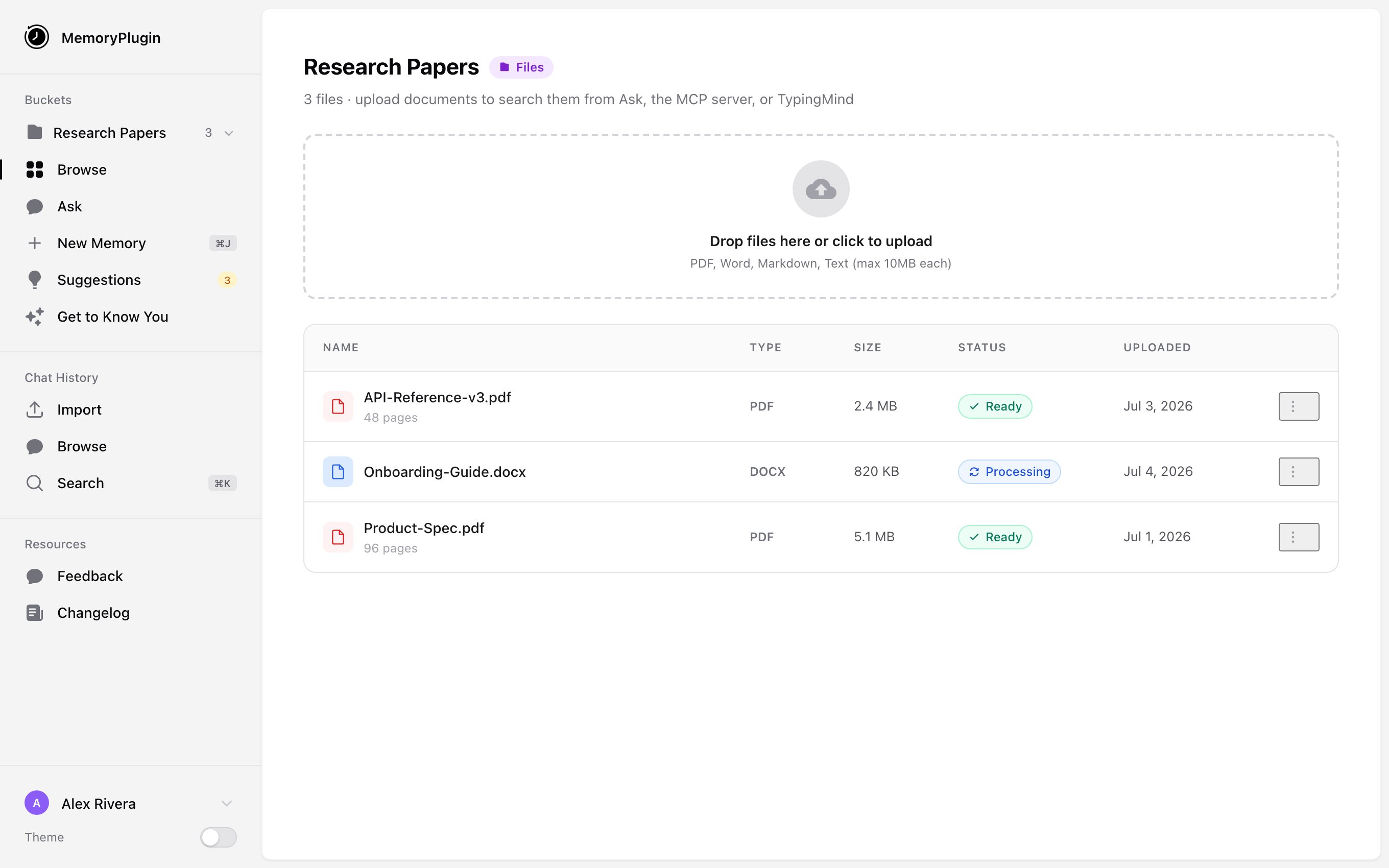
A file bucket with the upload dropzone and files in mixed states. A file is searchable once its status reads Ready.
1
Select the file bucket
Pick your file bucket in the sidebar so its contents show.
2
Add files
In the dropzone (Drop files here or click to upload), drag files in or click to browse. You can add several at once; they upload one after another.
3
Wait for processing
Each file moves through Processing to Ready. A file that fails extraction shows Failed, and you can retry it. You can only search a file once it reads Ready.
Query your files
Once files are Ready, ask questions about them from any of these: Ask tool. Open Ask, switch to Files mode, and optionally scope to one file bucket. Answers cite the file name and page. MCP. Call thesearch_uploaded_files tool:
search_uploaded_files function searches your documents inside a TypingMind chat. See TypingMind plugin.
Use cases
- Reference docs. Upload API references or style guides and query them without leaving your AI chat.
- Research. Store papers and reports, then ask questions that pull across several of them.
- Project context. Keep specs, notes, and requirements searchable for every related conversation.
Best practices
One bucket per topic
One bucket per topic
Separate buckets for separate projects let you scope a search to just the relevant documents.
Name files clearly
Name files clearly
File names appear in results. A clear name tells you at a glance which source an answer came from.
Keep files focused
Keep files focused
A tight, single-topic document usually retrieves better than one huge file that mixes everything together.
Wait for Ready
Wait for Ready
A file is not searchable until its status reads Ready. Large files take longer to get there.
Limits
- File size: 10 MB per file.
- Processing: files are queued and handled in order. Larger files take longer to become searchable.
Next steps
Ask
Query your files in Files mode
Memory Buckets
Store text memories alongside your files