

Roles: who can do what
When you invite someone, you pick one of three roles. These map to what they can do with the memories in the bucket.
A few details worth knowing:
- Contributor is the default when you send an invite. It is the “add but don’t touch anyone else’s” role.
- A Contributor can only edit or delete memories they authored themselves. Memories the owner added, or memories with no recorded author, stay out of their reach.
- An Editor can rewrite or remove any memory in the bucket, including the owner’s.
- Only the owner can rename the bucket, delete it, manage who has access, or re-run Smart Memory categorization. Sharing hands out access to the memories, not control of the bucket.
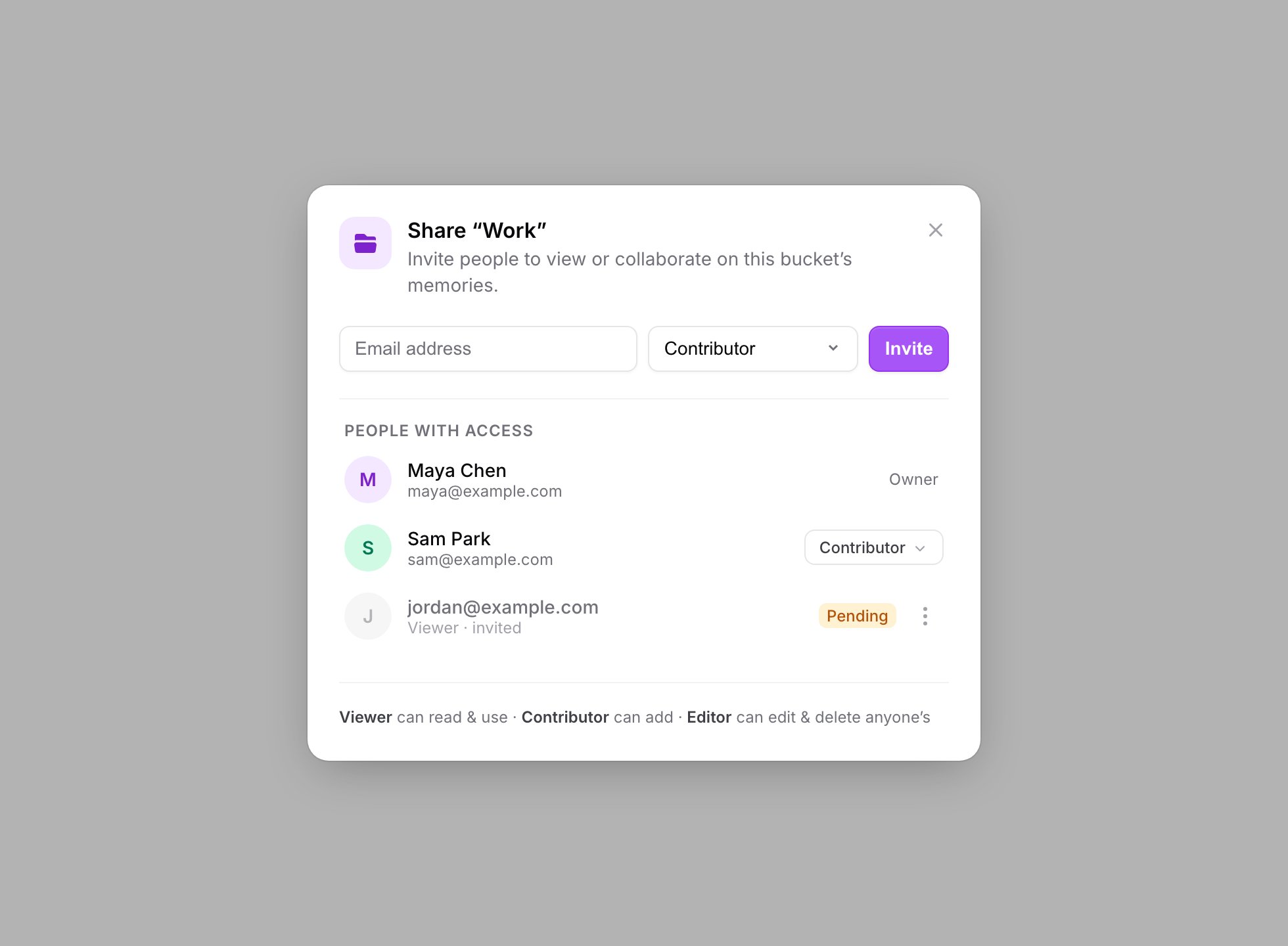
The Share modal: invite by email, pick a role, and see everyone with access. The footer legend spells out each role: Viewer, Contributor, Editor.
Inviting someone
1
Open the share action
In the bucket selector, find the bucket you want to share and choose Share bucket. This opens Share "".
2
Enter their email and pick a role
Type the person’s email address, choose Viewer, Contributor, or Editor, and click Invite. You will see an Invite sent confirmation.
3
They accept
The invited person sees a Pending invites card on their dashboard home: ” invited you to ” with the role. They click Accept (or Decline). On accept, the bucket shows up under Shared with me in their bucket selector.
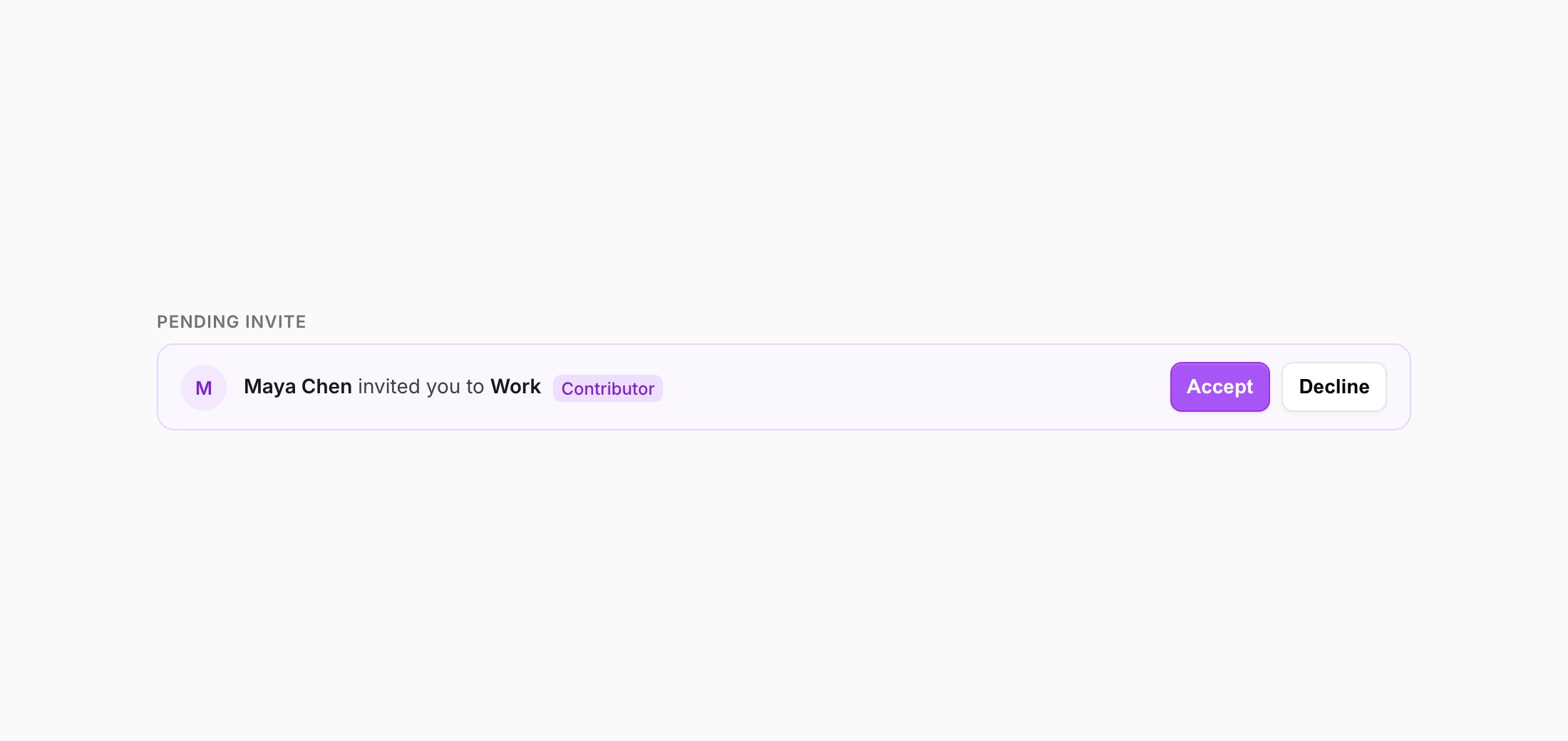
The invitee sees a Pending invite card on their dashboard home, with Accept and Decline.
What the General bucket can’t do
The default General bucket is not shareable. If you try, MemoryPlugin tells you plainly: “The General bucket can’t be shared.” General is the catch-all every account starts with, so it stays private to you. To share memories, put them in a bucket you created. See Memory Buckets for how buckets work. Two other limits, so you are not surprised:- Only memory buckets can be shared. File buckets are not shareable.
- Image memories aren’t supported in shared buckets yet. You can add text memories, but the image upload option is turned off inside a shared bucket. See Image Memories.
Attribution: who added what
Once more than one person is adding to a bucket, it helps to know where a memory came from. In a shared bucket each memory shows who added it:- added by You for your own
- added by for the owner’s
- added by a collaborator for anyone else’s
Moving a memory into a shared bucket
Moving a memory into a bucket that is shared with you is a bigger deal than moving it between your own private buckets, because it becomes visible to everyone with access. So MemoryPlugin asks first. When you move a memory into a shared bucket, a Move to a shared bucket? dialog appears: """ is shared with you by . Moving this memory here makes it visible to everyone with access to this bucket.” Confirm with Move here, or Cancel.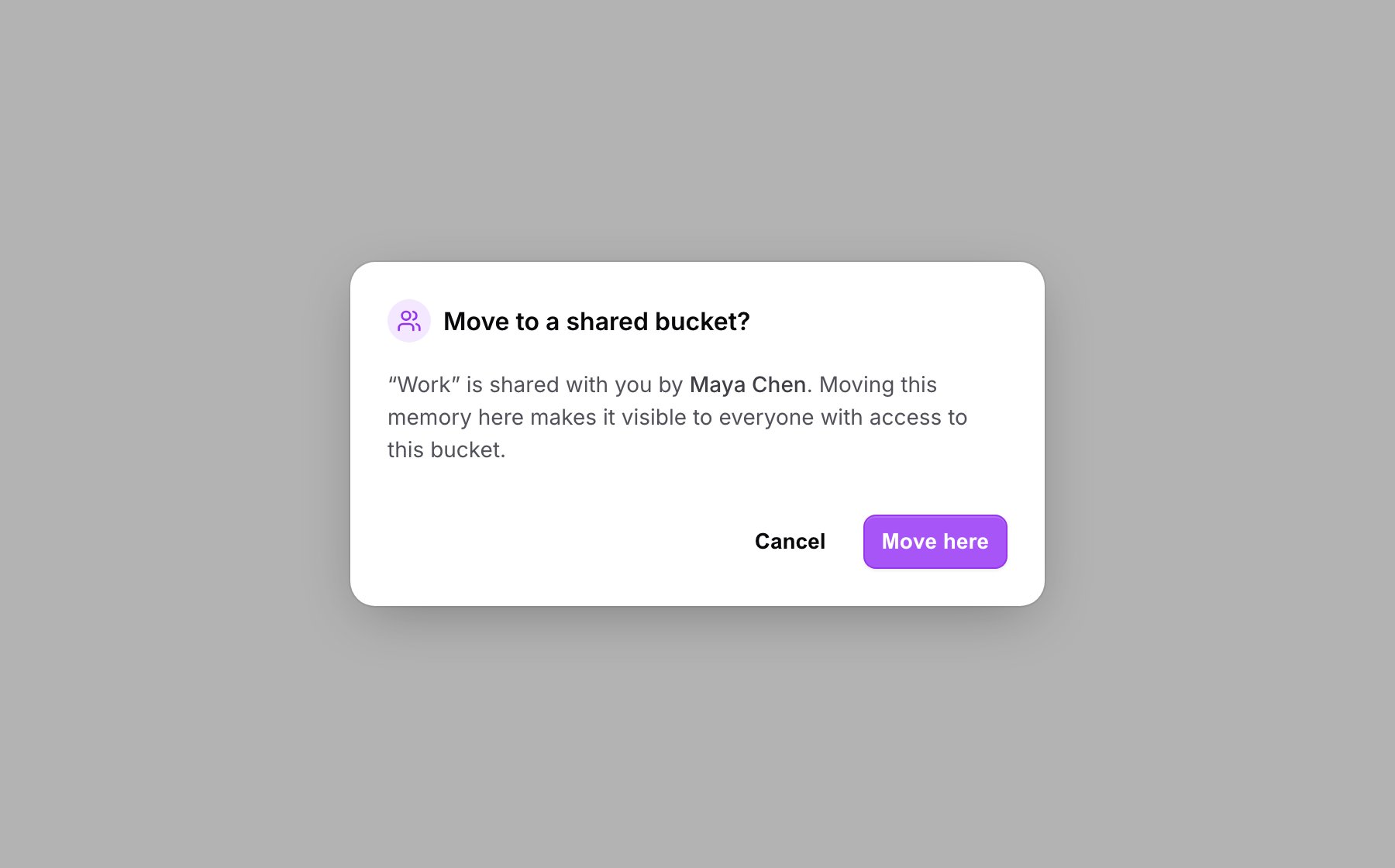
Moving a memory into a shared bucket asks for confirmation first, since it becomes visible to everyone with access.
If you are a Viewer
A Viewer sees a banner at the top of the bucket: “View-only. You can use these memories in your AI, but can’t add, edit, or delete here.” You can still recall those memories in your own AI everywhere MemoryPlugin works. You just can’t change the shared collection. If you need to contribute, ask the owner for a higher role.Next steps
Memory Buckets
Create the buckets you want to share and organize memories into them
Bulk Operations
Select and move memories between buckets, including shared ones