

~/.claude, Codex to ~/.codex, Cursor to ~/.cursor, and that’s where they stay: invisible to every other AI you use, and to you, once the terminal scrolls past. The MemoryPlugin desktop app fixes that. It watches those folders, syncs the conversations you choose into your MemoryPlugin chat history, and gives you a global search over everything you’ve ever discussed with any AI, one keyboard shortcut away.
The app is called MemoryPlugin on your Mac; the installer you download is labeled MemoryPlugin Sync. Same app.
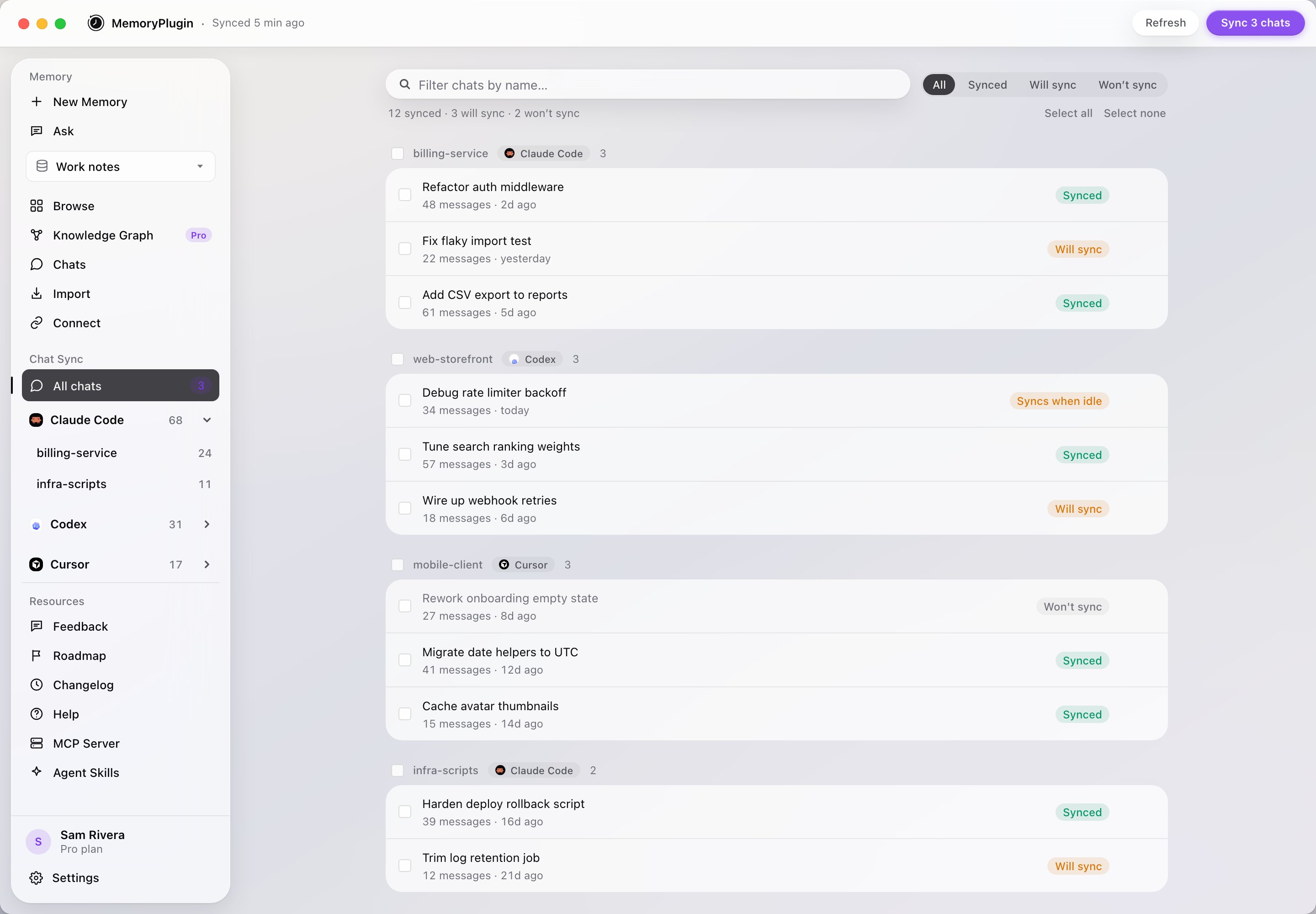
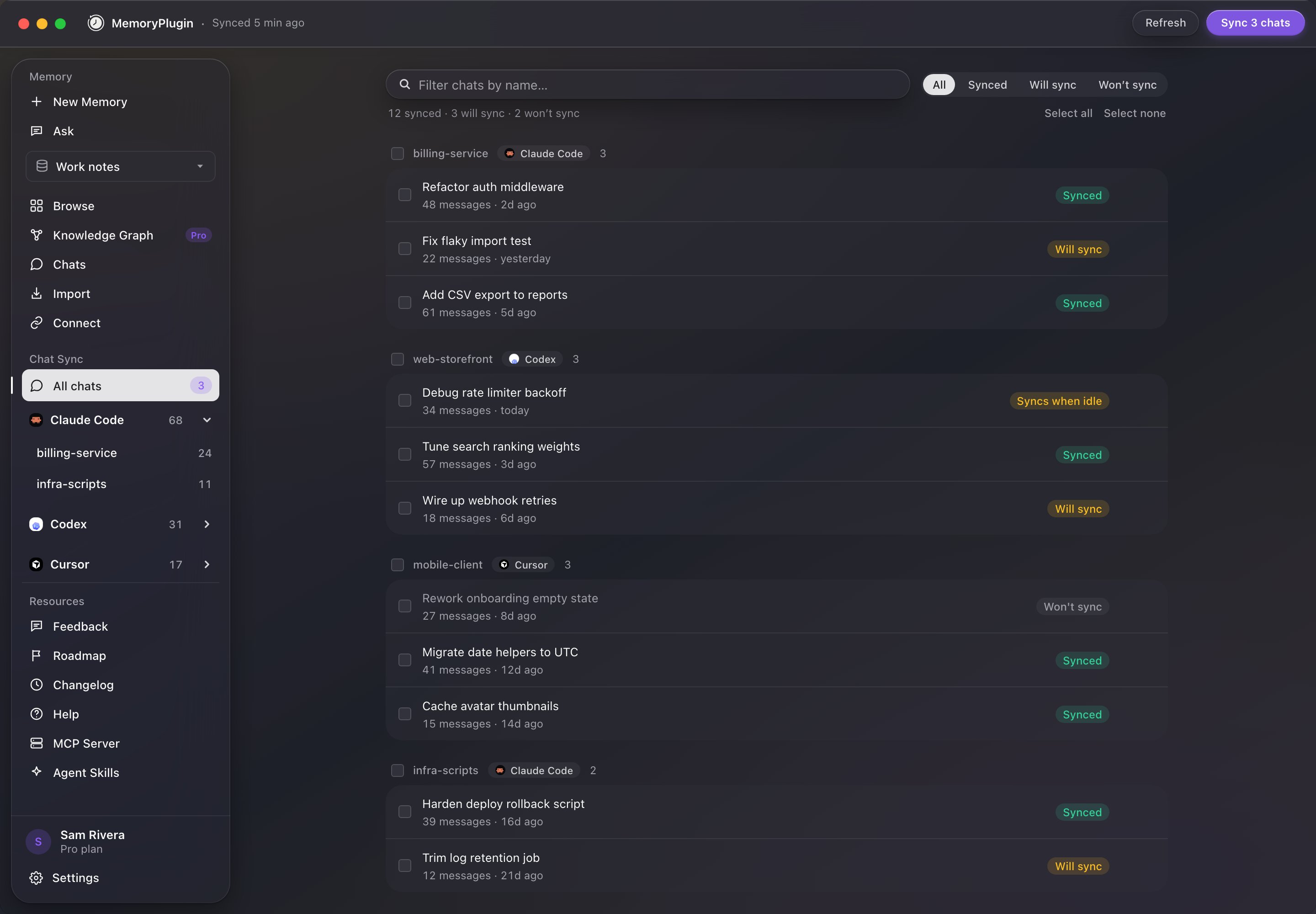
The Chat Sync view: your coding tools and projects on the left, per-chat sync status on the right.
What it syncs
Each synced chat carries its project or repo name, so a conversation about your API refactor stays attached to that repo. In the dashboard’s chat history you’ll see the project on every coding chat, and a Project filter appears once you have coding chats to filter.
The app is also selective on your behalf: subagent transcripts (the automated helper sessions Claude Code and Codex spawn internally) are skipped, and system noise like “session continued” markers never syncs.
What leaves your Mac
Only the conversation itself. By default, Focused sync uploads your prompts and each turn’s final answer; the agent’s play-by-play stays local. And regardless of that setting, tool output, file contents, terminal commands, and thinking never leave your machine. The app has read-only access to the three chat folders above and nothing else. Nothing uploads until you’ve reviewed the list and started your first sync. Every project and chat has a checkbox.Set up
1
Download and install
Grab the DMG from memoryplugin.com/download and drag it into Applications.
2
Sign in
Click Sign in with MemoryPlugin. The app opens your browser, you approve it, and you’re done: no API keys to copy. (If you prefer a token, Use an API token instead is under Advanced.) Credentials are stored in the macOS Keychain.
3
Choose what syncs
The app scans your local chats and shows everything it found. Untick anything you want to keep local, then start your first sync. Auto-sync only begins after this first review.
Staying in sync
After the first sync, the app watches your chat folders and syncs finished conversations in the background. A chat you’re actively working in waits until it has been quiet for 15 minutes (you’ll see a Syncs when idle badge), so half-finished sessions don’t upload mid-thought. Sync Now, in the title bar or the menu bar icon, skips the wait and syncs everything immediately. The menu bar icon shows sync status at a glance and offers Sync Now, Pause Auto-Sync, and Check for Updates. Per chat, the ⋯ menu gives you Don’t sync this chat, Pin chat, and Remove from MemoryPlugin, which deletes the chat from your MemoryPlugin history and stops it from syncing again. The local file stays on your Mac. Exclusions you set in the web app are mirrored in the desktop app, and vice versa.Search every chat with ⌘⇧K
Press ⌘⇧K from any app on your Mac and a search window appears over whatever you’re doing. It searches your entire synced chat history, not just coding chats: ChatGPT, Claude, Gemini, Grok, DeepSeek, TypingMind, Claude Code, Codex, and Cursor conversations all come back in one ranked list, grouped by conversation with match counts. Filter by tool, sort by best match or date, and open a result in MemoryPlugin or on the platform it came from. The shortcut is configurable in Settings, and a Recency boost slider lets you decide how much newer chats should outrank older ones.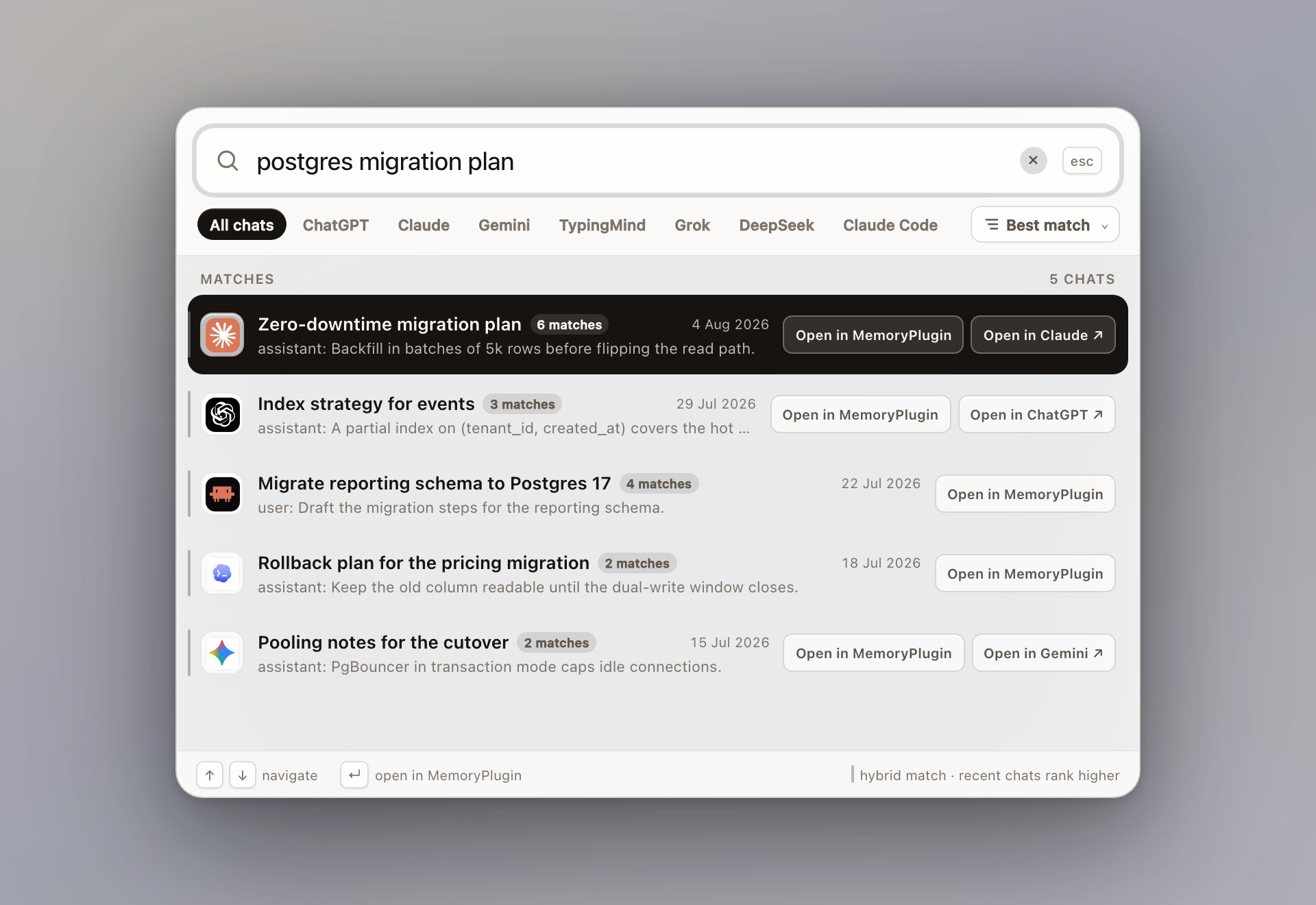
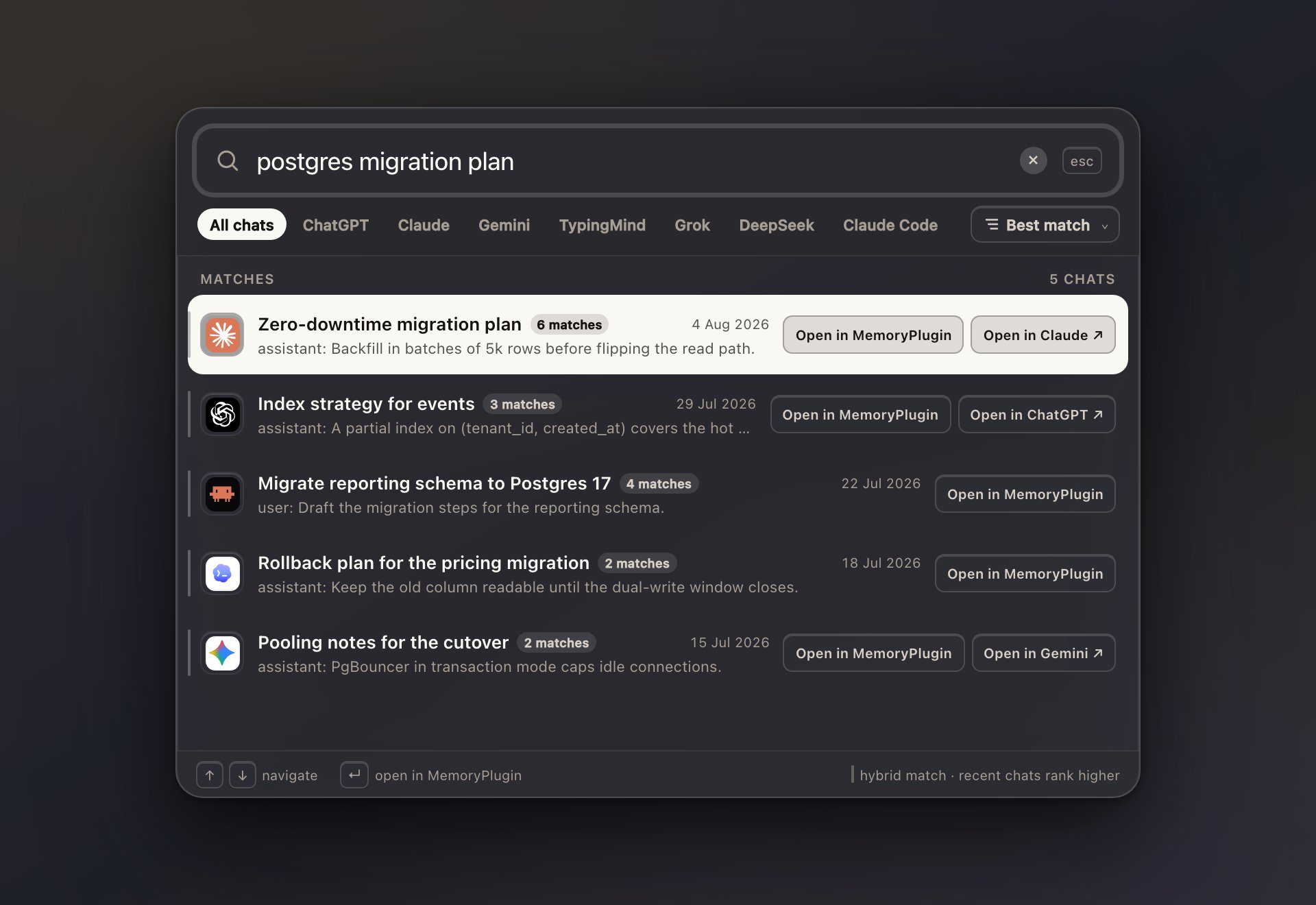
Global quick search: one shortcut, every AI conversation you've synced.
The whole dashboard, in the app
The sidebar isn’t just sync. The Memory section embeds the full MemoryPlugin dashboard: add memories, use Ask, browse buckets, open your chat history, manage imports, and check Connect, all without opening a browser. Chat search results open in the same full conversation reader you get on the web, conversation map included. The app follows your Mac’s light or dark appearance automatically.Updates
The app checks for updates about once a day and installs them only when you say so. You can check manually from the MemoryPlugin menu or the menu bar icon.Requirements
- A Mac with Apple Silicon or Intel, macOS 12 or later. Windows is on the way.
- A MemoryPlugin account. Syncing needs Pro; browsing local chats is free.
Chat History
What happens to your chats after they sync
Using your chat history
Search, recall, and Ask over synced conversations
Agent skills
Give Claude Code and Codex live access to your memory
Browser extension
Sync your browser-based AI chats the same way